


Add page numbers
Every page has a number
Drop a PDF, pick where the number goes and how it reads, and check the page before you download. No account, and the file never leaves this tab.
Stays on this device. The file never leaves your browser. No account, nothing stored.
Say page 14 and everyone finds it
Numbered pages make a call, a markup, or a dispute bundle easy to follow. Set it once, check the preview, download.
Six spots to choose from.
Top or bottom, left, center, or right. The picker shows a little page, so you see where the number lands.
Page 1 of 12, or just 1.
Plain numbers, Page 1 of 12, or 1 / 12. The total counts the pages that get a number, so it stays right.
Skip the cover, start where you need.
Leave the cover blank, start at 19 for an annex that follows the main contract, or number only pages 2 to 12.
Check before you download.
The preview shows the selected page with its number, in the size and the spot you picked.
Upright on every page.
Turned and landscape pages get the number at the edge the reader sees, the right way up, not sideways.
Nothing is uploaded.
The file stays in this browser tab. We never see the contract. There is no account and nothing to store.
When pages need a number
Exhibit packs, board papers, and anything that gets discussed page by page.
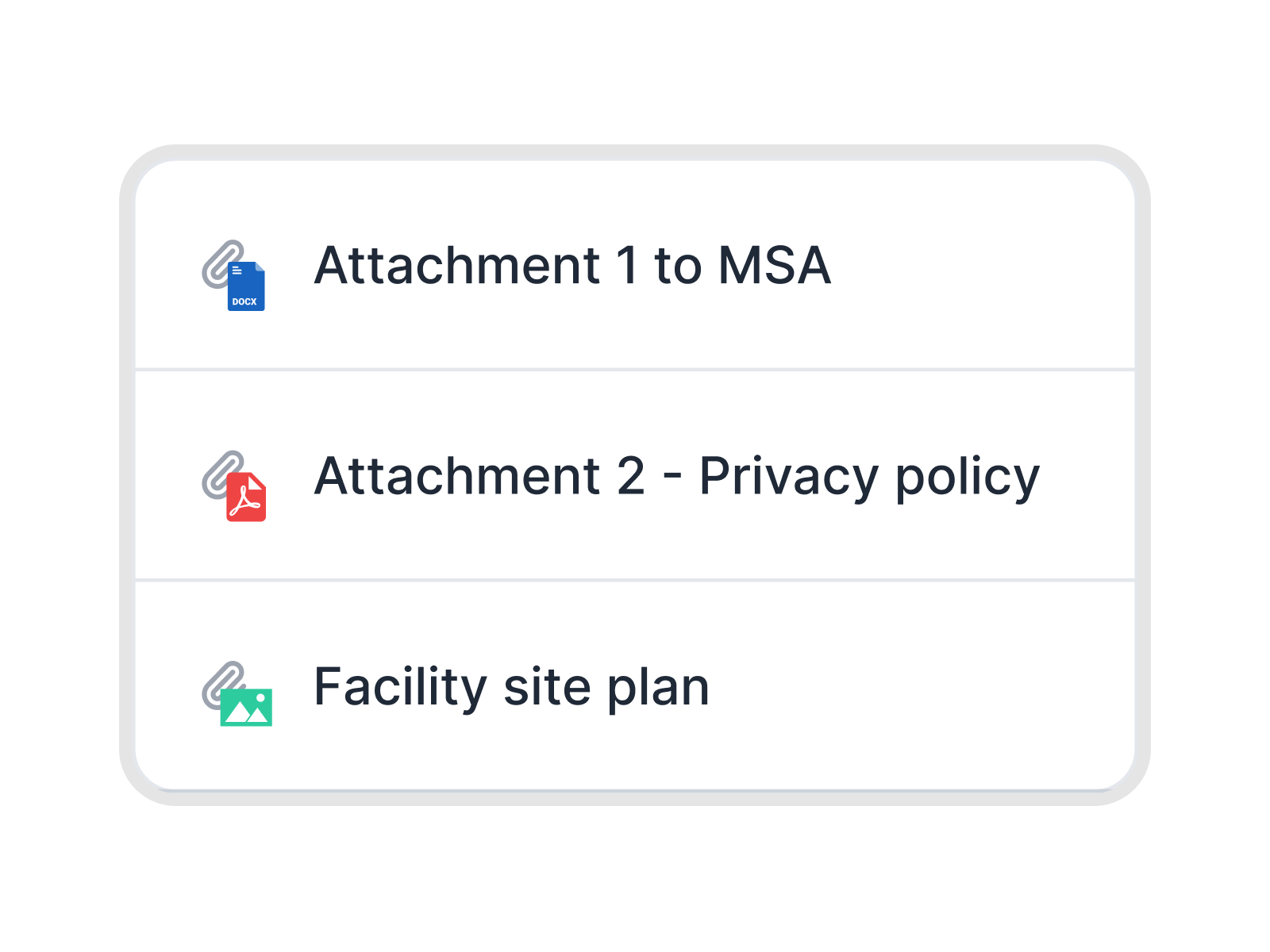 Exhibit packs
An annex bundle everyone can cite
The main agreement, five annexes, and a price list, merged into one file for the negotiation. Number it once, skip the cover, and the call can go straight to page 23, clause 4, without anyone scrolling.IN FYNK Continue the count
Annex B starts where the contract ends
The contract ends on page 18 and Annex B is a separate PDF from the supplier. Start its numbering at 19, so both files read as one set. Print both and the pages run in order.IN FYNK

More free PDF tools
Merge, split, rotate, compress, convert, protect, unlock or redact a PDF in this browser. No account, and the file stays on your device.

Merge PDFs
Arrange the pages, drop the ones you do not need, download one file.

Watermark PDF
Stamp DRAFT, CONFIDENTIAL, or your own text and logo on the pages.

Protect PDF
Lock a PDF with a password and AES-256 encryption, with optional print and copy limits.

Remove PDF metadata
See the author, software, and dates the file reveals, then download a clean copy.

Rotate PDF
Turn one page or the whole file left or right, then download.

PDF to JPG
Turn every page, or only the ones you pick, into sharp JPG or PNG images.
Frequently asked questions.
No. The file stays in this browser tab as local data. Numbering runs on your device. We do not receive the document, so there is nothing for us to store or delete.
Yes. Tick Leave the cover page without a number. Numbering then starts on page 2 with the first number you set, usually 1. The total in Page 1 of 12 counts only the numbered pages.
Yes. Set First number, for example 19 for an annex that continues a main contract. Combine it with a page range like 2-12 to number only part of the file.
They sit in the margin you set, 10 mm from the edge by default. If a page has content right at the edge, move the number to another spot or raise the distance, and check the preview.
The number goes where the reader sees it, upright and at the edge you chose. Pages that are turned inside the file are handled the same way.
Yes. Up to 25 MB and 200 pages per file. A password-protected file needs Unlock PDF first, another free fynk tool that runs in your browser. A digitally signed PDF opens, but numbering changes it, so the signature no longer counts in the copy.
Not for this tool. A fynk account is for keeping the contract and its annexes together, sending it for signature, and finding it again later.
Still have questions?



A contract pack that stays complete
Take control of your agreements. Move your business forward.
Run agreements the way they should run: fast, clear, and on your terms.
No setup headaches
Go live in days, not quarters
No lock-in
Full export anytime
No hidden fees
Signatures included, no envelope fee