
Organize contracts in bulk with AI
Drop a batch of contracts into fynk, then rename, tag, assign and close them out by asking. Every change is shown to you before it is applied.
Video transcript
Click any line to jump thereIf you have a lot of contracts scattered across different tools and folders created by different people with different naming systems, and now you want to organize them, but you don't want to spend too much time, this video is for you. I'm going to show you how you can use the fynk Assistant to organize documents at scale just by chatting. Let's get started.
I'll start with this batch of contracts here.
I simply grab and drop them into fynk.
I'll give this import a name, something like all contracts, and then choose Signed Documents. That doesn't mean all of these contracts are already signed.
Actually, some are drafts, some are still in process, and some are completed.
We'll organize the stages properly later with the AI assistant.
Once I start the import, I'll be redirected to the import page, and the AI analysis starts scanning all contracts automatically.
AI analysis reads each document, extracts the important information, like deadlines, party names, clauses, and any relevant piece of info, and stores it in fynk. Once that information is extracted, it becomes much easier for the assistant to understand the documents and help us organize them.
It can take a few minutes for the analysis to finish on a larger batch.
And already you can see one of the problems we're going to fix.
The document names are inconsistent and pretty messy.
That's normal when different people have worked on the contracts over time, because everyone tends to use a slightly different naming system.
Once the analysis is finished, you could review and confirm the results for every document individually. For this example, I'm going to apply all of the results at once. So I'll click here to apply all AI analysis results.
Let's go back to the Documents tab, where we can see all the imported documents.
And now the analysis has been applied to the whole batch. We're ready to start organizing.
Now I'll open a new AI chat, and we can start with something simple. I'll ask, how many contracts did I just import?
And it tells me that I imported33 new documents.
Next, I'll ask what types of contracts they are.
The assistant searches across those33 documents and gives me a breakdown.
Most of them are service agreements. I also have a couple of SAS agreements, NDAs, employment contracts, a policy, a rental agreement, a partnership agreement, and a license agreement.
Now let's start cleaning them up.
The first thing I want to fix is the document names. So I'll ask the assistant to rename all of these contracts using the document type first, followed by the counterparty name.
I'll send the request.
One important thing here is that the AI assistant doesn't only read and answer questions about your documents, it can also make changes to them.
But before it makes an important change, it asks for confirmation.
Here, it gives me a preview of how the new document names will look and asks whether I want to rename all33 documents.
I'll confirm and click Rename.
After a few seconds, it's done.
Let's go back to the document list and check.
Now the document names are much cleaner and more consistent. I can also keep the AI assistant open here and continue the same conversation while I'm working in the document hub.
The next thing I want to do is organize some of these documents with tags. I'll ask it to create a tag called Software and apply it to all SaaS agreements and license agreements. Again, because this changes the documents, it asks me to confirm. It tells me that the tag will be applied to seven documents. I'll click Create and Tag.
Done.
After a refresh, you can see the new software tag applied to those agreements.
Now I want to identify some of the higher value contracts. I'll ask, can you tag all contracts with a value of 15,000 euros or more as key contracts?
The assistant first finds the documents that meet that threshold. In this case, it finds eight.
I don't actually have a tag called Key Contracts, but I do already have one called Key Account, so the assistant suggests using that existing tag instead.
That's useful because I don't have to remember the exact name of every tag in my account. I can just describe what I mean in natural language.
I could still create a new Key Contracts tag if I wanted, but here I'll use the existing Key Account tag.
It asks whether I want to apply it to all eight documents. I'll choose Yes, tag all eight.
And now those higher value contracts are tagged as key account.
You can also take this a step further.
If you already have a set of tags in your account, you can ask the assistant to use those existing tags to organize the rest of the documents.
So I'll ask it to use the current tags in my account and tag the remaining contracts.
The assistant groups the documents and suggests relevant tags for each group.
For example, it finds NDAs and suggests confidentiality.
For service agreements, it suggests professional services.
For employment contracts, it suggests HR internal. And for a few other documents, like the rental agreement, insurance policy, and partnership agreement, it suggests internal.
It asks me to review the suggestions and apply them.
I'll submit them.
If anything is still untagged, the assistant tells me.
Here, there's one NDA left without a tag, so I'll just tell it to use confidentiality for that one as well.
Now all of the contracts are tagged.
Next, I want to assign each document to the relevant team, so the right people have access to the right contracts. I'll simply ask the assistant to assign each document to the relevant team based on its document type. Again, instead of making assumptions, it asks me a series of questions.
For each group of contracts, I can choose which team should be responsible.
It goes through the document groups in batches, and I select the relevant team for each one.
At the end, I confirm the assignments.
After reloading the page, the Teams column is now filled as well.
So just by chatting with the assistant, this document list is already much more structured than it was when we started.
Now let's organize the stages.
As I mentioned earlier, some of these imported contracts are already signed, while others are still drafts or need review.
I want to move the completed ones to done.
So I'll ask, move all contracts that have a start date before today to the done stage.
The assistant notices that these contracts contain more than one relevant date.
For example, there's a start date and an effective date.
Instead of guessing which one I mean, it asks me to clarify.
I'll choose effective date.
It then finds17 agreements where the effective date is already in the past.
I'll confirm that I want to move all of them to done.
And now, in the stage column, you can see those17 contracts have been moved to done.
There's one last thing I want to do.
I want to identify contracts that are coming up for renewal soon. So I'll ask the assistant to tag all contracts that will renew within the next six months as important.
I don't currently have an important tag in my account, so the assistant asks whether I want to create one.
I can also choose the color.
I'll make it red.
The assistant finds eight documents where the relevant cancellation or renewal date falls within the next six months and asks whether I want to tag them. I'll confirm. And now those contracts are marked as important. You could keep going from here and ask similar questions, depending on how you want to organize your own contract library. But for this example, you can already see the difference. The document list is much more structured. The contracts have consistent names, relevant tags,the right team assignments, and clearer stages. I can also see the parties and other extracted information which makes the whole document list much easier to navigate. And all of this was done across a large batch of contracts by using the AI Assistant instead of updating every document one by one. I hope you like this video. See you in the next one!
The goal
Use AI in fynk to organize legal documents that came from different tools or different folders in a few minutes.
- Import a batch and let fynk AI extract the contract data
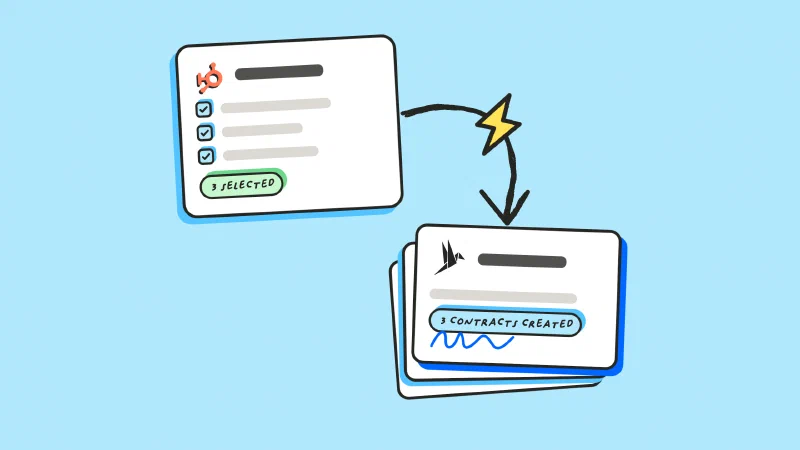
- Tell AI to rename, tag and assign in bulk
- Fix the stages and flag what renews soon
Every change is shown to you first and applied only when you approve it.
Before you start: import and extract the contract data
Use bulk import in fynk and let AI analysis handle the contract metadata extraction.
It reads each document and pulls out the deadlines, party names, clauses and values, then stores them on the contract. That contract data extraction is what makes everything below much easier.
When it finishes you can review each document individually, or apply all of the results in one click.


Classify your contracts by type
Ask the AI assistant what you just imported. It reads the document type on every contract and gives you the breakdown in one answer.
AI already did the document classification during the analysis, so nothing has to be opened. The breakdown also tells you which of the ways below is worth your time.

Bulk rename documents to one naming pattern
Give the Assistant one naming pattern and it renames every document that needs it.
The Assistant asks for your approval before making any changes. Here you get a preview of the new names and a question. Confirm, and a few seconds later the list is consistent.
Rename all of these contracts using the document type first, followed by the counterparty name.

Automatic document tagging in bulk
You have a few options when it comes to tagging your documents:
- Ask fynk AI to tag a specific group of documents using your existing tags.
- Ask it to create a new tag and apply it based on your criteria.
- Or let it decide which tag belongs on which contract.
Examples:
Tag everything worth 15,000 euros or more as key contracts.
Use the current tags in my account to organize my documents based on their type.

AI document sorting into teams
Ask the Assistant to assign each document to the relevant team based on its document type. It goes through the groups in batches and lets you choose who is responsible for each one. Confirm at the end and the Teams column fills in.
Assign each document to the relevant team based on its document type.
All of it happens inside your own permissions, so it cannot give anyone access you could not give them yourself.

Move contracts to the right stage
Some imported contracts are already signed, others are drafts or still need review. Describe the ones you want moved and the Assistant works out which documents that covers.
When a request is ambiguous it asks first. Here it finds both a start date and an effective date on the contracts, and lets you pick the one it should use.
Move all contracts with an effective date before today to the done stage.

Flag what renews in the next six months
Which of my contracts renew soon?
The Assistant reads the cancellation and renewal dates from the analysis and finds the documents inside your window.
Tag all contracts that will renew within the next six months as [tag name].
Once the dates and durations are in fynk, you also get reminded before a notice window closes.

What else you can do in bulk
The Assistant handles the same task across a whole set of documents in one request, so the ways above are only the common ones. A few more examples:
- List, filter or count documents by stage, tag, team, party, document type, metadata, date or expiry
- Add or remove tags and teams on several documents at once
- Archive or restore a batch of documents
- Repeat the same update across a set of documents, wherever the action is supported
If you can describe the group, the Assistant can work on it.

What makes it fast?
One sentence changes a whole batch
Names, tags, teams and stages from a chat
Contract data extracted on import
Every change waits for your OK
"The fynk AI is particularly helpful, as it automatically extracts contract data from all our agreements, saving us a great deal of time and effort."

Frequently asked questions.
Import the batch so AI analysis can extract the contract data, then ask the Assistant to rename, tag, assign and re-stage the documents in groups. The video above does all of that on 33 contracts in a single conversation.
Read your documents, then let you act on groups of them. Extraction on its own still leaves you clicking through a list, and bulk editing on its own has nothing reliable to sort by.
Yes. Renaming, tagging, team assignment and stage changes all work on a group rather than a single document. Describe the group in your question and the Assistant applies the change across it, after showing you the list.
You see the list and the change before anything happens, and it is applied only once you approve. If a group is hard to describe, ask for the list on its own first and tag it when you can see it.
Yes, and it prefers them. Ask for a tag that does not exist and the Assistant looks for a close match in your account and offers that instead, so AI document tagging does not fill the account with near duplicates. It can still create a new tag, in the color you choose, when you want one.
Still have questions?


Take control of your agreements. Move your business forward.
Run agreements the way they should run: fast, clear, and on your terms.
No setup headaches
Go live in days, not quarters
No lock-in
Full export anytime
No hidden fees
Signatures included, no envelope fee