
Get a new policy signed by every employee
Drag your employee list into fynk AI, create one policy per person from your template, send them all for signing and check who is still missing.
Video transcript
Click any line to jump thereA new policy needs a signature from everyone, and chasing twelve people one by one takes days. Let me show you how to do it in one chat.
Here's where it starts: a plain Excel list of your team, with names and email addresses.
Open a new chat in fynk AI and just drag the list in.
Then write what you need, the way you'd ask a colleague.
One remote work policy from your template for each person on the list, with a start date, and each employee signs their own.
It reads the file, finds the template, and before it creates anything, it checks with you. Twelve policies? Yes, go ahead.
And there they come, one after another, each one already filled in with the right person.
You can open any of them to check, but they're ready to go.
So now ask it to send them all for signing. That sends real emails, so it asks you to confirm first.
Confirm, and everyone gets their own invitation.
Your own copy is in there too. Open it and sign it right away.
Pick your saved signature and confirm.
Done, that's yours signed. Now back to the chat. A few days later, you want to know where things stand. Just ask who still has to sign.
You see who's done and who isn't, with a link to each policy, so you know exactly who to nudge. One list, one chat, and everyone signs.
The goal
Send a new or updated policy to everyone who has to sign it, in one chat with fynk AI.
- One copy of the policy per employee, each with their own name
- Everything created and sent from a single Excel list
- You see who has signed and who has not
Any template in your account that has a party for the employee works the same way.

Drag in the list and say what you need
Open a new chat in fynk AI and drag your Excel list into it. It needs one row per employee: a name, an email address and anything else your policy needs, such as department, manager or start date. Each column fills a matching dynamic field in your template. Keep the list to the people who really have to sign, so nobody gets a policy that does not apply to them.
Then ask for the policy the way you would ask a colleague: which template, the date it takes effect and who signs. Name the template exactly as it appears in your account, so the Assistant picks the right one.
Create one [policy name] from our template for each person in this list, effective [date], with the employee as signatory.

Confirm the batch
The AI Assistant reads the file, finds your template and asks before it creates anything. It tells you how many documents it is about to create and which values it will fill in.
Compare that number with the rows in your list. If it matches, answer yes. If it does not, answer no, fix the list and start again, which is cheaper than deleting a wrong batch.

Check the policies
The documents are created in bulk and listed in the chat, each one filled in for the right person. They stay drafts, so nothing has reached an employee yet.
Open two or three of them and check the name, the effective date and the signature block. If something is wrong in all of them, fix the template and ask the Assistant to create the batch again.

Send them all for signing
Ask the Assistant to send all of them for signing. This sends real emails, so a confirmation card comes first and tells you how many times the action will run.
Click Confirm, and every employee gets their own invitation to sign. Nobody sees anyone else’s copy.

Sign your own copy
Your copy is in the list too, because you are part of the company the policy applies to. Open it and click Sign now.
Pick your saved signature or draw or type a new one, then click Confirm and sign. Signing early shows employees that the policy applies to everyone.

Ask who still has to sign
A few days later, go back to the chat and ask “Who still has to sign?” The Assistant lists who has signed and who is still missing, with a link to each open policy.
Use that list for a personal reminder to the people who are missing. The same status is in signature tracking.

Ready-made Zaps
- Create fynk policy acknowledgments for new Confluence Cloud pages Use this Zap
- Send fynk contracts to new Personio employees for signing Use this Zap
- Send fynk employment contracts to new HiBob employees for signing Use this Zap
- Add Personio employees for newly signed fynk employment contracts Use this Zap


What makes it fast?
One Excel list is the only input
One copy per employee
Nothing is sent before you confirm
Ask the chat who is still missing
Frequently asked questions.
One row per employee with a name and an email address, plus any other values your policy needs, such as department, manager or start date. Each column fills a dynamic field in your template, and each row becomes one policy with one signer.
Yes. The documents are created as drafts, and you can open any of them. They are sent only after you ask the Assistant to send them and click Confirm.
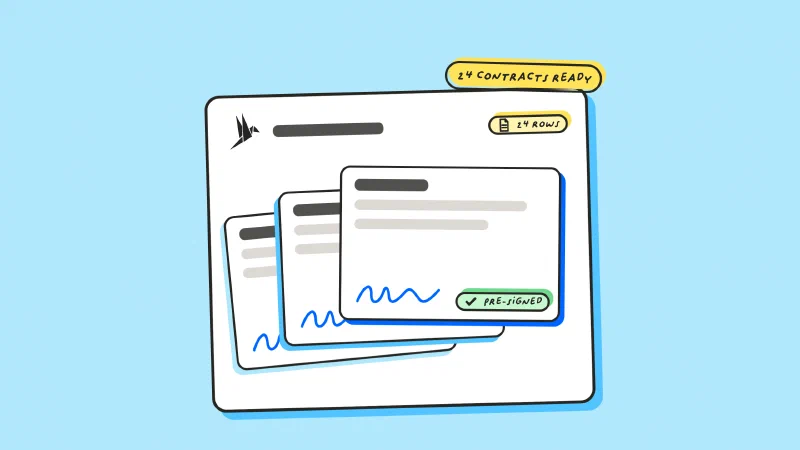
When you generate pre-signed contracts in bulk, your side signs in advance and the other party only receives the contract. Here every employee signs their own copy, and you sign yours too.
The chat shows who has not signed yet and links to each policy. Open a policy to share it with the signer again.
Still have questions?


Take control of your agreements. Move your business forward.
Run agreements the way they should run: fast, clear, and on your terms.
No setup headaches
Go live in days, not quarters
No lock-in
Full export anytime
No hidden fees
Signatures included, no envelope fee