
MCP security: 7 risks and the checks business teams need

Rezvan Golestaneh
Published · 8 min read
In short
Most MCP security advice is written for security engineers, with confused deputies, token passthrough and detection rules. The request itself usually lands with someone else: an ops lead, an IT admin or a lawyer gets a message asking “can I connect Claude to our CRM?” and has to answer it without a security background.
What is MCP security?
MCP security is the set of checks and controls that decide what an AI assistant can reach and change once it’s connected to your apps through the Model Context Protocol. A sales rep connecting Claude to the CRM through an MCP server is a security decision about whose customer records the assistant can read, which ones it can edit, and who notices if it edits the wrong one.
The protocol defines how the assistant and the app talk to each other. It doesn’t decide who may connect or what they may do, so those decisions sit with the company approving the connection.
How safe are MCP servers?
MCP servers range from a small risk to a large one, depending on the setup. A vendor-hosted server with individual logins, narrow permissions and approval before changes is a small risk. An unknown server from a public repository, connected with a shared key that reaches every record, is a large one.
Judge the request against the task as well as the server. Reading customer notes before a meeting deserves a lighter review than updating every open deal, even through the same connector. “To save time” is a reason to look into it, and a rather generous request for permissions.
What are the security risks of MCP?
The seven main security risks of MCP are lookalike servers, tool poisoning and rug pulls, prompt injection, shared keys, local servers that run code, data moving between servers, and changes nobody reviews. They’re the ones the official MCP security guidance, OWASP and security vendors keep returning to, described here as they look at work.
1. A lookalike or untrusted server
A colleague finds a connector with your CRM’s name in a public list, but nobody can say who built or hosts it. Connecting to it hands your data to whoever runs it. Take the server address from the vendor’s own documentation, not from a forwarded setup link, and check who operates it before anyone logs in.
2. Tool poisoning and rug pulls
Tool poisoning is a server hiding instructions in the descriptions of its tools, which the assistant reads but people rarely see. A rug pull is a server that changes those tools after you approved it. Datadog describes the pattern with a server whose updated tool definitions deleted cloud storage the user had only asked to list. Approve servers from vendors you trust, and have admins review which tools a connection exposes, again after updates.
3. Prompt injection hidden in content
Prompt injection is input that changes a model’s behavior in ways nobody intended, and OWASP calls it indirect when that input comes from a website, a file or another outside source. A supplier PDF with a hidden line asking the assistant to send your contract list to an outside address is a document that’s supposed to be read and is trying to give orders. A trusted connection doesn’t make every document that passes through it trustworthy, so what the assistant may do without confirmation matters more than what it may read.
4. Shared keys and borrowed permissions
A shared API key gives everyone who uses it the key’s access, not their own. Anthropic’s custom connector guidance names this as the exception to Claude only seeing what the individual user can see. Security teams call the server-side version a confused deputy: a server acting with broader rights than the person asking. When someone says “IT already has a key”, ask whose records that key opens. Vendors are moving away from it too: Stripe stops accepting full-access secret keys on its MCP server from January 11, 2027 and asks for OAuth or an agent API key instead.
5. Local servers that run code on a laptop
A local MCP server is software that runs on the employee’s machine and can execute commands with the AI client’s privileges. The official guidance requires clients that offer one-click local setup to show the exact command and get consent first. Have IT review the software and the startup command before anyone clicks yes.
6. Data traveling between servers
An assistant connected to several servers can carry data from one into another, for example from the CRM into a public channel or from a contract into a web search, a route no single app would have allowed. Keep the set of connected servers small, and ask for confirmation before anything is sent outside the app it came from.
7. Changes nobody reviewed, or approved on autopilot
A request to tidy customer records can become an update before anyone has looked at the proposed changes. The opposite failure is consent fatigue: so many approval prompts that people click yes without reading. Turn on tool approval for anything that writes, and keep approvals rare enough that each one still gets read.
What data can Claude access through connectors?
Claude can access the tools and data available to the individual user who connected, unless the connector uses a shared credential such as an API key, in which case everyone gets the credential’s access. Custom connectors can also reach services Anthropic hasn’t verified, which is why the operator check in risk 1 matters. The same questions apply to ChatGPT and other assistants, with each provider’s own policies on top.
MCP security best practices for business teams
MCP security best practices split between the person connecting a server and the admin responsible for access.
For everyone who connects a server:
- Use the official hosted server: check the address against the vendor’s documentation.
- Log in instead of pasting keys: prefer a connection tied to your own account, and ask whose permissions it uses.
- Read the permission screen: a request to read customer notes needs an explanation if it also asks to delete records.
- Turn on approval for anything that writes: Stripe’s MCP guidance asks users to review tool calls before they run and warns about prompt injection when servers are combined.
For admins:
- Keep a list of approved connectors: server address, operator, task and the data it may touch, so the next request gets an answer in minutes.
- Know how to switch access off: for one person and for everyone, tested before you need it.
- Check where actions are recorded: ask the vendor how you’d investigate an unexpected change and see who made it.
- Start with read-only tasks: a rule in the chat (“only read, don’t change anything”) isn’t a permission setting, so check which control actually enforces the limit.
Questions to ask a vendor before you connect its MCP server
Ask the vendor to explain hosting, login, permissions, admin controls, records and data handling in plain language. If you can’t apply the answers to the colleague who asked for CRM access, they aren’t clear enough yet.
- Who hosts the server? Confirm who operates the address and whether your team has to install or run anything.
- How do people log in, and how long does access last? Ask whether people use their own account, when tokens expire and what happens to unused connections.
- Does it act with the user’s own permissions? Ask what a viewer can read or change, and what happens when that person’s role changes.
- Can admins switch it off and see who connected? Ask for a demonstration of disabling the server and removing a single connection.
- Where are its actions recorded? A chat saying “done” isn’t enough to investigate a disputed change, so ask whose name the record carries.
- Where is the data hosted, and what happens once it reaches the AI tool? The app’s hosting location doesn’t describe the whole journey, because the AI provider’s terms apply from the moment data arrives there.
If an answer stays vague, pause the connection and ask for evidence. Nobody needs to read the code to see that “don’t worry about it” leaves the question open.
Connect Claude to your contracts with each user's own role.
How fynk handles MCP security
fynk is our product, and its MCP server lets an assistant draft, find, analyze, update and sign contracts within the connecting person’s permissions. Here’s how it handles hosting, login, permissions, admin control, records and data:
| Topic | fynk |
|---|---|
| Hosting | fynk hosts the server. |
| Login and access | OAuth login through fynk in the browser, with no API key. Tokens expire after an hour; connections expire after three months without use. |
| Permissions | The connection inherits the connecting person’s role and grants no new permissions. |
| Admin control | A single toggle switches the server off for the whole organization, any connection can be revoked, and every new connection lands in an admin’s inbox. |
| Records | In the audit trail, under the name of whoever connected. |
| Data | fynk is hosted in the EU, in ISO 27001-certified data centers. Once data reaches your AI tool, its provider’s terms apply, as the security and GDPR information and the MCP privacy notice explain. |
Playbooks can be listed but not run, and approval checkpoints can be read but not approved, so a person still makes those calls.
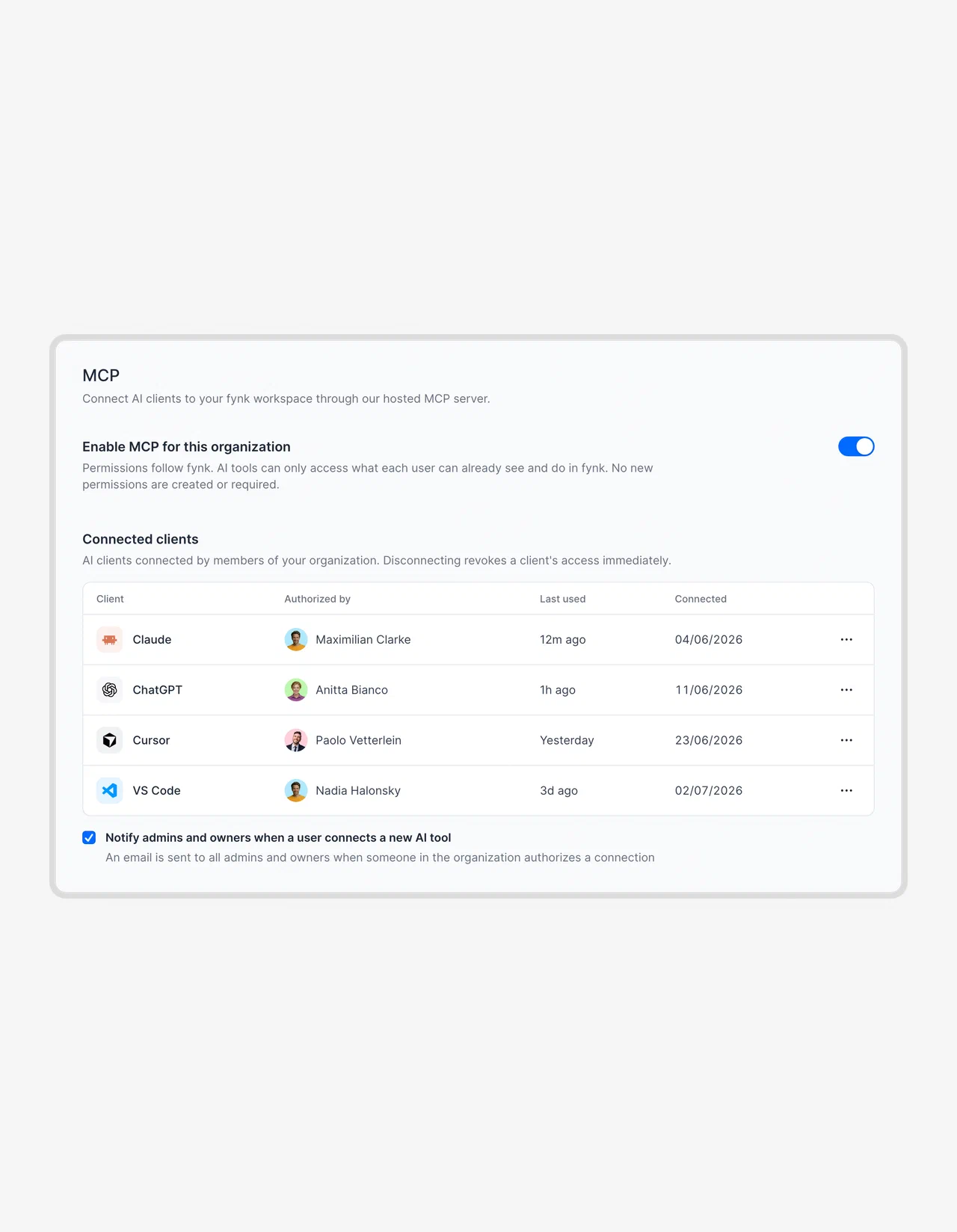
A role change in fynk applies to the assistant at the same moment: if someone becomes a viewer, their assistant can only read from then on.
Switch MCP access off for everyone in one click.
MCP security FAQ
That depends on the server and on the AI tool. The server passes data from the app to the assistant, and the AI provider's own terms decide what happens to it there. Ask the app vendor what the server stores and check the AI provider's retention settings before you connect anything with personal or confidential data.
Usually the admin of the app being connected, with IT or security involved for local servers and anything that writes data. Legal or the data protection officer should see connections that send personal data to a new AI provider. Keep the approved list in one place so the same server isn't reviewed three times.
Blocking rarely holds, because people then paste the same data into the chat by hand, with no permissions or records at all. A short list of approved, vendor-hosted servers with individual logins usually gives more control than a ban.
Searching for a contract management solution?
Find out how fynk can help you close deals faster and simplify your eSigning process – request a demo to see it in action.
Please keep in mind that none of the content on our blog should be considered legal advice. We understand the complexities and nuances of legal matters, and as much as we strive to ensure our information is accurate and useful, it cannot replace the personalized advice of a qualified legal professional.




Get a regular dose of insightful contract management content


Take control of your agreements. Move your business forward.
Run agreements the way they should run: fast, clear, and on your terms.
No setup headaches
Go live in days, not quarters
No lock-in
Full export anytime
No hidden fees
Signatures included, no envelope fee