
How to set up an email signature in Gmail, Outlook and Apple Mail

Rezvan Golestaneh
Updated · Published · 14 min read
To set up an email signature, open your email app’s signature settings, write your name, role and contact details, and make it the default for new emails. In Gmail that’s Settings > See all settings > General > Signature, in Outlook Settings > Accounts > Signatures, and in Apple Mail Mail > Settings > Signatures.
This guide shows you how to add, change and edit your email signature in Gmail, Outlook and Apple Mail, on desktop, in the browser and on your phone. All steps were checked against the official Google, Microsoft and Apple help pages as of October 2026.
Where to put a signature on email in Gmail, Outlook and Apple Mail
| Email app | Where to add the signature | Logo and images |
|---|---|---|
| Gmail on a computer | Gear icon > See all settings > General > Signature | Yes |
| Gmail app (Android, iPhone) | Menu > Settings > your account > Mobile signature (iPhone: Signature settings) | No, text only |
| New Outlook and Outlook on the web | Settings > Accounts > Signatures | Yes |
| Classic Outlook for Windows | File > Options > Mail > Signatures | Yes |
| Outlook for Mac | Outlook > Settings > Signatures | Yes |
| Outlook app (iOS, Android) | Settings > Mail > Signature | No, text only |
| Apple Mail on Mac | Mail > Settings > Signatures | Yes |
| Mail on iPhone and iPad | Settings > Apps > Mail > Signature | No, text only |
How to add a signature in Gmail
To add a signature in Gmail, click the gear icon, then See all settings, scroll to Signature on the General tab, click Create new, type your signature, pick it as the default and click Save Changes.
You can create as many Gmail signatures as you need, pick a default for new emails and another for replies, and switch between them while you write. Each signature can hold up to 10,000 characters, and images count toward that limit (Google Gmail Help).
How to insert an email signature in Gmail on your computer
- In the upper-right corner of Gmail, click the gear icon to open the settings.
- Click See all settings.
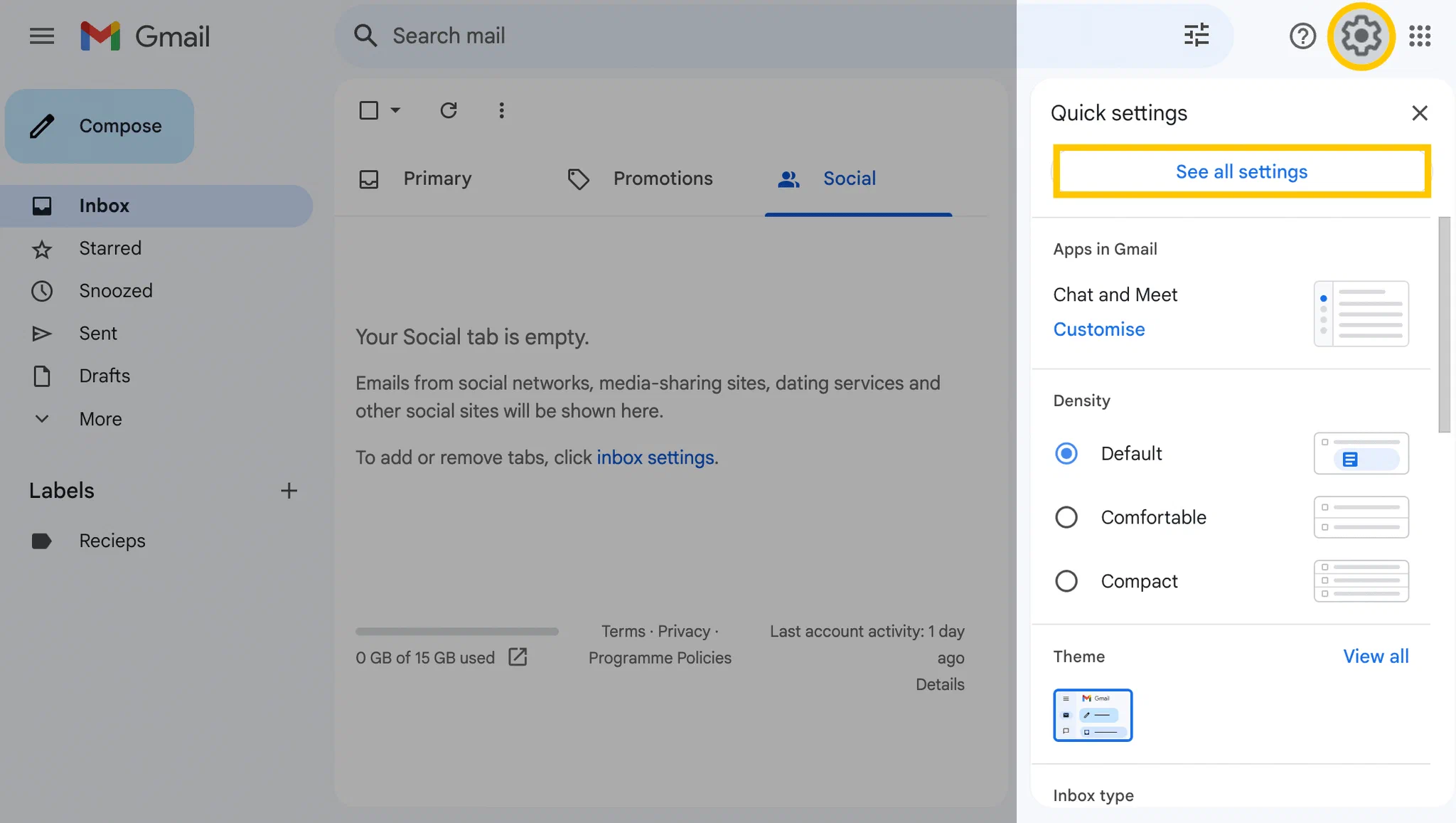

- Stay on the General tab and scroll down to the Signature section.
- Click + Create new.
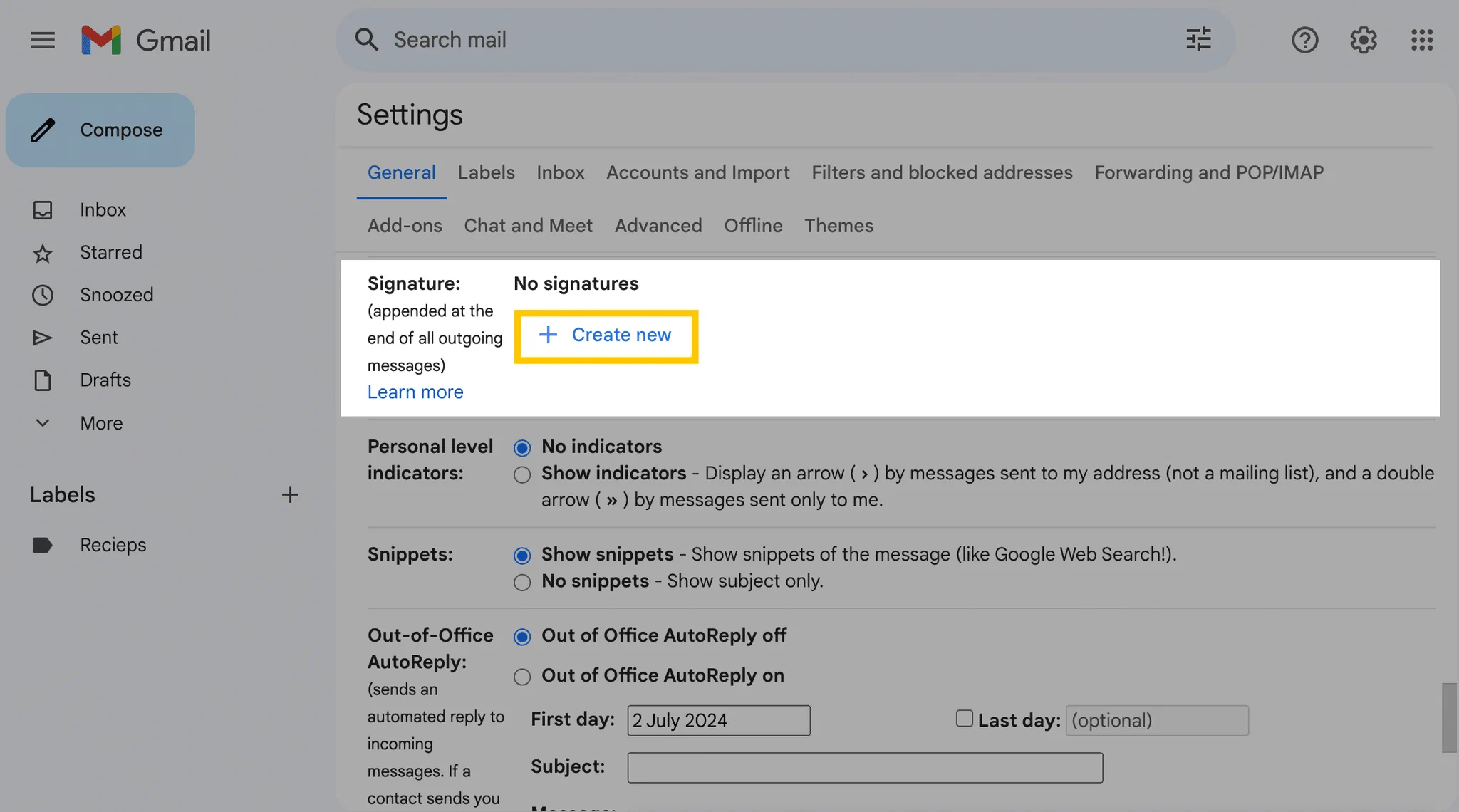
- Enter a name for the signature (for example “Work” or “Short reply”) and click Create. The name is only visible to you.
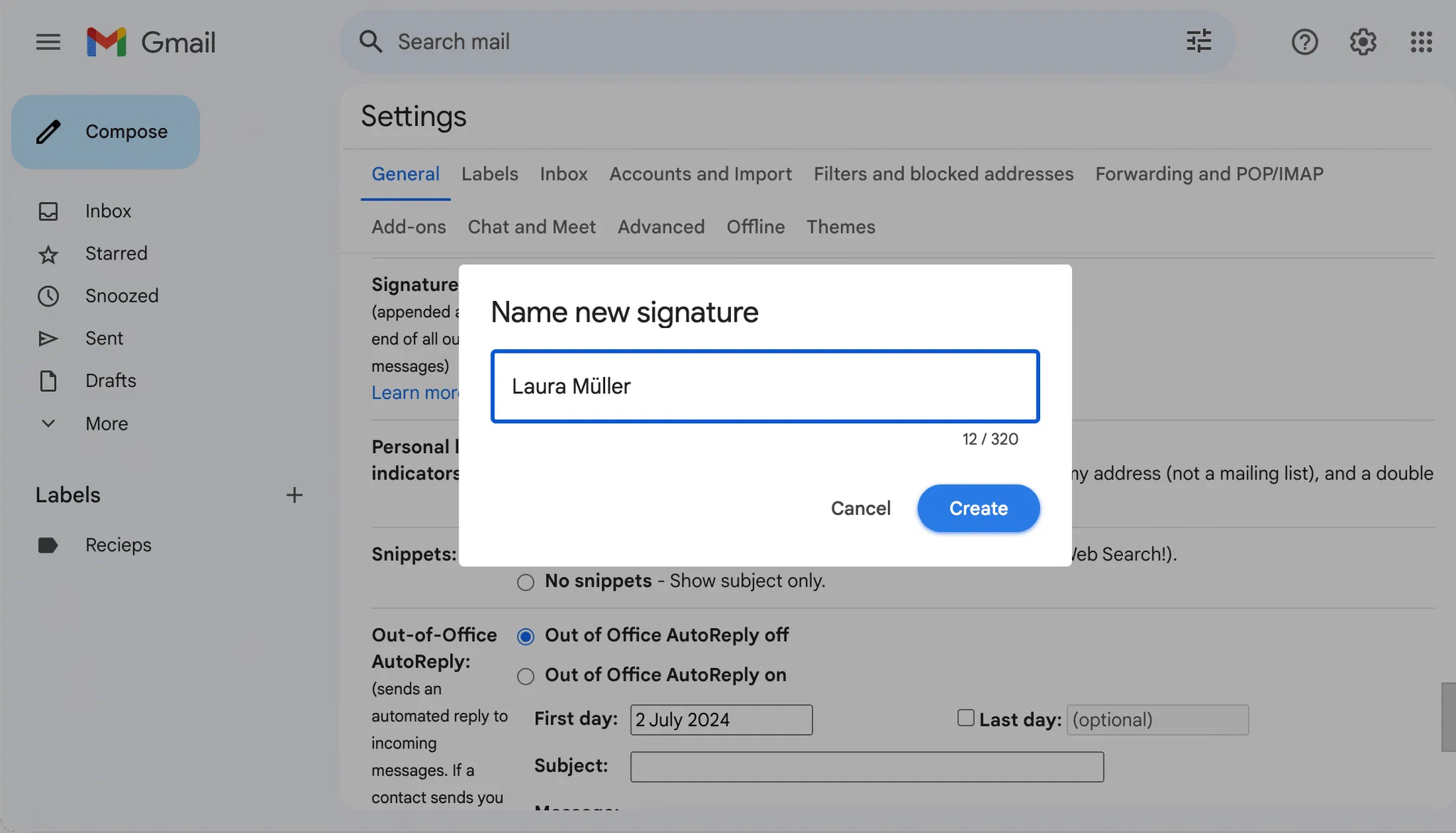
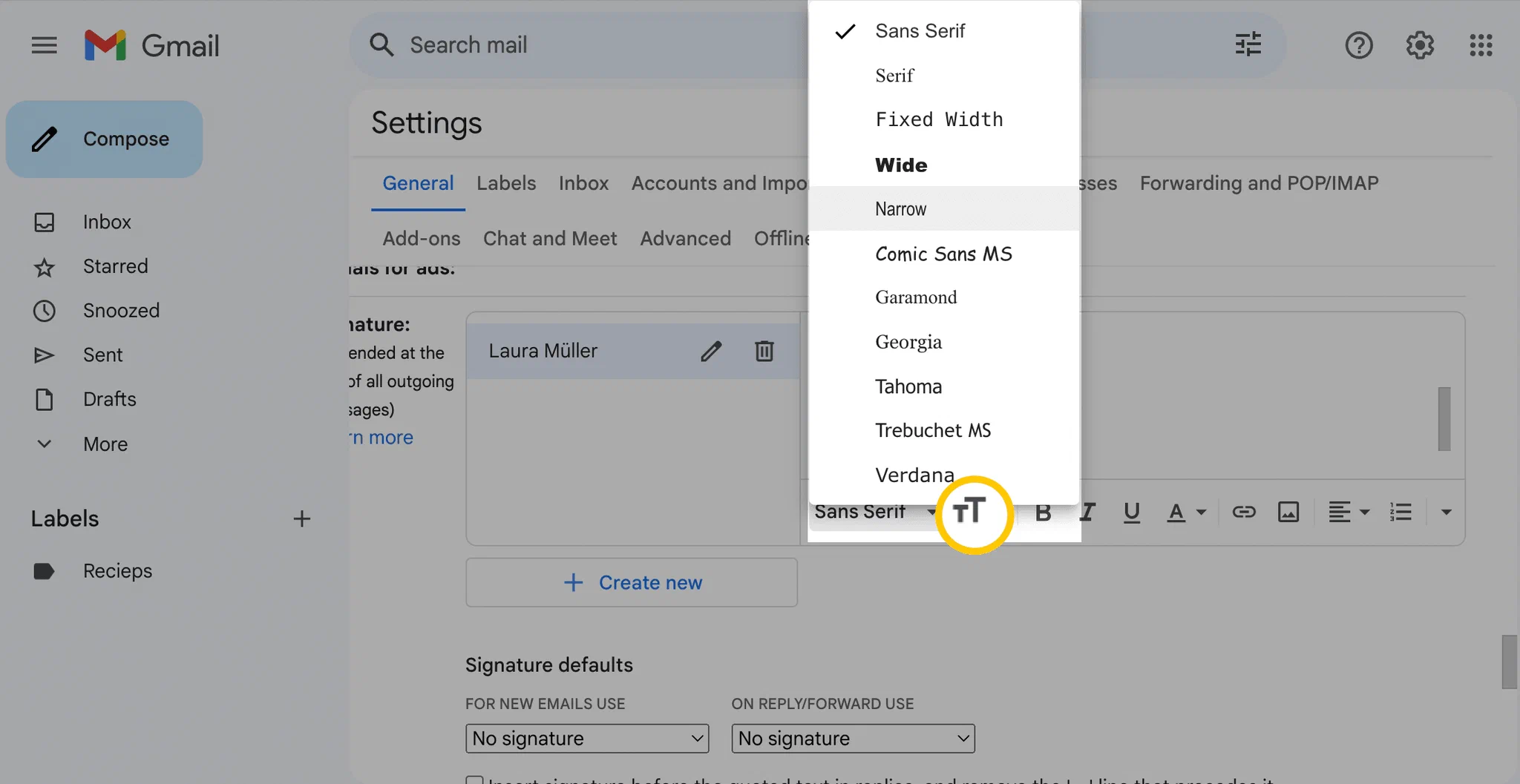
- Type your signature in the text box: your full name, role, company, phone number, website or address. Use the toolbar to change font, size, bold and italics.
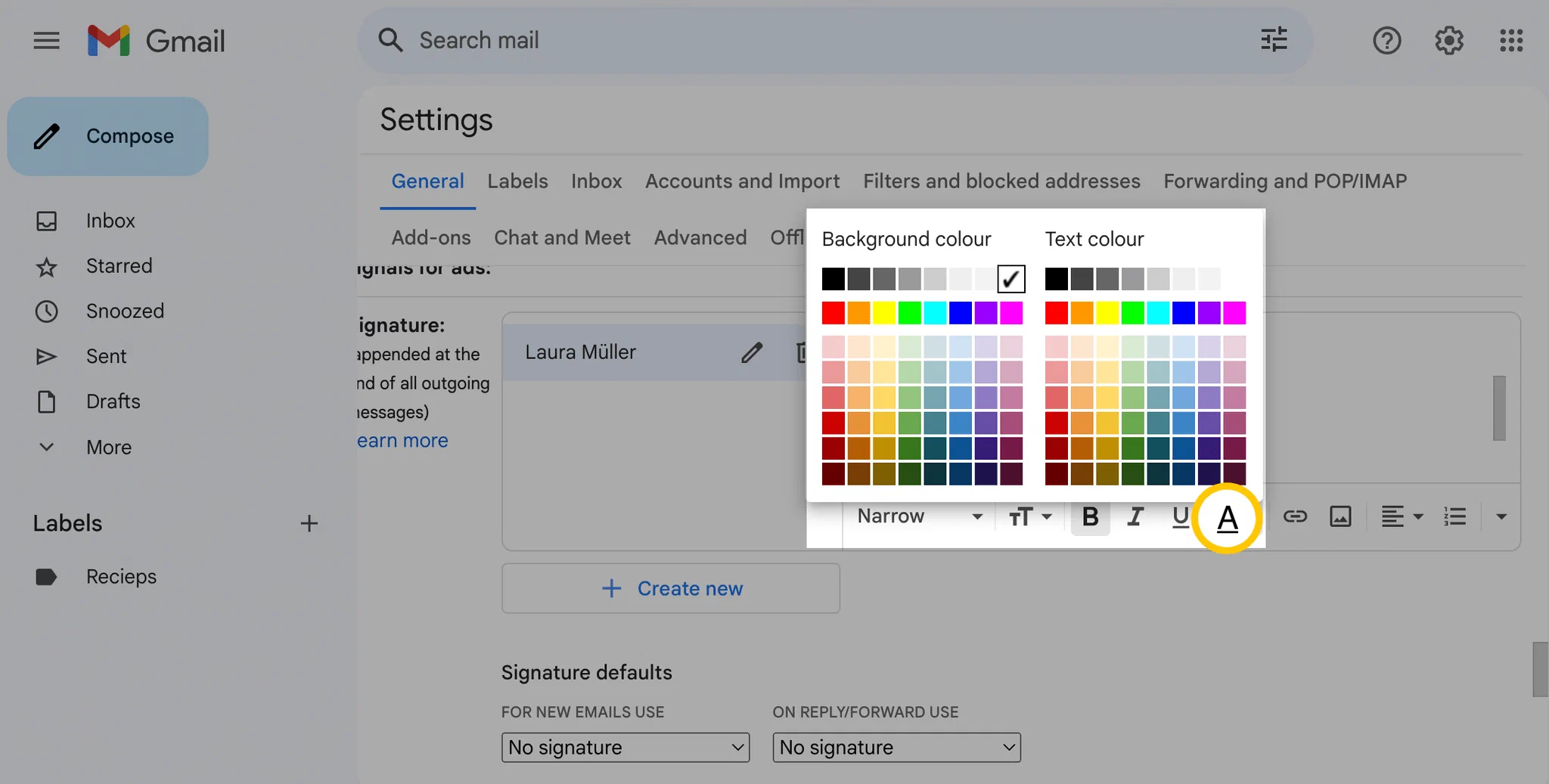
- Add colour and links with the same toolbar.
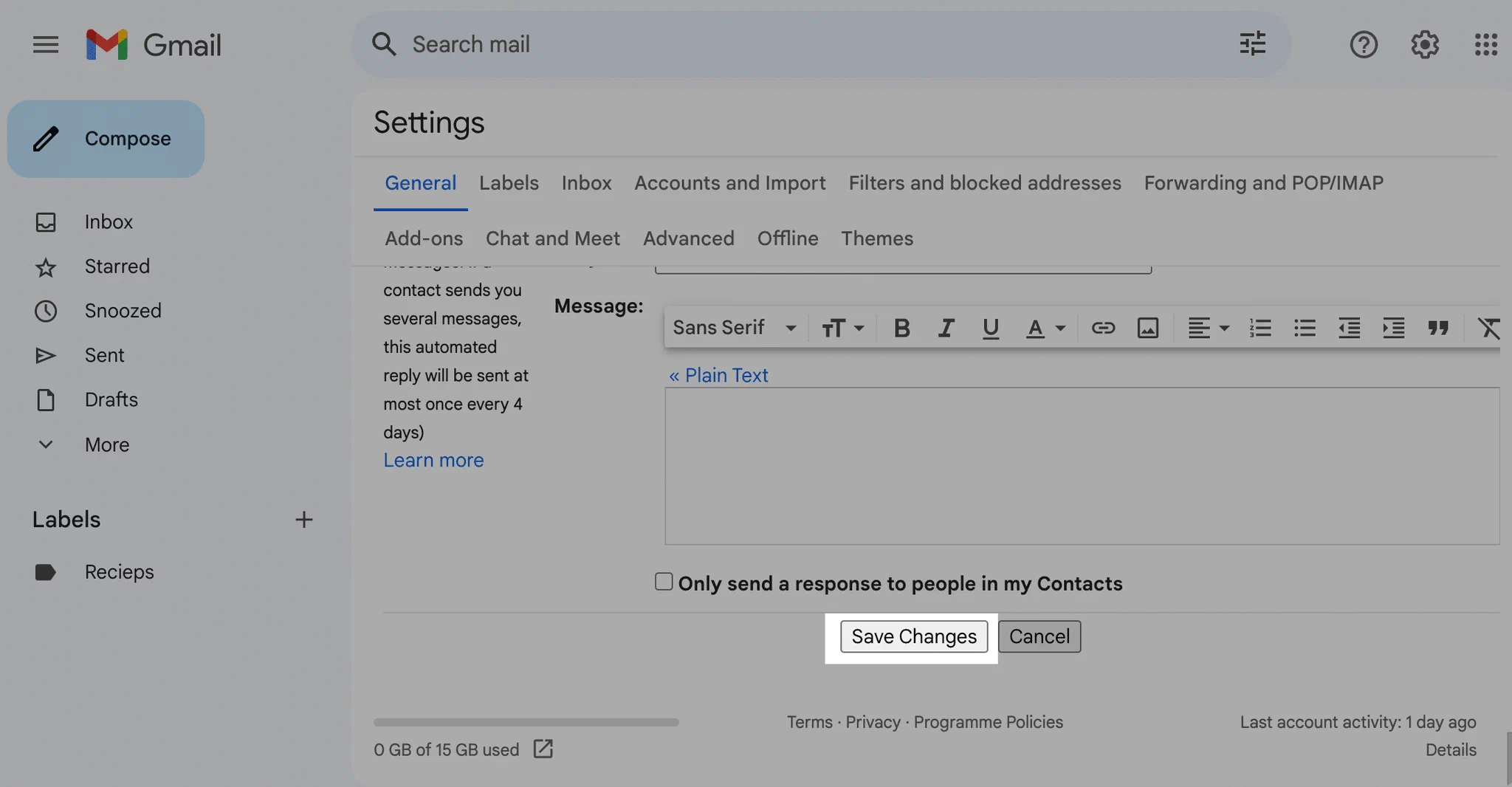
- At the bottom of the page, click Save Changes.
Set a default signature for new emails and replies
If you don’t set a default, Gmail won’t add your signature automatically. To fix that:
- Go back to Settings > See all settings > General > Signature.
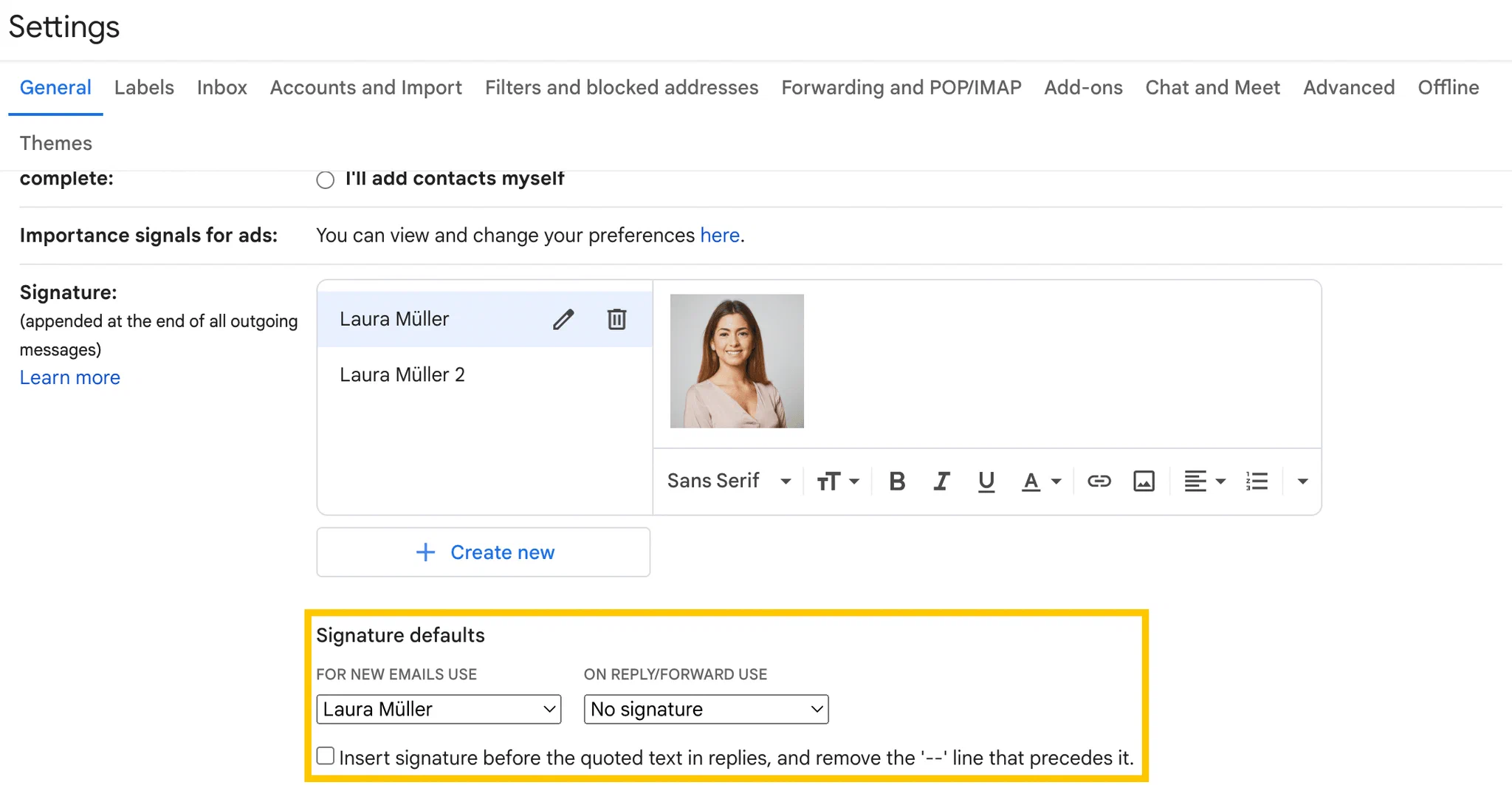
- Under Signature defaults, choose a signature for For new emails use and one for On reply/forward use. You can pick a full signature for new emails and a shorter one for replies.
- Optional: tick Insert signature before quoted text in replies and remove the “–” line that precedes it if you want the signature directly below your reply instead of below the whole thread.
- Click Save Changes.
If you send from several addresses with the Send mail as feature, a drop-down above the signature box lets you set a different signature for each address. If you don’t see it, check that the addresses are listed under Settings > Accounts and Import > Send mail as.
Insert or switch a signature while writing an email
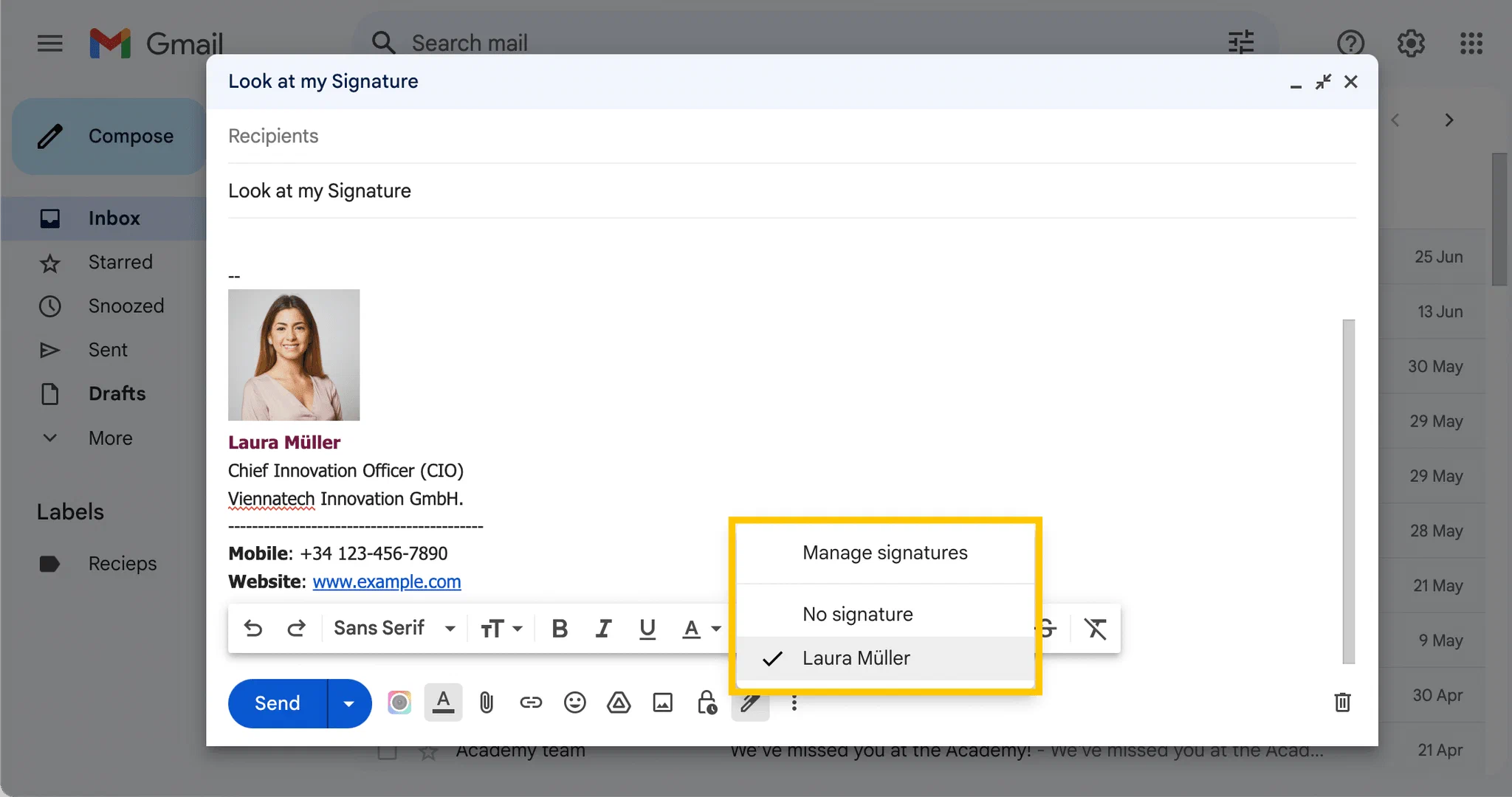
To use a different signature for one message, open a new email and click the Insert signature icon (the pen) in the toolbar at the bottom of the compose window. Choose the signature you want. This is also how you add a signature if you didn’t set any defaults.
How to change or edit your Gmail signature
- Click the gear icon > See all settings.
- On the General tab, scroll to Signature and click the signature you want to change.
- Edit the text, links or image in the text box. To rename the signature, click the Edit (pencil) icon next to its name.
- Click Save Changes at the bottom of the page.
To delete a signature, select it, click the Delete (bin) icon, confirm with Delete and save. Changes only apply to emails you write from now on. Emails you have already sent keep the old signature.
Add a signature in the Gmail app (Android, iPhone and iPad)
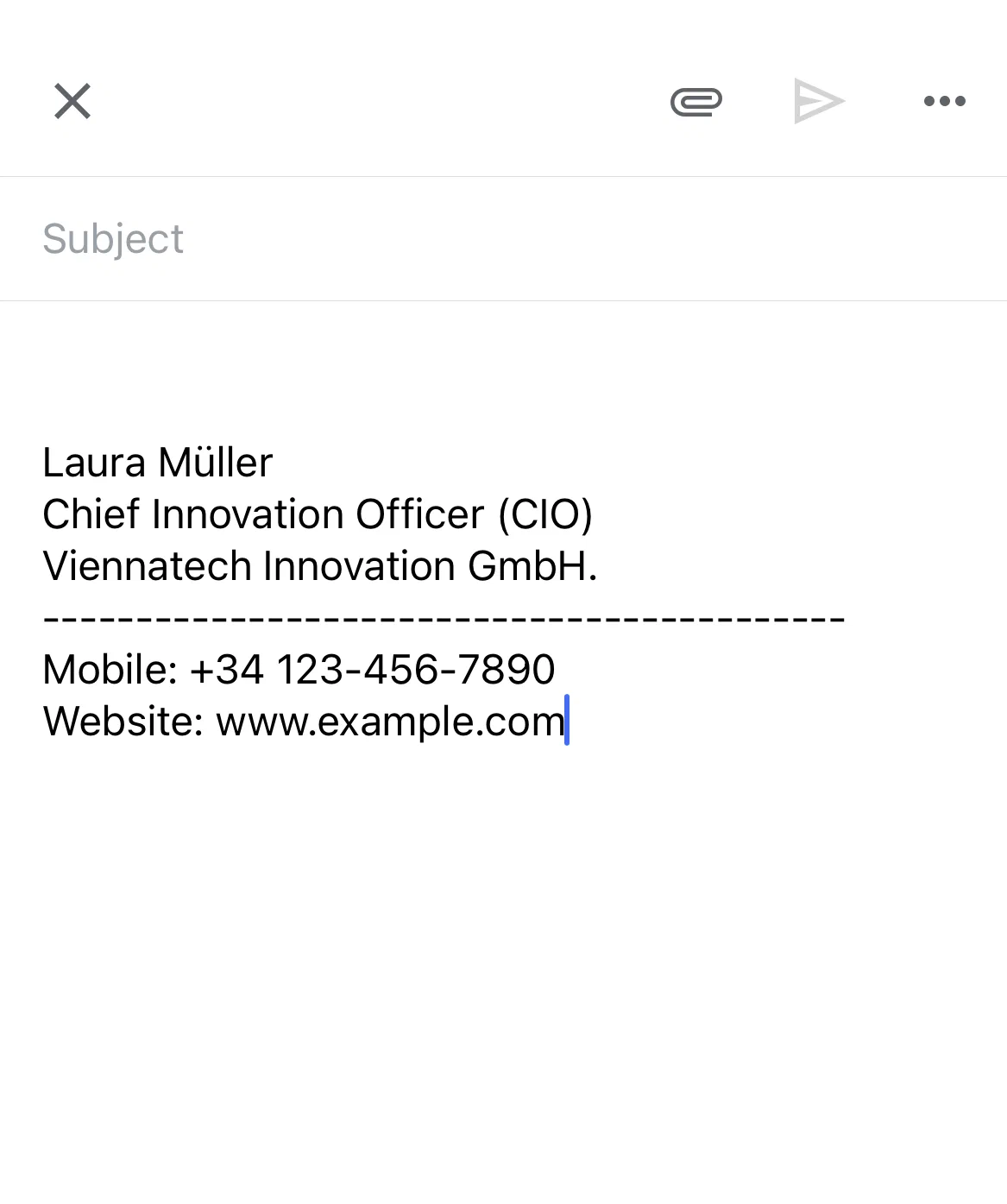
The Gmail app has its own “mobile signature”. It is plain text only, so no images, logos or formatted links. If you don’t create one, Gmail uses the signature you set up on your computer for new messages (Google Gmail Help).
On Android:
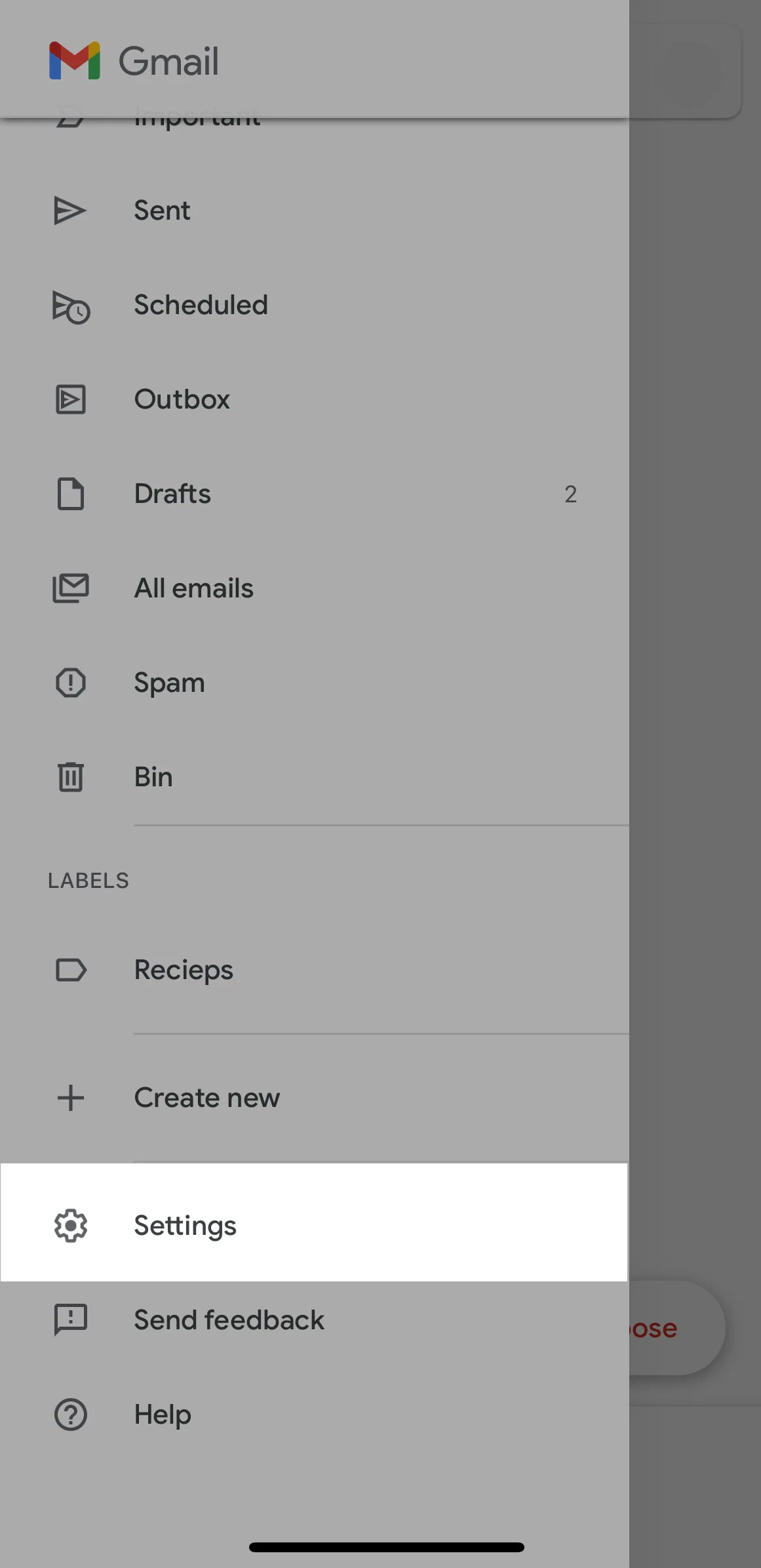
- Open the Gmail app and tap the menu (three lines) at the top left.
- Scroll down and tap Settings.
- Choose the Google Account you want to add a signature to.
- Tap Mobile signature, enter your text and tap OK.
On iPhone and iPad:
- Open the Gmail app, tap the menu at the top left, then Settings.
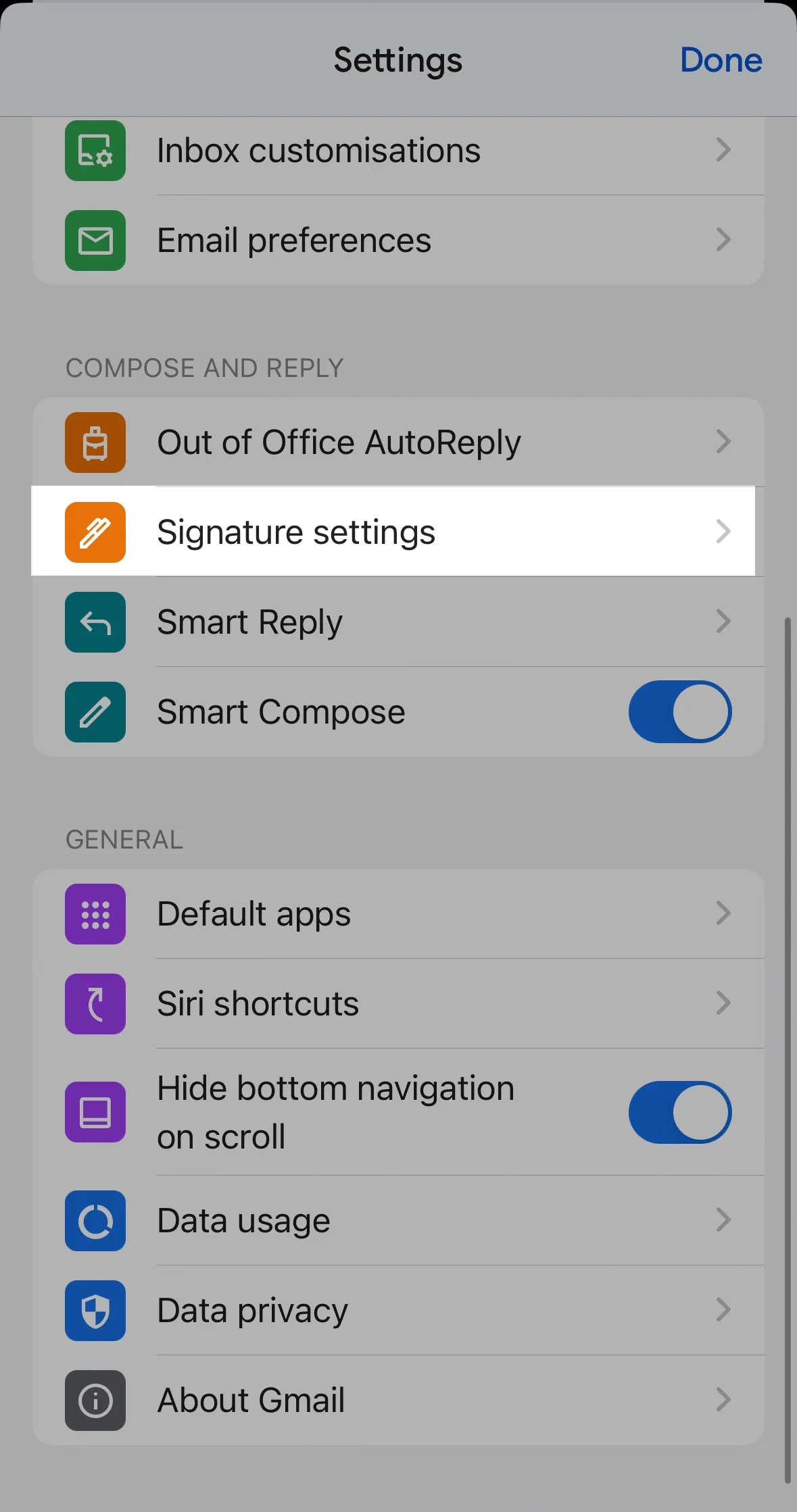
- Under Compose and reply, tap Signature settings.
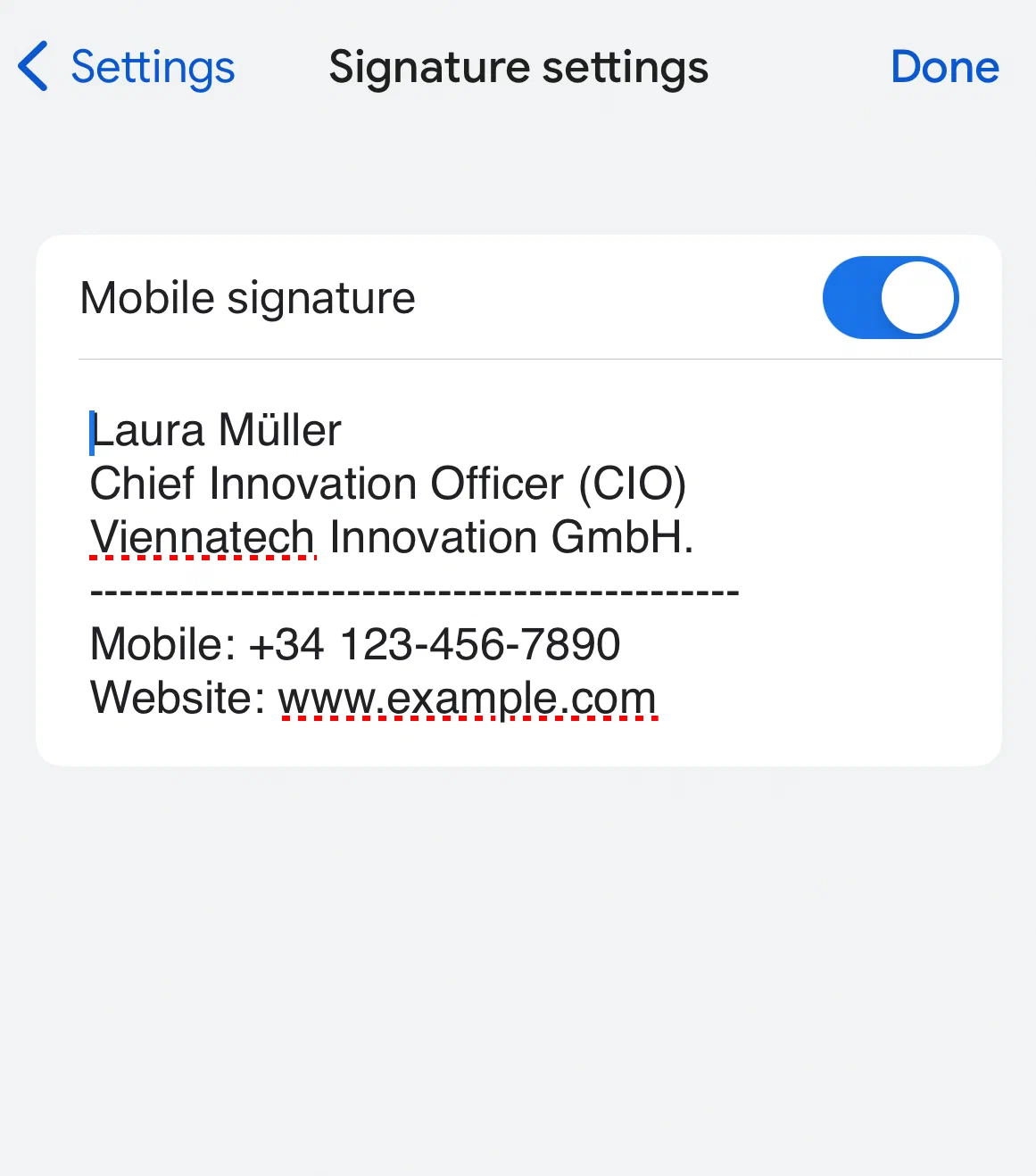
- Turn on Mobile Signature and type your signature.
- Tap Back to save. If you use several accounts in the app, repeat this for each one.
Add a logo or image to your Gmail signature
- Open Settings > See all settings > General > Signature and select your signature.
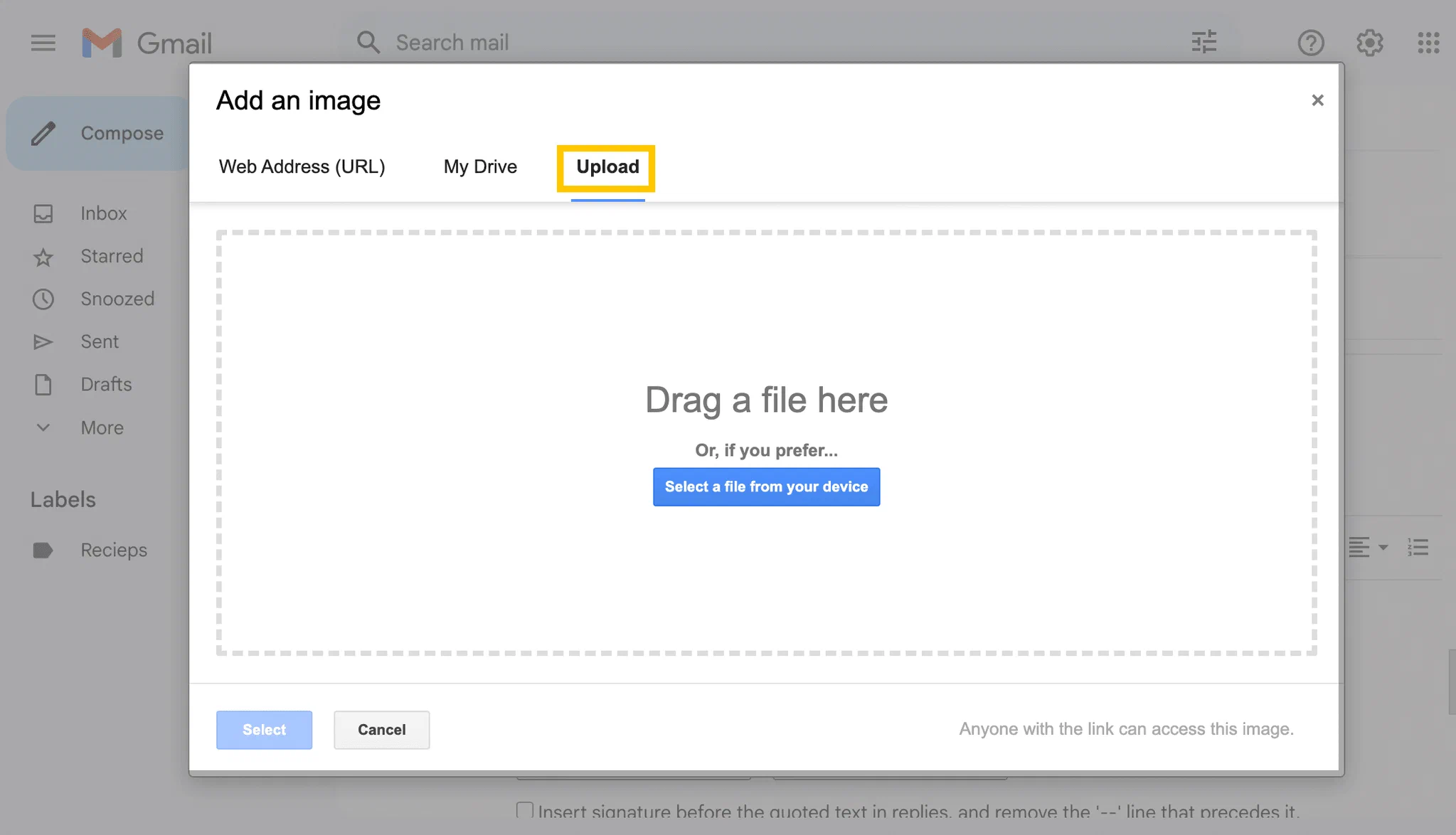
- Click the Insert image icon in the signature toolbar.
- Choose Upload to pick a file from your computer, My Drive for an image in Google Drive, or Web Address (URL) for an image that is already hosted online.
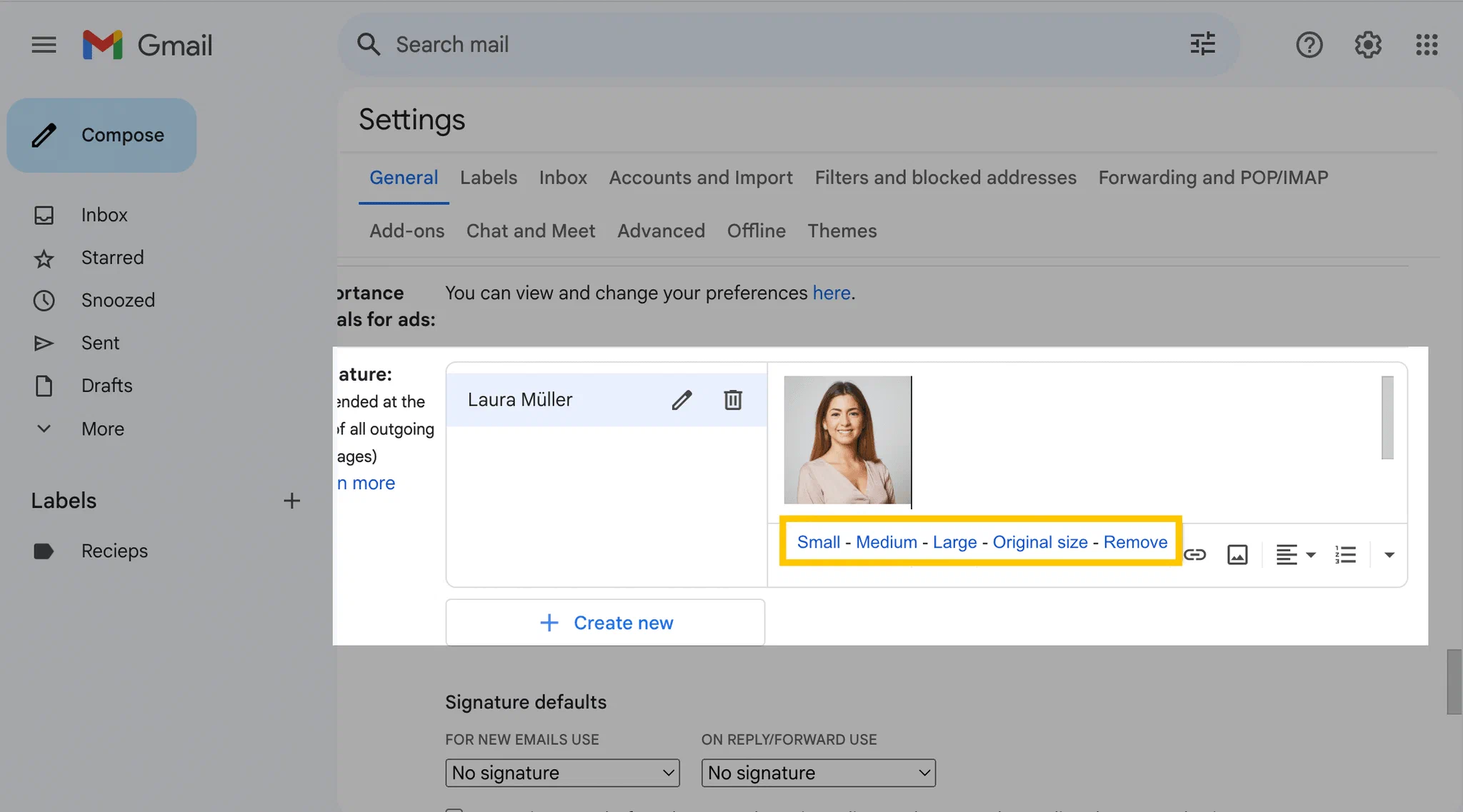
- Click the image once it’s inserted to resize it.
- Click Save Changes.
If Gmail shows an error, the image is probably too large for the 10,000-character limit: resize it and try again. Keep logos small, roughly the height of two or three lines of text.
Want your handwritten signature in the footer? Create it with our handwritten signature generator. The PNG is exported at high resolution, so it stays sharp on retina screens. There is also an animated version that writes itself out, but most email clients strip the animation and show the finished signature instead, so treat the static image as the fallback.
For an HTML signature, open the .html file in your browser, copy the rendered signature and paste it into the signature box; host its images online, and note the Gmail app only shows plain text.
Signatures for a whole company in Google Workspace
Google Workspace admins can add a standard footer to all outgoing emails in the Admin console under Apps > Google Workspace > Gmail > Compliance > Append footer (Google Workspace Admin Help). For individual, centrally managed signatures per employee, use a signature management tool.
How to add an email signature in Outlook
Where you set up your signature depends on which Outlook you use. In new Outlook for Windows and Outlook on the web, the signature settings now sit under Settings > Accounts > Signatures. If you’re looking for the old “Compose and reply” page, that’s where it went.
| Outlook version | Where to find signatures |
|---|---|
| New Outlook for Windows | Settings > Accounts > Signatures |
| Outlook on the web and Outlook.com | Settings > Accounts > Signatures |
| Classic Outlook for Windows | File > Options > Mail > Signatures |
| Outlook for Mac | Outlook > Settings > Signatures |
| Outlook app (iOS and Android) | Settings > Mail > Signature |
Create a signature in new Outlook for Windows and Outlook on the web
The steps are identical in new Outlook for Windows, Outlook on the web (work or school accounts) and Outlook.com (Microsoft Support):
- Select Settings (the gear icon) at the top right.
- Select Accounts > Signatures.
- If you have more than one account in Outlook, choose the account the signature is for.
- Select + Add signature and give the signature a name.
- Type your signature in the editing box below the name and format it with font, colour, links and images.
- Use the checkboxes at the bottom to apply the signature automatically to new messages and to replies and forwards. Leave them empty if you prefer to add the signature by hand.
- Select Save.
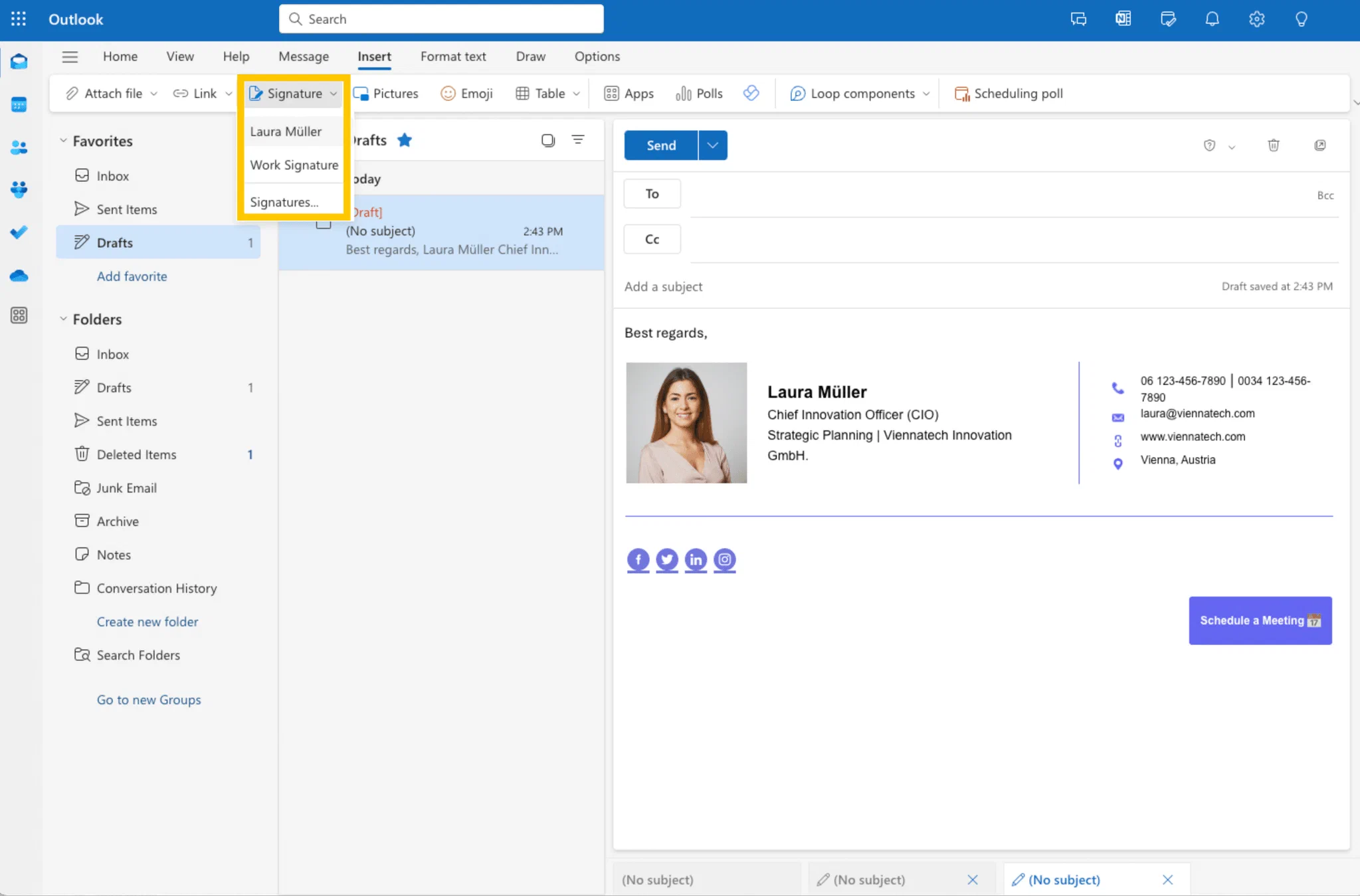
To add a signature to an Outlook email by hand, open a new message and select Signature on the Message tab (in some layouts it sits on the Insert tab). Pick one of your saved signatures from the list.
Create a signature in classic Outlook for Windows
- Open a new email. On the Message tab, select Signature > Signatures. (Or go to File > Options > Mail > Signatures.)
- In the E-mail account drop-down, choose the account for the signature. Each account can have its own signatures.
- Under Select signature to edit, choose New and type a name.
- Write your signature in the Edit signature box. You can change fonts, colours and alignment, and add links and images.
- Under Choose default signature, pick a signature for New messages and for Replies/forwards, or leave (none).
- Select OK.
Classic Outlook does not add a new signature to the email you had open while creating it. Insert it manually there (Message > Signature); all later emails get it automatically.
For a more complex layout with tables or borders, Microsoft recommends building the signature in Word and pasting it into the Edit signature box.
Create a signature in Outlook for Mac
- In the menu bar, select Outlook > Settings.
- Under Mail, select Signatures.
- Select + to add a new signature (or rename the default one) and type a name.
- Write your signature in the editor. Select text before formatting it.
- Under Choose which signature appears, pick the account, then set For new messages and For replies or forwards. With several accounts, set the defaults for each one.
- Close the Signatures window when you’re done.
To insert a signature manually, click in the message body and select Signature on the ribbon (you may need to open See more items first). Source: Microsoft Support, Outlook for Mac.
Add a signature in the Outlook mobile app
The steps are the same in Outlook for iOS and Android (Microsoft Support):
- Open the Outlook app, tap your profile picture at the top left, then the gear icon to open Settings.
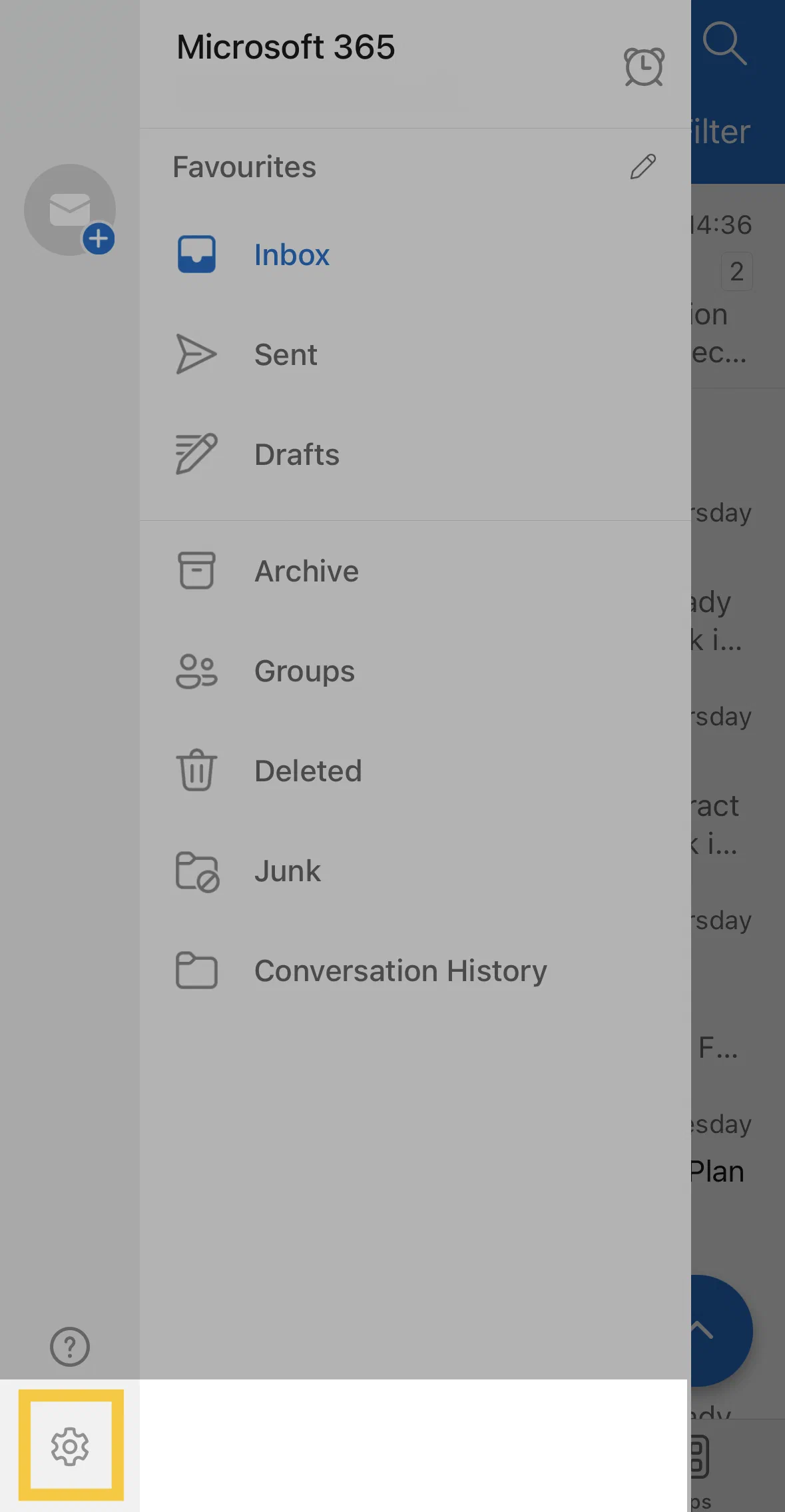
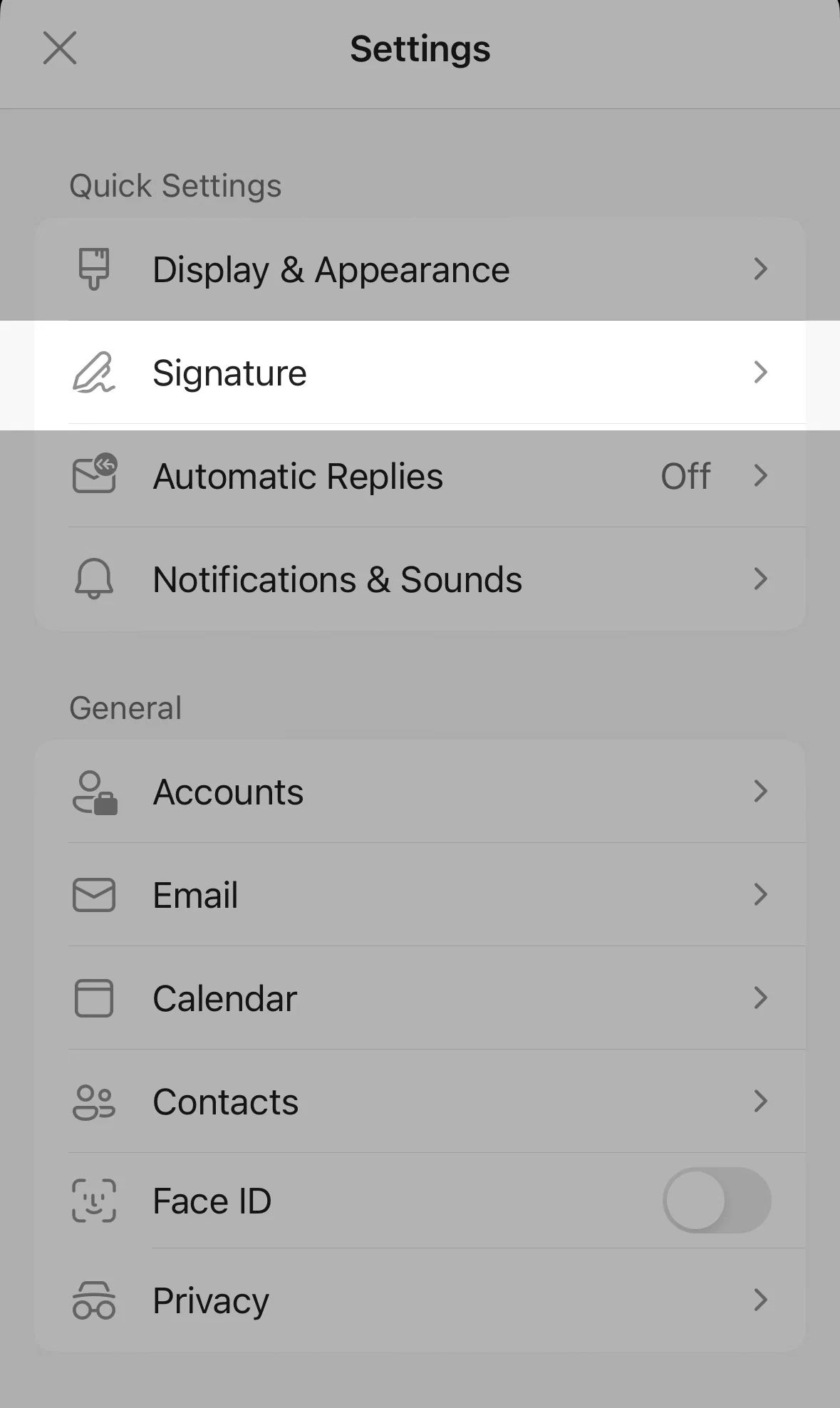
- Under Mail, tap Signature.
- Type your signature. If you have several accounts, turn on Per Account Signature and enter a signature for each one.
- Go back to save.
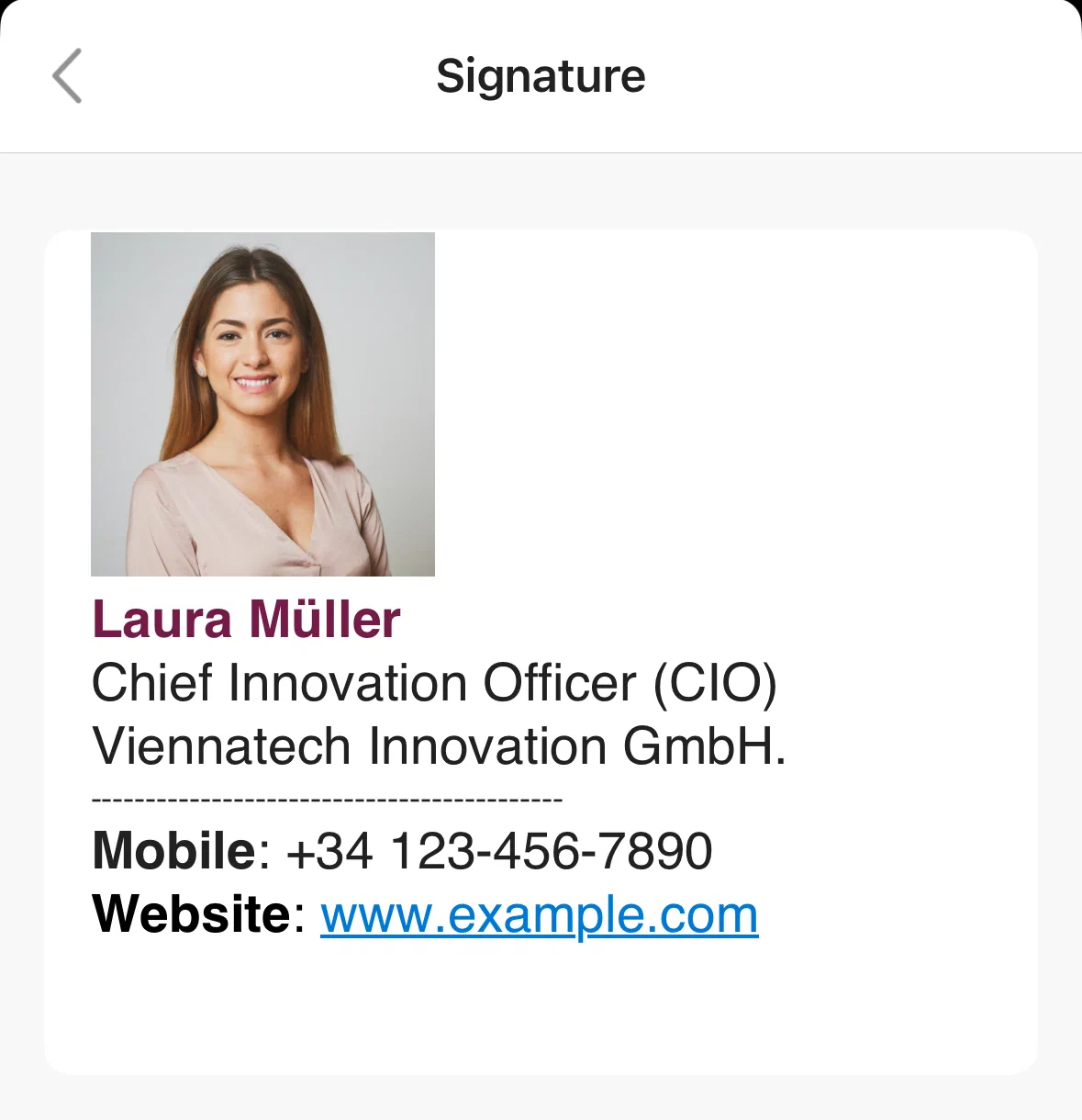
The app signature is separate from your desktop signature and is added to every email you send from the app.
How to change, edit or update your signature in Outlook
To change an existing Outlook signature, open the same place where you created it:
- New Outlook for Windows, Outlook on the web and Outlook.com: Settings > Accounts > Signatures, then select Edit signature (the pencil) next to the signature you want to change. Make your changes and select Save. To change which signature is added automatically, update the checkboxes for new messages and replies/forwards.
- Classic Outlook for Windows: File > Options > Mail > Signatures. Select the signature, edit it in the Edit signature box, select Save, then OK. Change the defaults under Choose default signature.
- Outlook for Mac: Outlook > Settings > Signatures. Under Signature name, select the signature, choose Edit, update it and close the window.
- Outlook app: Settings > Mail > Signature. Replace the text and go back.
An updated signature applies to new emails only.
Add a logo or image to your Outlook signature
- New Outlook and Outlook on the web: in Settings > Accounts > Signatures, edit the signature and use the image button in the editor toolbar to insert your logo.
- Classic Outlook: open a new email, select Signature > Signatures, choose the signature and select the Image button. Find your file and select Insert. To resize it, right-click the image, choose Picture and use the Size tab (keep Lock aspect ratio ticked). Select OK twice.
- Outlook for Mac: in the signature editor, select See more items and add a photo, logo or picture.
Microsoft notes that VML tags in pasted signatures can make images show up as attachments instead of inline, so insert images with the editor’s own button where possible.
For an HTML signature, open the .html file in your browser, copy the rendered signature, paste it into the Outlook signature editor and host all images online.
How to add a signature in Apple Mail
Create a signature in Mail on Mac
- Open the Mail app on your Mac.
- In the menu bar, choose Mail > Settings, then click Signatures.
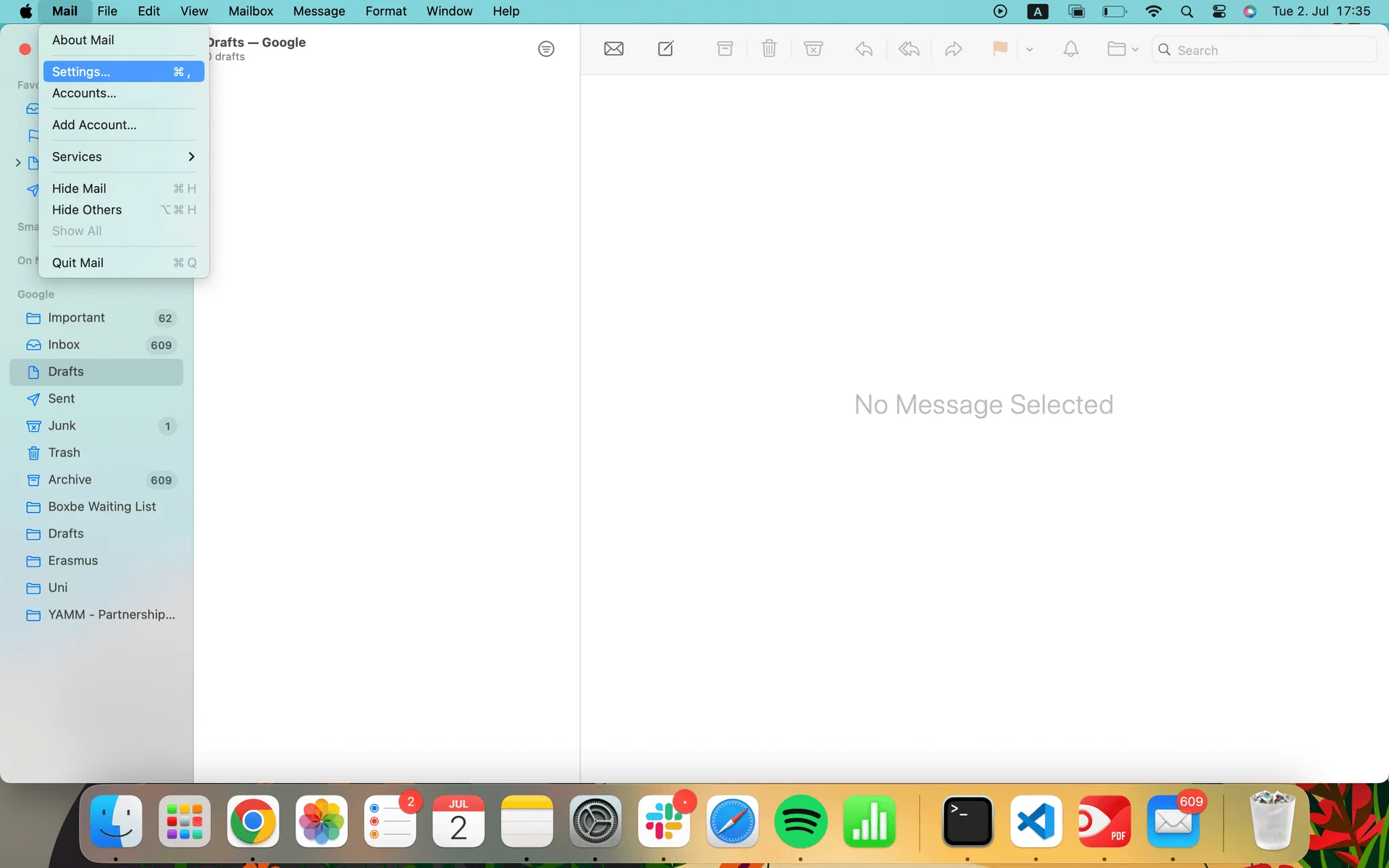
- In the left column (account list), select the email account you want to use the signature with.
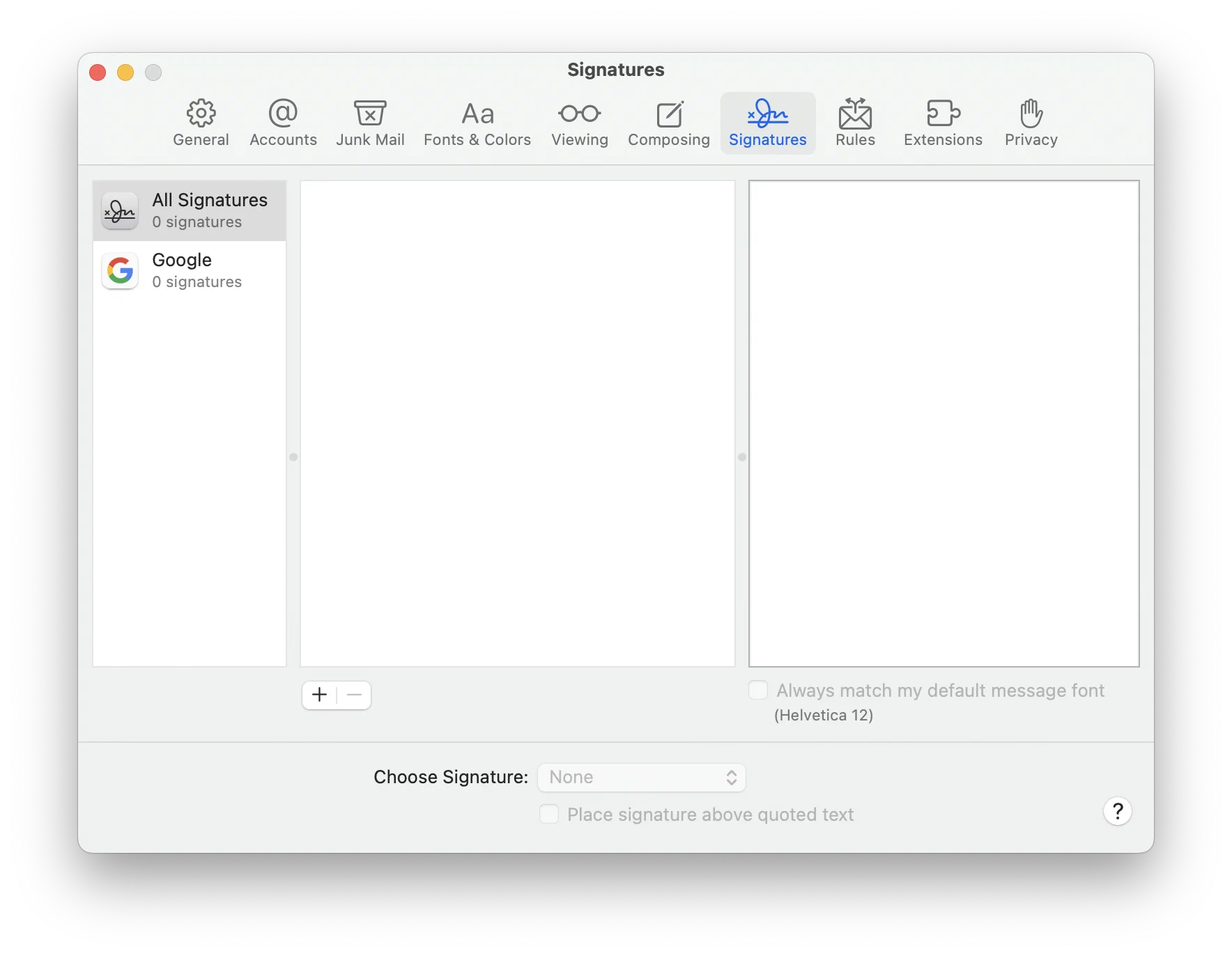
- Click the Add button (+) below the middle column (signature list) and type a name for the signature. This name appears in the Signature pop-up menu when you write an email.
- In the right column (preview), create your signature. Use Edit in the menu bar to paste text and turn text into links, Format to change font, colour and alignment, and drag an image into the preview to add a logo.
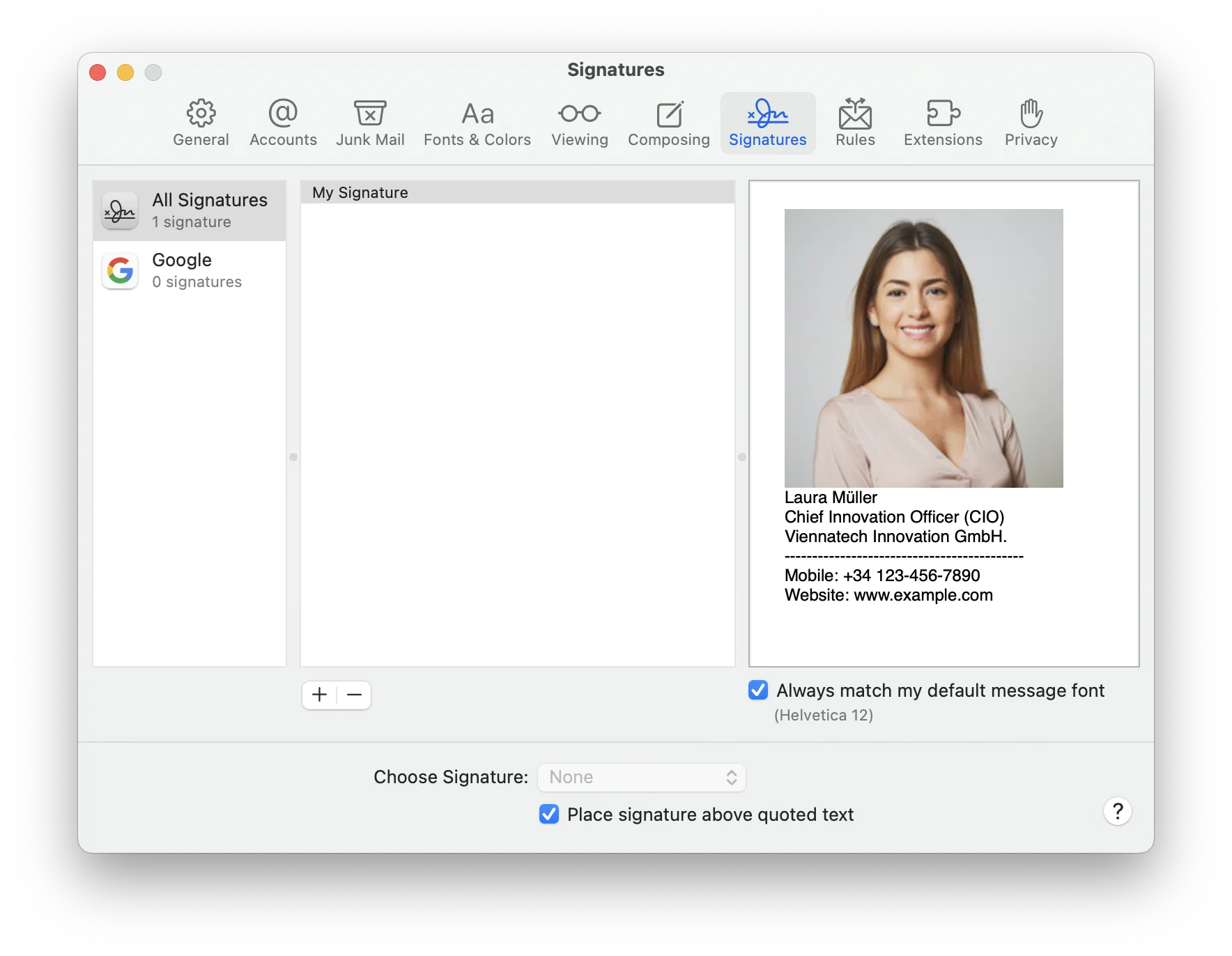
- If you created the signature while All Signatures was selected, drag it onto the email account in the left column. You can’t use it until it’s assigned to an account.
- Optional: deselect Place signature above quoted text if you want the signature to appear after the original text in replies and forwards.
Source: Apple Mail User Guide. To change a signature later, open the same Signatures pane, select it in the middle column and edit it in the preview.
Add a signature on iPhone and iPad
On iOS 18 and later (including iOS 26), the Mail settings sit under Apps in the Settings app (Apple iPhone User Guide):
- Open the Settings app.
- Tap Apps, then Mail.
- Tap Signature (below Composing).
- Tap the text field and type or edit your signature. With more than one account, tap Per Account to set a different signature for each.
Apple Mail on iPhone and iPad only supports text signatures. On older iOS versions the path is Settings > Mail > Signature.
Email signature vs. electronic signature vs. digital signature
An email signature is just contact details at the end of your emails and has no legal effect on a contract. An electronic signature signs the document itself, and a digital signature (S/MIME) proves an email really came from you.
How to digitally sign an email in Gmail
Gmail can digitally sign emails with S/MIME only in Google Workspace Enterprise Plus, Frontline Plus and the Education editions, not in personal @gmail.com accounts (Google Workspace Admin Help).
- Admin: in the Admin console, go to Apps > Google Workspace > Gmail > User settings and enable S/MIME (and user certificate uploads).
- You: get a personal S/MIME certificate (
.p12or.pfx) from a certificate authority. - In Gmail, go to Settings > See all settings > Accounts > Send mail as > Edit info > Upload a personal certificate, enter its password and save.
Outlook and Apple Mail work the same way with an installed certificate. A digitally signed email proves who sent it, not that anyone signed the contract attached to it.
How to send a document for electronic signature by email
To get a contract signed by email, send the document through an eSignature tool instead of adding a signature image to your footer.
Send documents for signature for free.
In fynk, sending a document for e-signature takes three steps, and it is included in the Free plan:
- Sign in to fynk.
- Drag and drop your file. fynk takes PDF, Word and scanned documents without conversion.
- Sign it, or send it to the other signers. Choose any level from a simple electronic signature (SES) to a qualified electronic signature (QES), including advanced signatures with a national eID; signers get an email with a secure link, fynk sends reminders and keeps an audit trail.
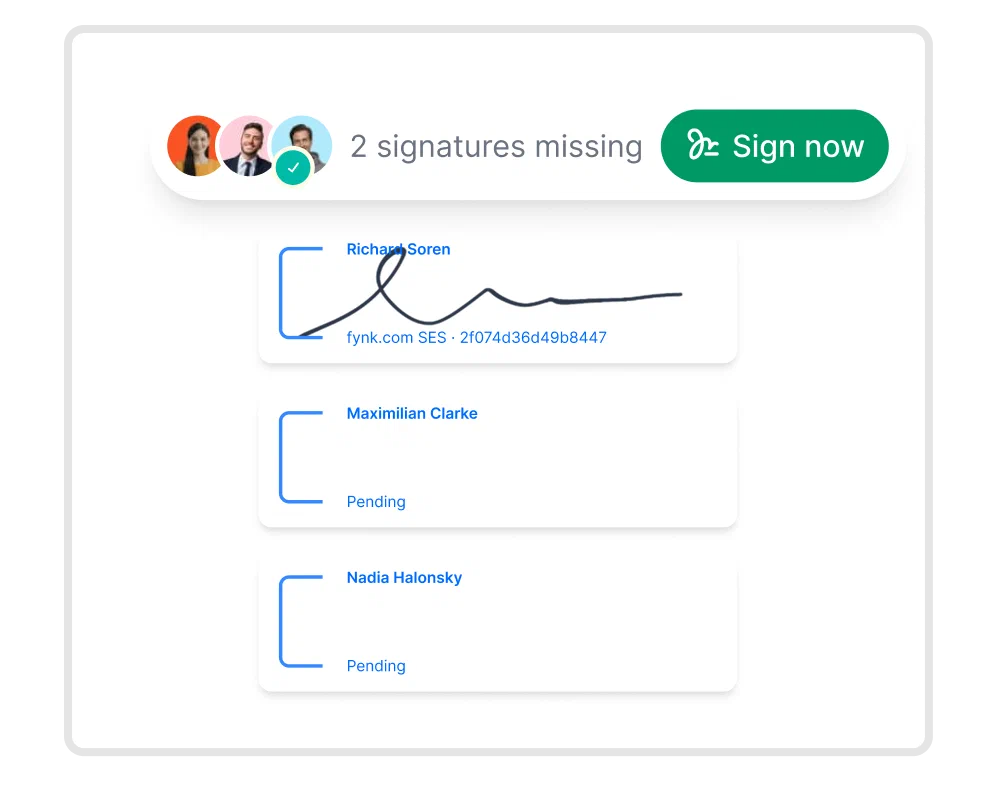
You get the notification if you don't sign it, you get the re-notification to please sign it, and once it's fully signed... then you get the final contract to download.

Only need to sign the attachment yourself? You can sign a PDF or sign a Word document for free on your own device.
Searching for a contract management solution?
Find out how fynk can help you close deals faster and simplify your eSigning process – request a demo to see it in action.
Frequently asked questions
Go to Settings > See all settings > General > Signature. Under Signature defaults, choose your signature for both For new emails use and On reply/forward use, then click Save Changes. Without a default, Gmail only adds a signature when you insert it with the pen icon while writing.
Open Settings > See all settings > General > Signature and select your signature. Click the Insert image icon in the signature editor, then upload the file, pick it from Google Drive or paste a web address. Click the image to resize it and click Save Changes. Keep it small: images count toward the 10,000-character limit.
Set a default signature in your email app. In Gmail, choose it under Signature defaults. In new Outlook and Outlook on the web, tick the boxes for new messages and replies/forwards under Settings > Accounts > Signatures. In classic Outlook, pick it under Choose default signature. In Apple Mail on Mac, assign it to the account and pick it in the Choose Signature menu.
A digital signature on an email is a cryptographic S/MIME signature, not the text block at the bottom. You need a personal S/MIME certificate installed in your email app. Outlook signs messages with your digital ID, Apple Mail uses the certificate from Keychain Access, and Gmail supports it in Google Workspace editions such as Enterprise Plus once your admin turns on S/MIME and you upload the certificate under Settings > Accounts > Send mail as > Edit info.
Usually no default is set. Check that the signature is selected for new messages and for replies and forwards. Classic Outlook also does not add a new signature to the email you had open while creating it. Classic Outlook can store signatures locally on one computer, and the mobile app has its own setting, so these do not automatically appear on other devices. New Outlook and Outlook on the web sync signatures saved to your Microsoft account.
It depends on what you mean. To add your name and contact details to every email, create an email signature in your email app's settings. To sign a contract you send by email, upload the document to an eSignature tool like fynk, add the signers and send it. They open a secure link and sign in the browser.
Please keep in mind that none of the content on our blog should be considered legal advice. We understand the complexities and nuances of legal matters, and as much as we strive to ensure our information is accurate and useful, it cannot replace the personalized advice of a qualified legal professional.




Get a regular dose of insightful contract management content

Take control of your agreements. Move your business forward.
Run agreements the way they should run: fast, clear, and on your terms.
No setup headaches
Go live in days, not quarters
No lock-in
Full export anytime
No hidden fees
Signatures included, no envelope fee