
Contract version control: track, compare and sign the right version

Rezvan Golestaneh
Published · 12 min read
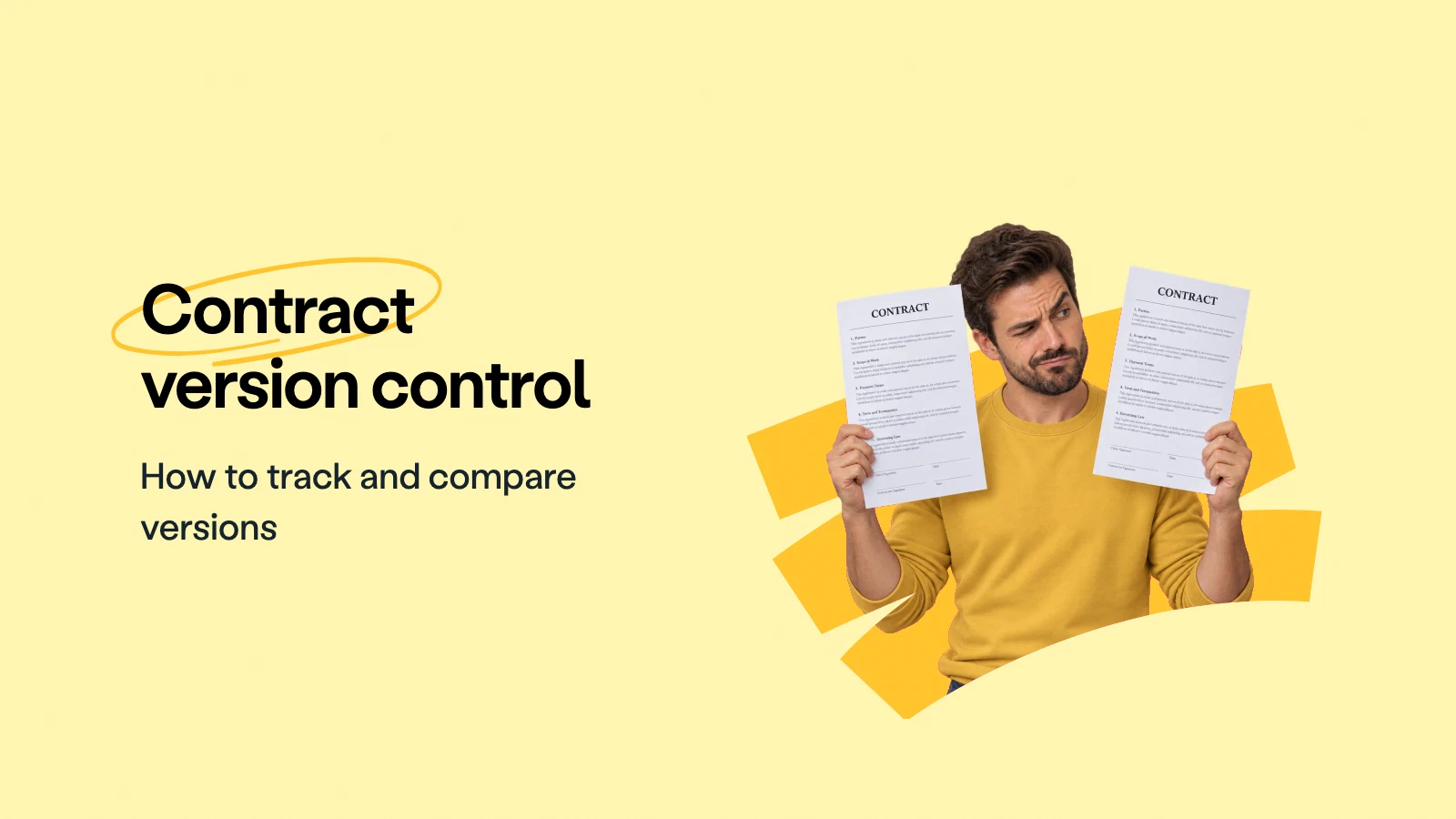
The PDF came back signed. Its name was MSA_final_v4_clean.pdf, but the liability cap had changed from 12 months of fees to 6. Nobody had marked it.
Someone accepted the changes. Someone else sent a clean copy. Everyone trusted “final”. Contract version control gives you a better way to check what changed, resolve competing drafts and send the approved wording for signature.
What is contract version control?
Contract version control is the practice of keeping contract drafts traceable, so you can identify the current version, review what changed and find the text that was signed.
A useful setup gives you:
- One working copy: everyone knows where the current draft lives.
- A version history: earlier drafts stay available, with a record of who supplied or edited them and when.
- A comparison process: you check differences before accepting a returned draft.
- A preserved signed copy: you keep the signed text separate from later edits.
Between versions, changes fall into three kinds:
- Added: new wording, such as an extra fee or a new reporting obligation.
- Removed: deleted wording, such as a liability cap or a cancellation right.
- Changed: replacement wording, such as a payment deadline moving from 30 days to 60.
Check all three. A missing clause can matter just as much as a new one, but there’s nothing left on the page to draw your attention to it.


Document versioning applies this approach to files generally. Contract version control also connects the drafts, approvals and signed agreement, so someone taking over can understand how the wording developed.
When do you need contract version control?
You need contract version control as soon as the wording changes and someone needs to distinguish the new draft from what came before.
Start keeping versions when:
- A supplier returns edits: you need to check the returned wording against the draft you sent.
- Several colleagues contribute: the current draft needs to contain their agreed changes.
- Negotiations pause: you need to distinguish accepted wording from proposals still open.
- Someone takes over: the new owner needs the current draft and the decisions behind it.
For an agreement you receive and sign without edits, keep the signed copy somewhere your team can find it. Start a version history if the wording changes during review.
The distinction between a new version and an amendment helps you decide what to preserve and compare:
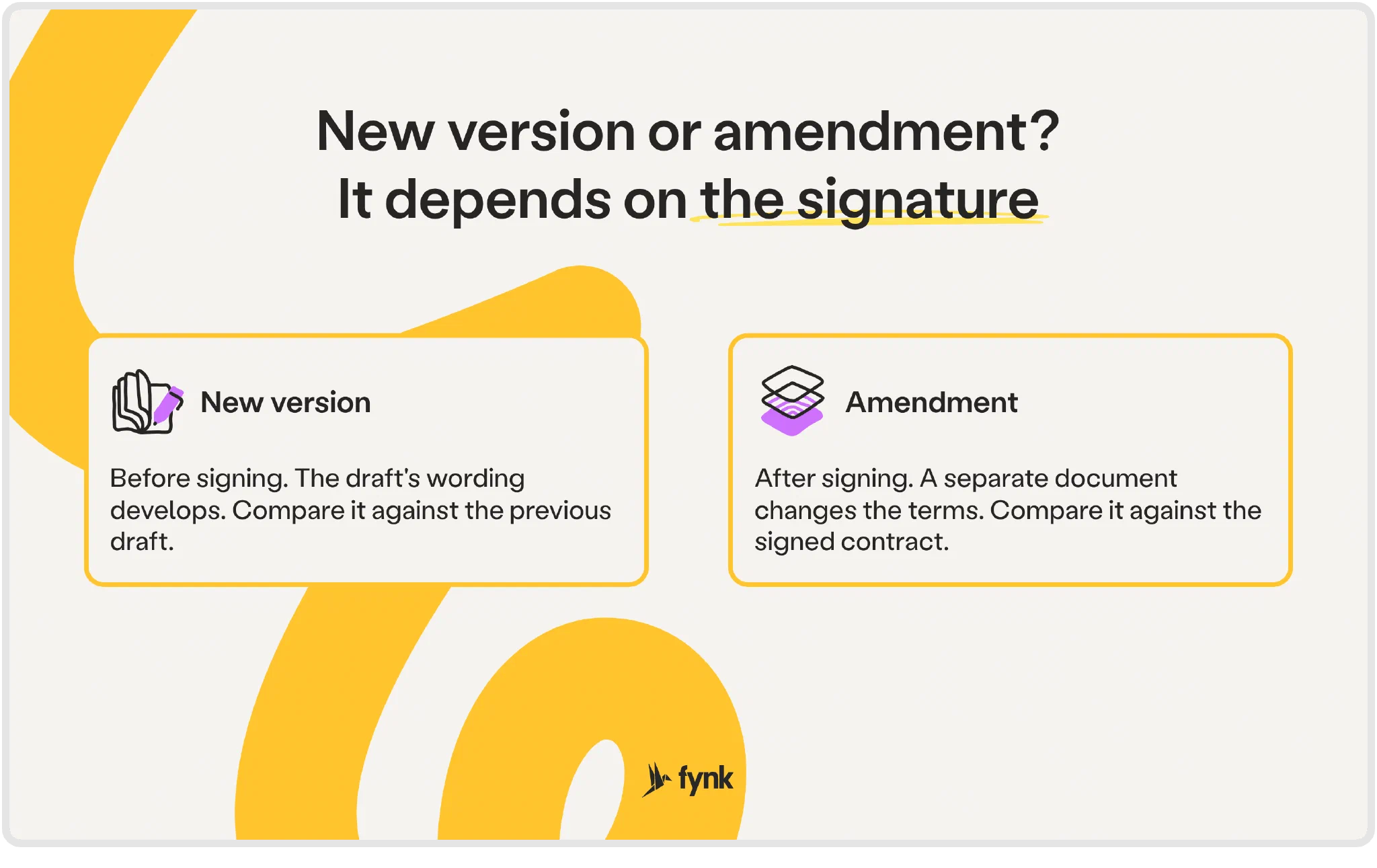
| Factor | New version | Amendment |
|---|---|---|
| Purpose | Develop the wording of a draft | Change terms of an existing agreement |
| Typical timing | During negotiation, before signing | After the original agreement has been signed |
| Example | A proposed payment deadline changes during review | The parties agree to change the payment deadline in their existing contract |
| What to compare | The revised draft against the previous draft | The proposed change against the relevant terms of the existing agreement |
An amendment can have its own draft versions while you negotiate it. Keep that history too, then retain the agreed amendment with the original contract.
See every change
before you sign.
Why does version control matter for contracts?
Version control matters because it helps you check that the contract sent for signature contains the wording your team approved.
That protects more than the document:
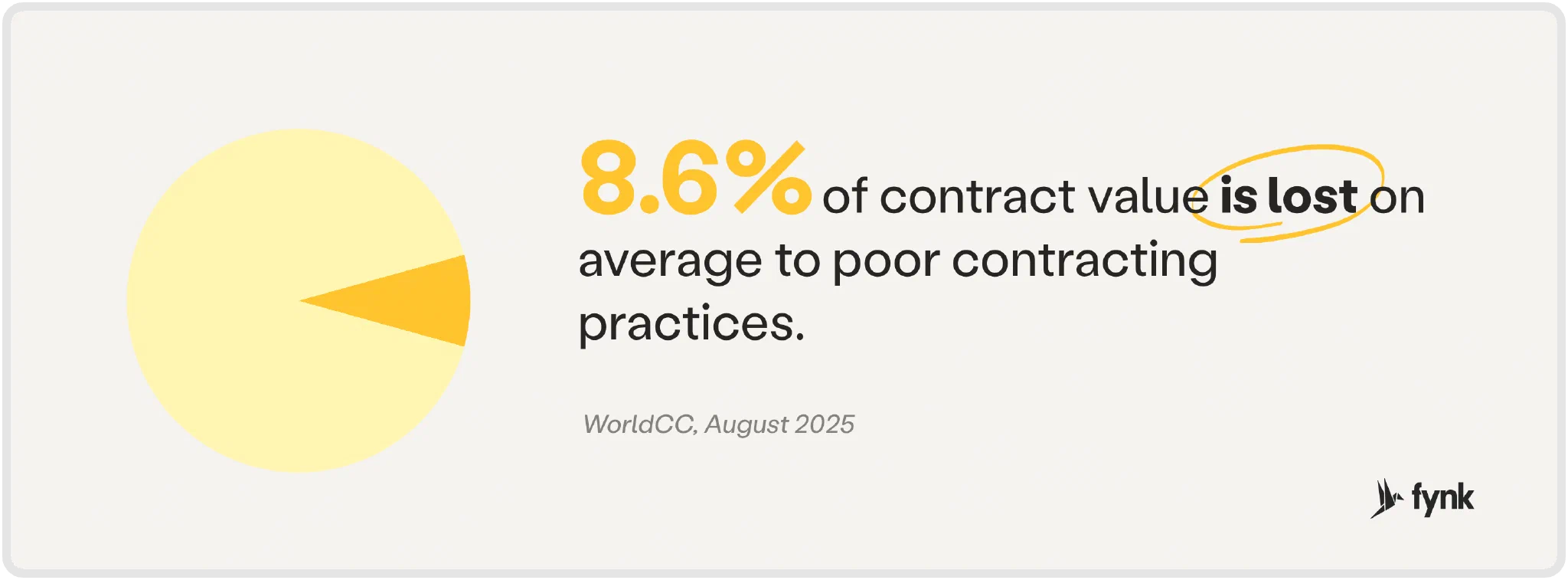
- Money: World Commerce & Contracting puts average contract value erosion, the gap between expected and actual results, at 8.6% in its August 2025 research. That figure covers contracting broadly. Unnoticed changes are one risk to manage within that wider problem.
- Negotiation evidence: preserved drafts and decisions help you reconstruct what each side proposed and accepted.
- Review time: a comparison gives reviewers a list of differences to investigate instead of asking them to spot changes from memory.
- Audit preparation: an identifiable signed copy and linked amendments give your team a clear starting point when someone asks which terms apply.
A real case: RTS v Müller
In 2005, Müller and RTS started a £1,682,000 packaging project before the contract was signed. When a dispute came up, nobody could point to one agreed, signed version. Three courts gave three different answers on which terms applied, and the case only ended at the UK Supreme Court in 2010, with the advice to “agree first and to start work later.”
What goes wrong without version control?
Without version control, teams lose track of which wording is current, which changes were agreed and which draft should be signed.
The trouble usually appears at a handover.
Competing drafts. Legal and sales edit separate copies. Both return a “latest version”, but neither contains the other’s changes.
Silent edits. The counterparty returns a clean document. Its covering email mentions the payment terms, but a cancellation right has disappeared too.
Approval attached to the wrong text. Finance approves one draft, someone makes another edit and a different version goes out for signature.
Lost negotiation history. The decision sits in an email thread, the clause sits in a document and the next contract owner can’t connect them.
Clauses drifting across contracts. Someone starts each agreement from the last one they used. Negotiated exceptions quietly become the new default. Harald R. Fortmann describes where that can lead:
At my previous firm, we had 25 different contract versions. We eventually discovered 57 different jurisdiction clauses, when only Frankfurt should have been the standard.

Read how fynk helped Five 14 standardize contract versions with reusable templates and locked critical clauses.
How do you check what changed between contract versions?
Compare the exact draft you sent with the file you received, then review every addition, deletion and replacement in context before accepting it.
Step 1: Find the original and revised files
Retrieve the draft you actually sent from your sent email or contract history. Make that your original. Make the returned file your revised version.
Keep both unchanged. Don’t pick the original because its filename looks right. Check the attachment or revision that accompanied the outgoing message.
Collect the schedules and attachments too. If the pricing schedule came back separately, include it in your review.
Step 2: Generate a comparison
Use the method that matches your files:
- Word on Windows: open desktop Word and choose Review > Compare > Compare, then Compare two versions of a document (legal blackline). Select the sent draft under Original document and the returned file under Revised document. In Word’s comparison settings, include text, formatting and comments. Select word-level changes and show the results in a new document, then choose OK.
- Word on Mac: choose Review > Compare > Compare Documents. Select the original and revised files, then OK. Word creates a new copy with revision marks, leaving the original untouched.
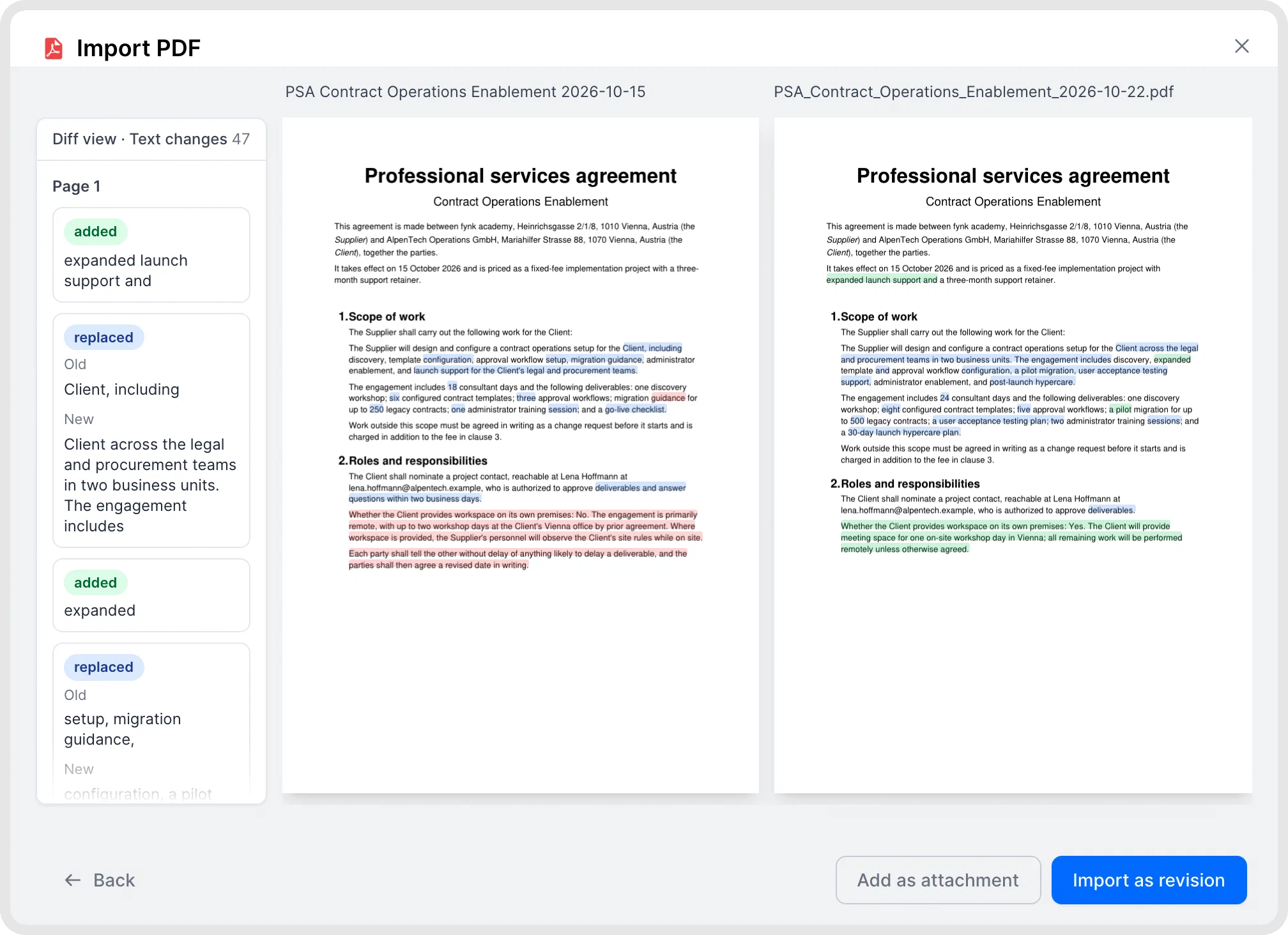
- PDFs: compare two PDFs for free in your browser. Drop the original into the left box and the returned file into the right box. Click a difference in the results list to jump to it. Files stay on your device. This tool can’t read scans, so ask for a PDF exported from the editable document if needed. Check logos and signatures separately.
- In fynk: compare contract versions in Word or PDF. Put the current version next to any earlier revision, or upload the returned file, and fynk lists every added, replaced and deleted passage beside both documents. You can also compare two different documents, such as your template against the counterparty’s draft, not only versions of the same contract.
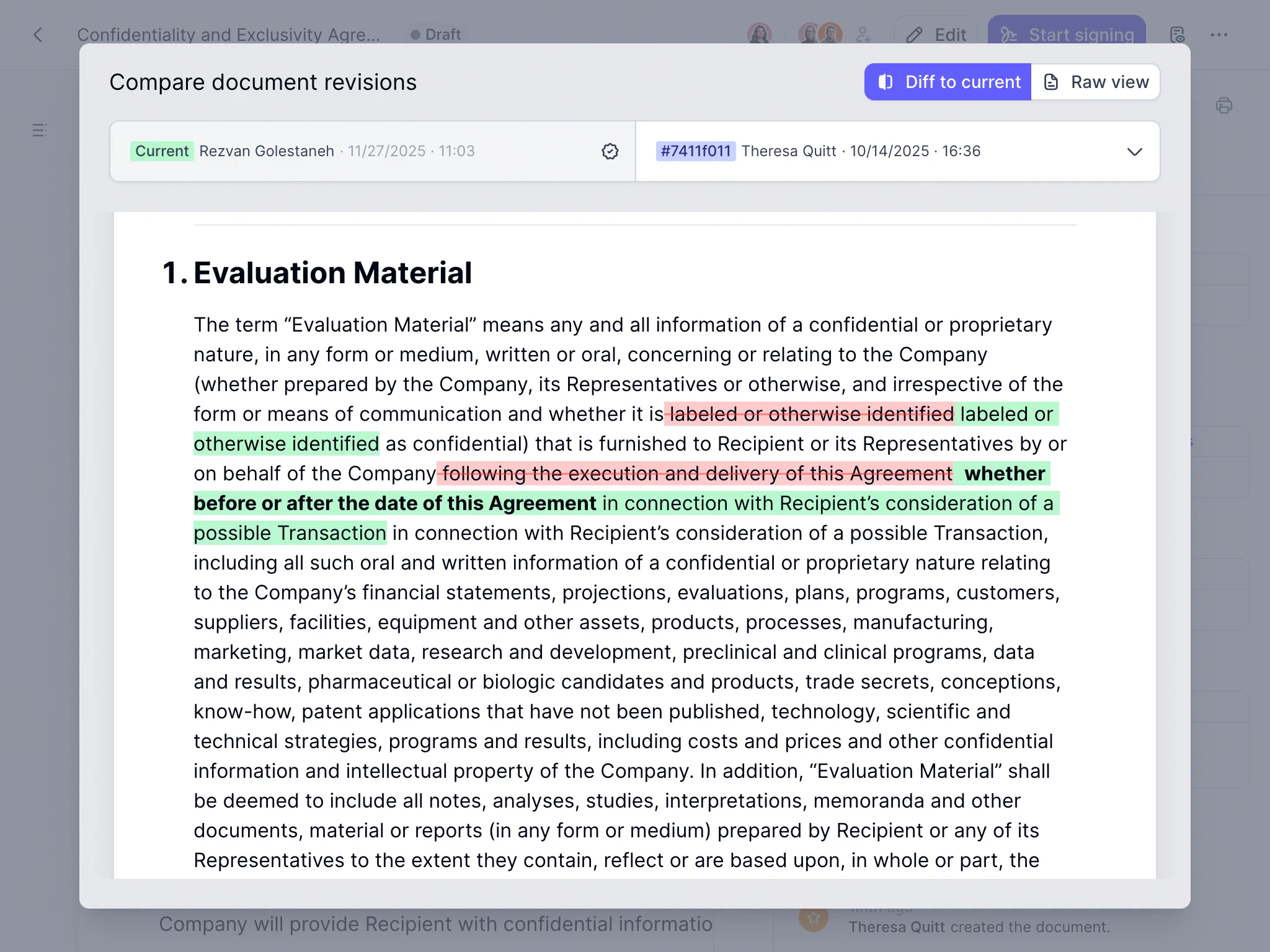
Run the comparison even if the returned document contains tracked changes. You need to check the wording in both files, including edits the sender didn’t mark.
Step 3: Check the changes that affect the deal, or let AI do the first pass
Start with wording that affects money, obligations or your ability to leave the agreement:
- Prices and payment: amounts, currencies, taxes, payment deadlines and new fees.
- Dates and notice periods: start dates, renewal dates and cancellation deadlines.
- Responsibilities and liability: who must do what, and limits on what either party might have to pay.
- Names and definitions: the legal entities and terms used elsewhere in the contract.
- Deleted clauses: protections or obligations that have disappeared.
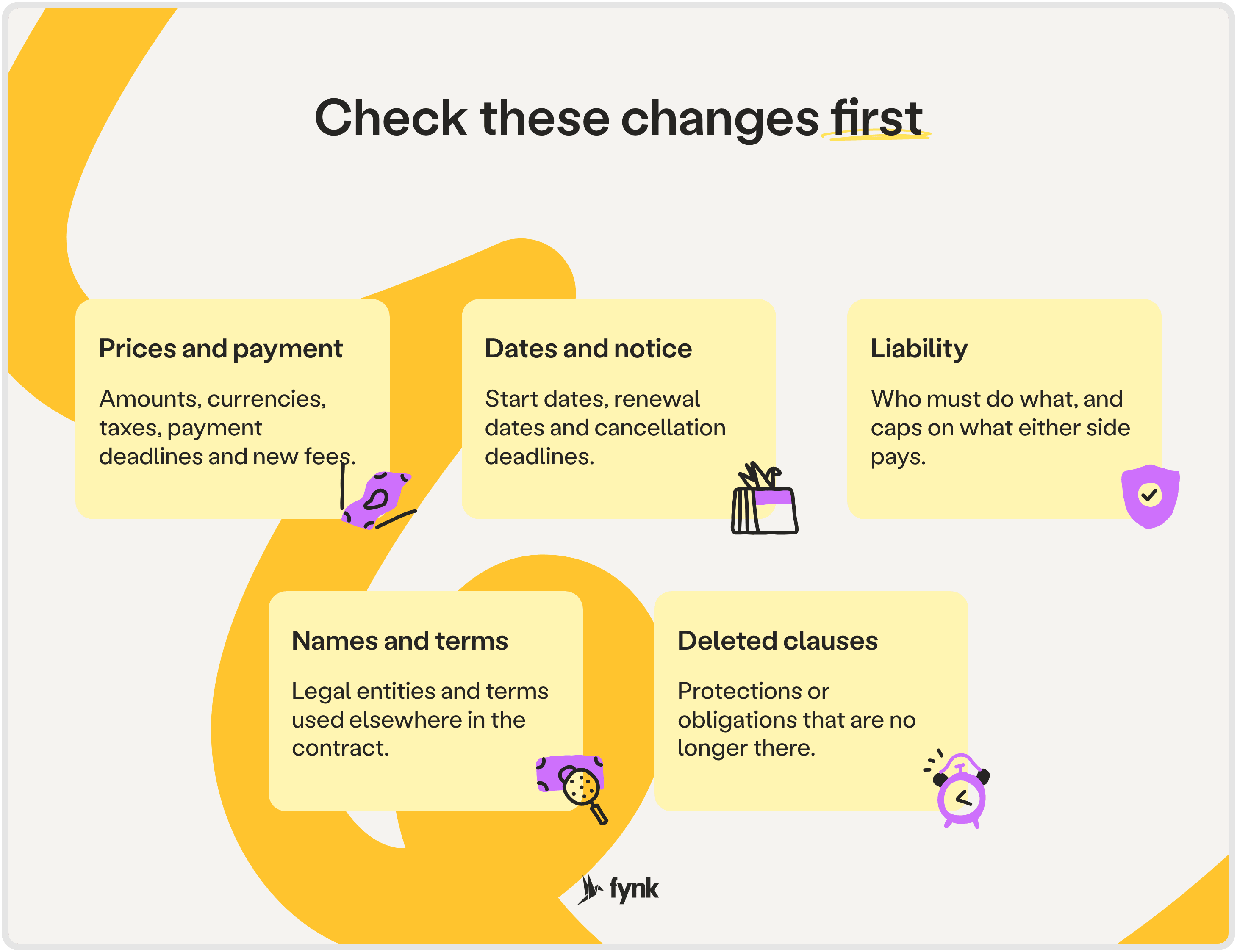
Read each difference in its full sentence. If “30 days” becomes “60 days”, establish who pays whom before deciding whether the change helps your business.
The easiest way to get a first pass is to ask AI. In fynk, you ask the assistant in plain language, and it compares the versions or contracts you name and answers with links to the clauses it used. You can compare contracts with fynk AI the same way across several agreements at once. A prompt that works well:
Compare the older draft v06 with the returned draft v07. List added, removed and changed terms affecting payment, liability, renewal and termination, with the old and new wording.
If the contract exists in two languages, compare the language versions against each other too. A word-level comparison can’t do that, because every word differs, but AI can: ask whether the notice periods in the English and the German version match, and which version governs if they conflict.
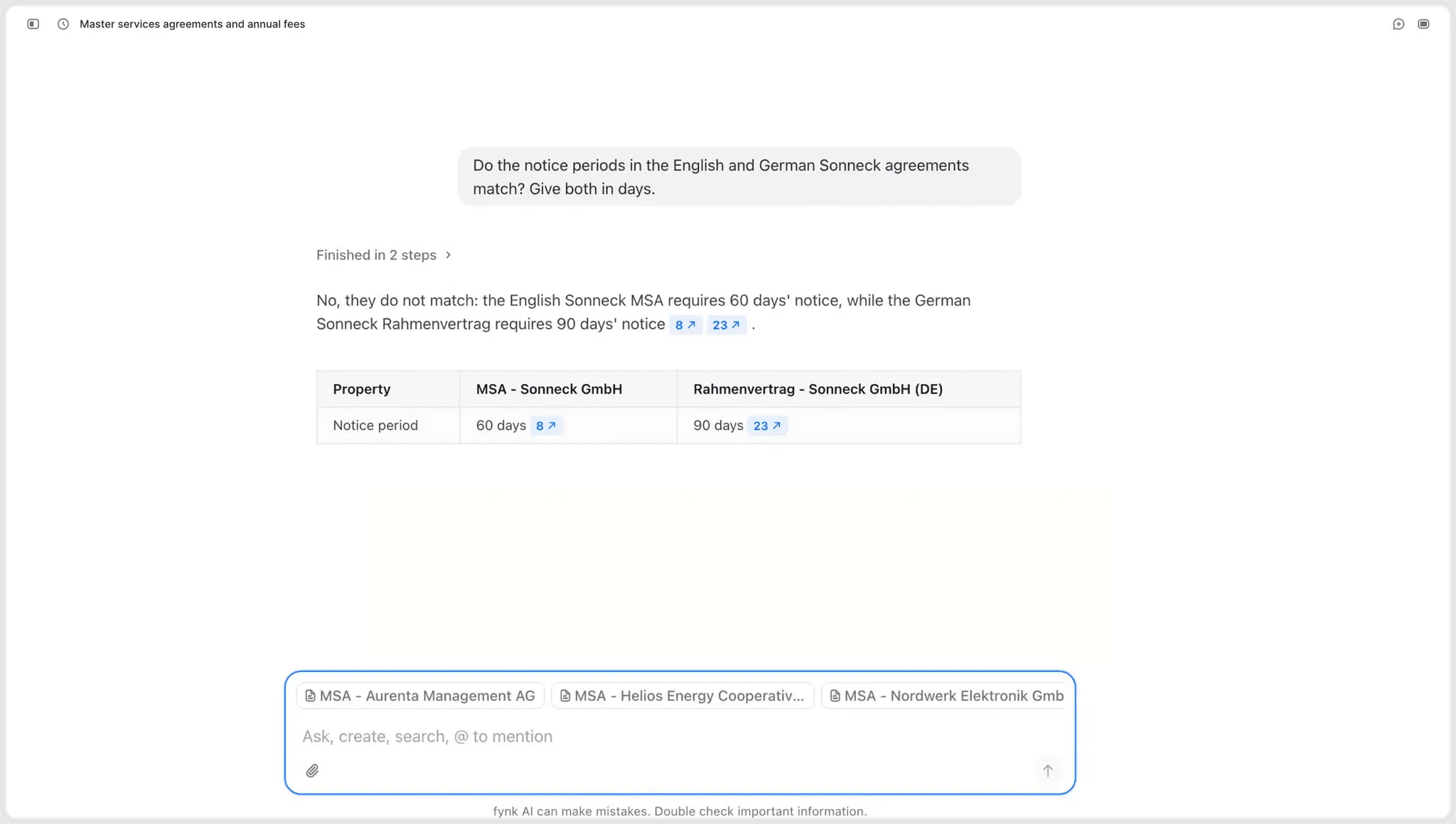
Use the answer to decide where to look first, then confirm each finding against the word-level comparison. An AI summary isn’t your sign-off.
Step 4: Record a decision for every difference
Work through the full results list, including changes outside the clauses you checked first.
For each edit, record whether you’ll accept it, reverse it or ask a question. Include the clause reference and the reason. For example: “Clause 4.2: confirm whether the new fee applies to existing orders.”
Keep unresolved questions visible. If you can’t explain a change’s effect, ask the person responsible for that term before accepting it.
Step 5: Reconcile additional versions
For a sequence of drafts, compare each version with its immediate predecessor: v05 against v06, then v06 against v07. This identifies the round in which wording changed. The comparison alone doesn’t prove who made the edit.
For parallel drafts, use their shared starting point. If legal and sales both edited v06 separately, compare each returned copy against v06. Apply the accepted edits to one working draft, then compare that consolidated draft against v06 to check the combined result.
Keep both source drafts. Overwriting one with the other can lose changes before anyone reviews them.
Step 6: Save the reviewed draft and verify the result
Apply the agreed decisions to the editable contract and save the next version. Retain the incoming files, comparison and decision record.
If you only have PDFs, send the corrections to the document owner and ask for an updated copy. Compare that copy against the version you reviewed to confirm the corrections.
Before signing, compare the final file against the approved draft. Check the schedules, names, dates and signature blocks too. If the text differs, resolve the difference and get approval for the revised wording.
With a contract platform like fynk, these steps stop being separate jobs in separate tools. The drafts, the comparison, the AI check, the decisions and the signed copy all sit in one place, so each step is easy to follow and easy to hand over.
How does fynk handle contract version control?
In fynk, a contract is one document, not a chain of files. Your team and the counterparty negotiate in the same document, so there is always one working copy.
Every move is tracked with a timestamp. Each save, the start of signing, each signature and the move to done create a revision you can open or download as a PDF, so “which version did we sign?” has a direct answer. If the text changes after signing, the earlier signatures move to an archive.
Comparison works for Word and PDF files, and for two different documents as well as two versions of one. When a counterparty insists on Word, upload their file back as a new revision of the same contract. Metadata, discussions and history stay with it, and uploads are blocked while the contract is out for signing.
What are the best practices for contract version control?
The steps above cover a single review. These practices are the setup that makes every review easier, so the same problems don’t come back with the next contract.
1. Keep one working document and name its owner
Choose where the current draft lives and assign someone to maintain it. That person collects edits, resolves competing copies and confirms which version moves to the next round.
Ownership is often the missing piece. In the WorldCC CCM Benchmark Report 2025, 48% of organizations said it was unclear who is accountable for the quality and integrity of their contracting process, and WorldCC’s own analysis puts the real figure at 70% to 80%.
On an online platform, send the counterparty a link to the working document instead of an attachment, so their edits land in the same history as yours.
2. Make versions identifiable
On a platform, use the revision identifiers it provides, and quote the exact revision when you ask for approval. “Please approve the latest version” becomes ambiguous as soon as someone edits it.
If you have to work with files, use one naming pattern, such as Acme_MSA_2026-10-20_v07_review.docx, and change the status only when the document reaches that stage.
3. Review outside edits as proposals
Where simultaneous editing is available, use it to avoid separate internal copies. Agree who handles each part of the contract so colleagues don’t work over each other’s changes.
Treat the counterparty’s edits as proposals until your team accepts them. Use “accept all” only after you’ve checked every edit and resolved every question.
4. Keep decisions with the contract
Record why you accepted a concession, who approved it and which wording they reviewed. Keep the explanation beside the relevant clause or in the contract’s decision record.
Use internal comments for your team’s discussion and external comments for the counterparty. Before sharing a draft, check that internal notes aren’t visible in the outgoing document.
5. Build the approval gate into the workflow
Don’t rely on people remembering to ask for sign-off. Set the workflow so a contract can’t go out for signature until the named approvers have approved that exact revision, including its schedules.
Decide upfront which changes reopen approval. A changed price, cap or term should; a corrected typo in the address block may not. Write that rule down so nobody has to judge it under deadline pressure.
6. Keep the signed copy, its history and later changes together
Once signing is complete, store the signed document with its approved draft, negotiation history and approval record. When someone asks which version was signed, point to that record, not to a file called “final”.
Link every later amendment, addendum and renewal to the original when you create it. Someone who opens the contract for a renewal or an audit should see the documents that change it.
Searching for a contract management solution?
Find out how fynk can help you close deals faster and simplify your eSigning process – request a demo to see it in action.
FAQ
Contract versioning means keeping identifiable drafts instead of overwriting the previous wording. Preserve earlier versions, record when they were created or received and identify the current draft and signed copy.
A version records a stage in a document's development. An amendment changes terms of an existing agreement. The amendment itself can go through several draft versions before it is agreed.
Compare sequential drafts in order, each against its predecessor. For parallel drafts, compare each against their shared starting version, then check the consolidated draft after applying the accepted edits.
Start by preserving the signed document, approved draft and negotiation record. Compare the wording and identify the mismatch. Which terms bind the parties depends on the facts and applicable law, so get legal advice before relying on a different draft or arranging a correction.
Yes. AI can help identify and summarize differences, and fynk AI can compare versions as a question. Specify the older and newer versions, ask for the changed wording and verify the summary against a word-level comparison before accepting edits.
Please keep in mind that none of the content on our blog should be considered legal advice. We understand the complexities and nuances of legal matters, and as much as we strive to ensure our information is accurate and useful, it cannot replace the personalized advice of a qualified legal professional.



Get a regular dose of insightful contract management content


Take control of your agreements. Move your business forward.
Run agreements the way they should run: fast, clear, and on your terms.
No setup headaches
Go live in days, not quarters
No lock-in
Full export anytime
No hidden fees
Signatures included, no envelope fee