
How to duplicate or make a copy of a Word document

Rezvan Golestaneh
Updated · Published · 11 min read
The fastest way to duplicate a Word document is to copy the file without opening it:
- Windows: select the file in File Explorer, press Ctrl + C, then Ctrl + V. Windows creates
Document - Copy.docx. - Mac: select the file in Finder and press ⌘ + D (or right-click > Duplicate). macOS creates
Document copy.docx.
If the document is already open, use File > Save As for a file on your computer, or File > Save a Copy for a file in OneDrive or SharePoint. With AutoSave on, Word shows Save a Copy instead of Save As. Make the copy before you start editing, because AutoSave writes every change into the original.
Which method to use
| Method | Where | Opens Word? | Use it when |
|---|---|---|---|
| Copy and paste the file | File Explorer, Finder | No | You want an exact duplicate, fast, or several at once |
| Duplicate (⌘ + D) | Finder on Mac | No | You want a copy in the same folder |
| Save As | Word desktop, local files | Yes | You want the copy under a new name, folder or format |
| Save a Copy | Word desktop, OneDrive or SharePoint files with AutoSave | Yes | Save As is missing from the File menu |
| Open as Copy | Word for Windows | Yes | You want to edit a copy and leave the original untouched from the start |
| Create a Copy | Word for the web | Yes | You work in the browser |
| Copy to | OneDrive, SharePoint, Teams | No | The file lives in the cloud and you want the copy in another folder |
| Save a Copy | Word for iPhone, iPad, Android | Yes | You are on a phone or tablet |
| Save as Word Template (.dotx) | Word desktop | Yes | You need a fresh copy of the same document again and again |
How to make a copy of a Word document on Windows
Duplicate a Word document in File Explorer
This makes an exact duplicate without opening Word.
- Open File Explorer (Windows + E).
- Go to the folder with your Word file.
- Right-click the file and select Copy (or select it and press Ctrl + C).
- Open the folder where the copy should go. To keep it in the same folder, stay where you are.
- Right-click an empty area and select Paste (or press Ctrl + V).
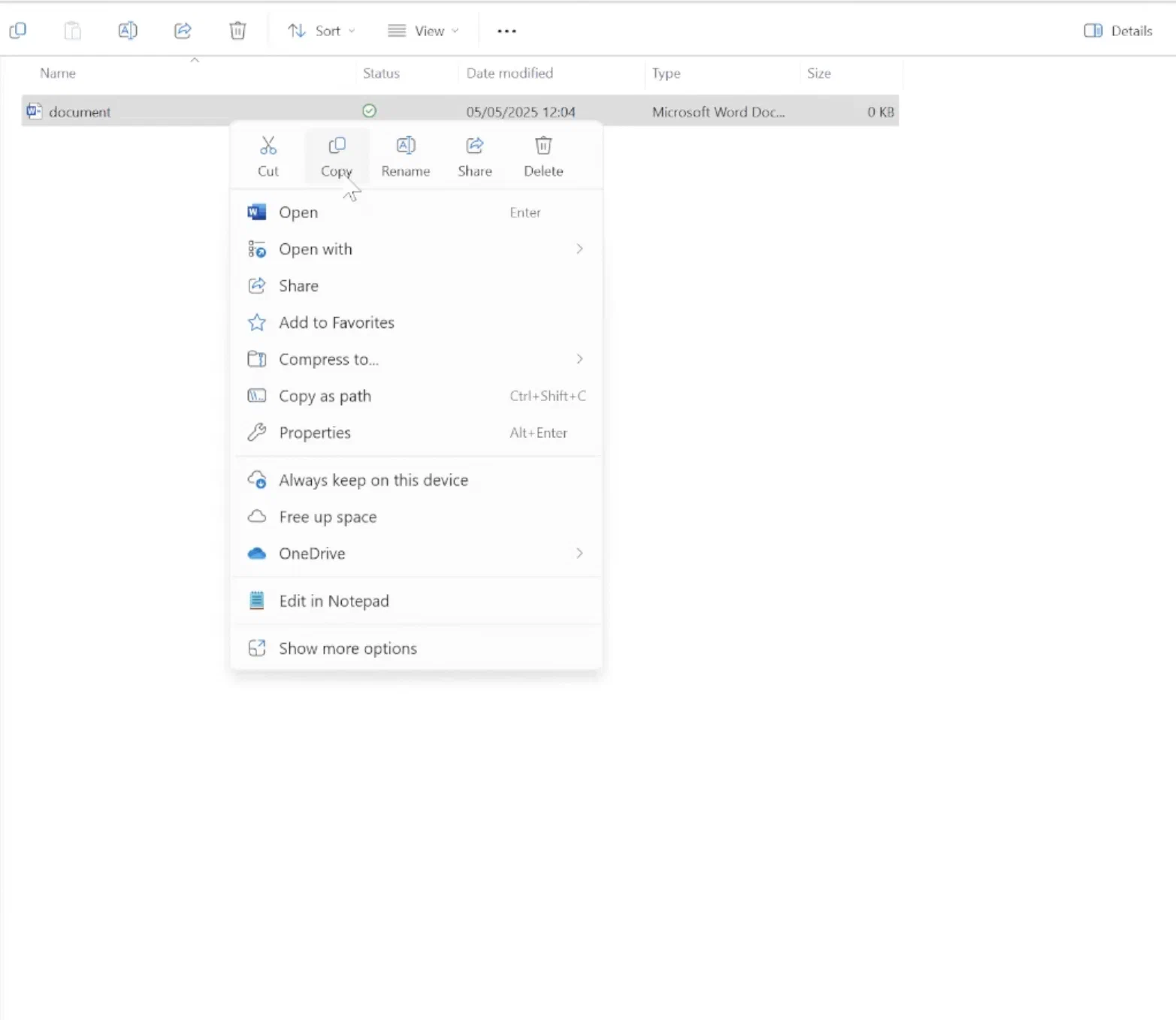


If you paste into the same folder, Windows names the copy Document - Copy.docx. If a file with that name already exists in another destination folder, Windows asks whether to replace it, skip it or keep both. Pick Keep both if you are not sure. To copy several documents at once, select them all with Ctrl held down before you press Ctrl + C.
Use Save As or Save a Copy inside Word
Use this when the document is open and you want the copy under a new name or in another folder.
- Click File.
- Click Save As. If the file is stored in OneDrive or SharePoint and AutoSave is on, this entry reads Save a Copy.
- Choose a location (This PC, OneDrive or Browse).
- Type a new file name, for example
Contract_v2.docx. - Click Save.
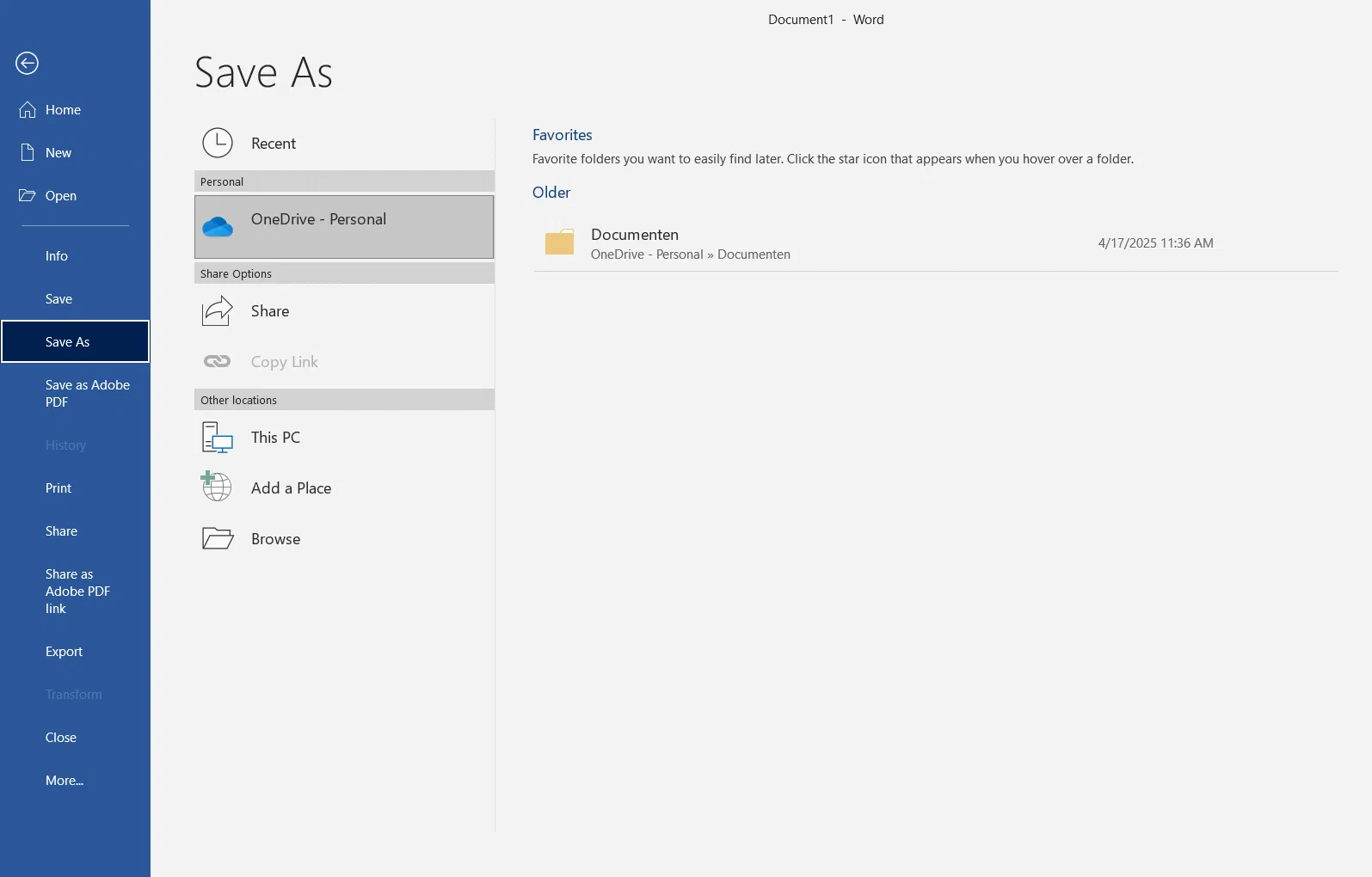
Word now has the copy open. Your original is closed and stays as it was at its last save. F12 opens the classic Save As dialog directly.
Two things to watch. First, with Save As, any unsaved edits go into the copy, not the original. Second, with Save a Copy on a cloud file, Microsoft recommends you make the copy before editing: AutoSave has already saved your edits to the original by the time you look for the menu.
Open as Copy
Open as Copy creates the duplicate first and opens it, so you cannot touch the original by accident.
- In Word, click File > Open > Browse.
- Find the document and click it once.
- Click the small arrow next to the Open button.
- Select Open as Copy.
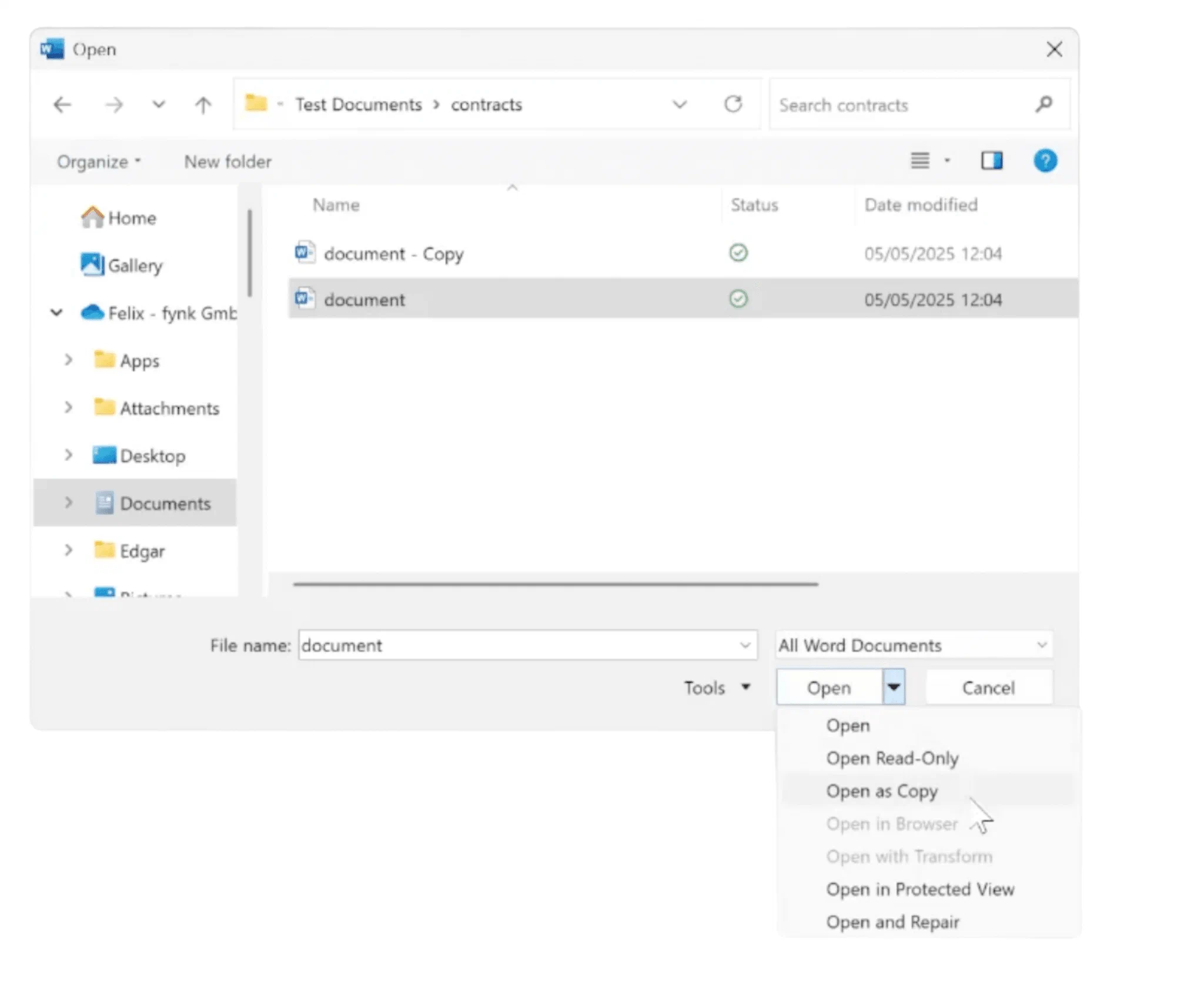
Word creates a new file in the same folder, named something like Copy (1)Document.docx, and opens it. Rename it with Save As if you want a cleaner name.
Tip: if you want Word to keep a safety copy of every file automatically, go to File > Options > Advanced, scroll to Save and tick Always create backup copy. Word then keeps the previous version as Backup of Document.wbk next to the original each time you save.
How to duplicate a Word document on a Mac
Duplicate in Finder
- Open Finder and go to the Word file.
- Right-click (or Control-click) the file.
- Select Duplicate. The shortcut is ⌘ + D.
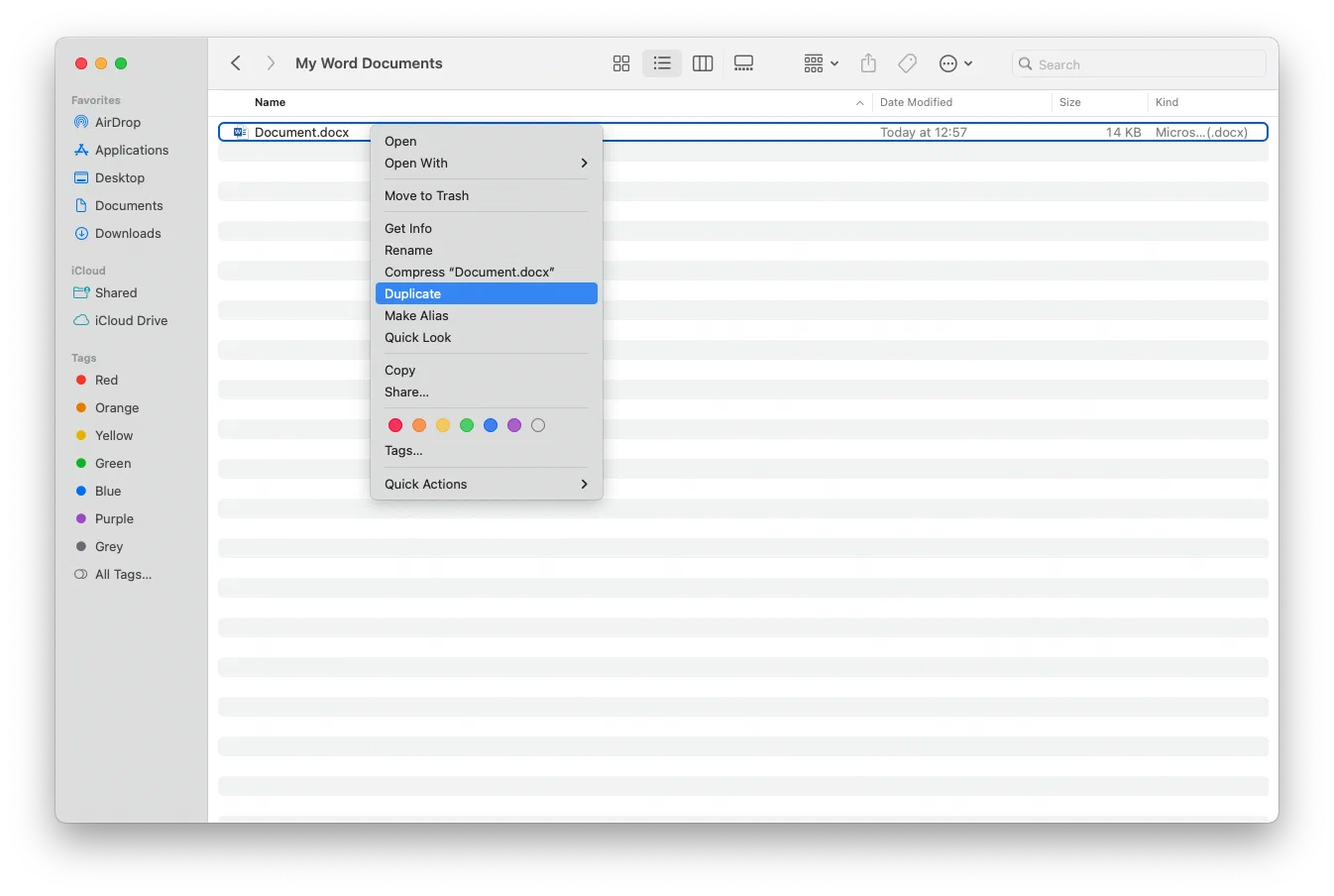
The copy appears next to the original as Document copy.docx. You can also use ⌘ + C and ⌘ + V to paste a copy into another folder, or hold Option while you drag the file to a new folder.
Save As or Save a Copy in Word for Mac
- Open the document in Word.
- Click File > Save As (⌘ + Shift + S). For a file in OneDrive or SharePoint with AutoSave on, the entry is File > Save a Copy.
- Type a new name and choose a folder.
- Click Save.
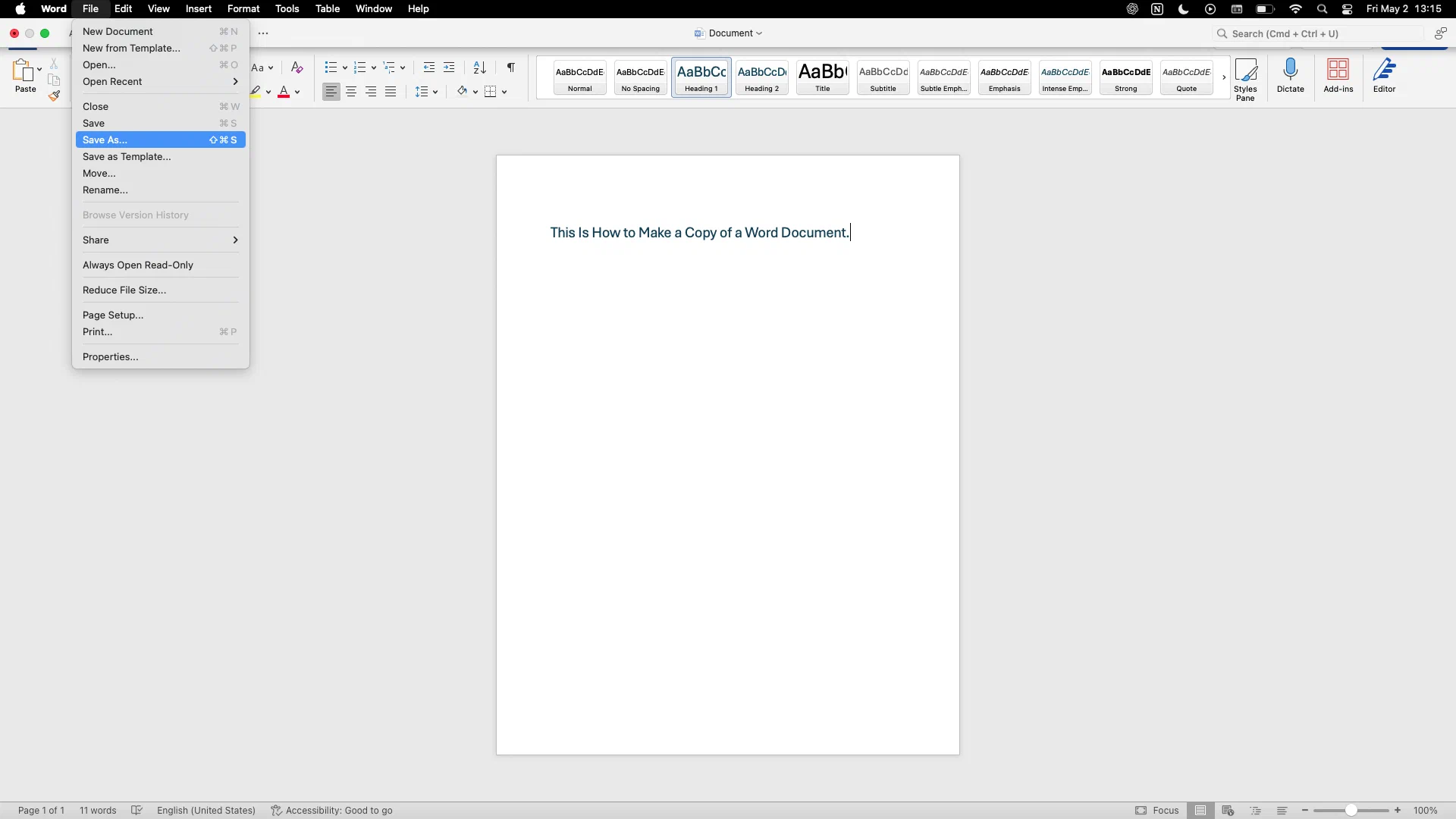
Caveat on version history: File > Browse Version History in Word for Mac only lists versions for files stored in OneDrive or SharePoint. For a document saved on your Mac, Word keeps no older versions, so a copy (or Time Machine) is your only way back.
How to make a copy in Word for the web
Word for the web saves to OneDrive automatically, so there is no Save As button. The copy command sits in the File menu.
- Open the document at office.com or in OneDrive.
- Click File > Create a Copy. In some layouts it appears under File > Save as.
- Choose Create a copy online to save a duplicate in OneDrive, or Download a copy to save a .docx to your computer.
- Name the copy and confirm the folder.
How to copy a Word document in OneDrive, SharePoint or Teams
When the file is in the cloud, you can copy it without opening it.
- Open the folder in OneDrive, SharePoint or the Files tab in Teams.
- Select the document, or click the ⋯ menu next to it.
- Click Copy to.
- Pick the destination folder or library and confirm.
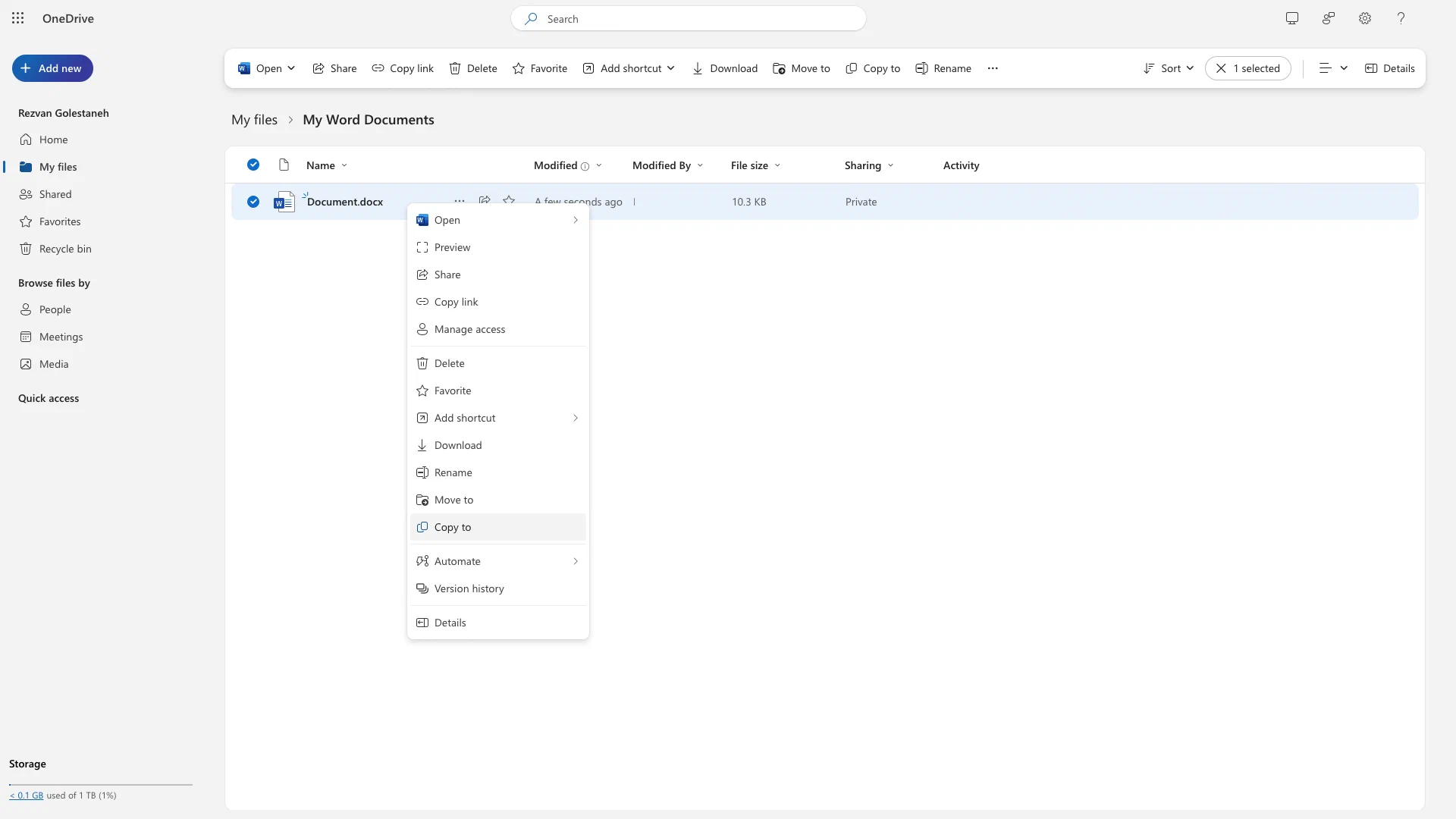
If a file with the same name exists in the destination, OneDrive adds a number to the new one. The copy starts with its own, empty version history. If you use the OneDrive app on your computer, the synced folder behaves like any other folder: copy and paste in File Explorer or Finder works the same way.
How to make a copy on iPhone, iPad and Android
In the Word app
- Open the document in Word.
- Open the File menu: the ⋯ icon or the File button, depending on your device.
- Tap Save a Copy.
- Choose a location (OneDrive, iCloud Drive, or the device), enter a name, and tap Save a Copy.
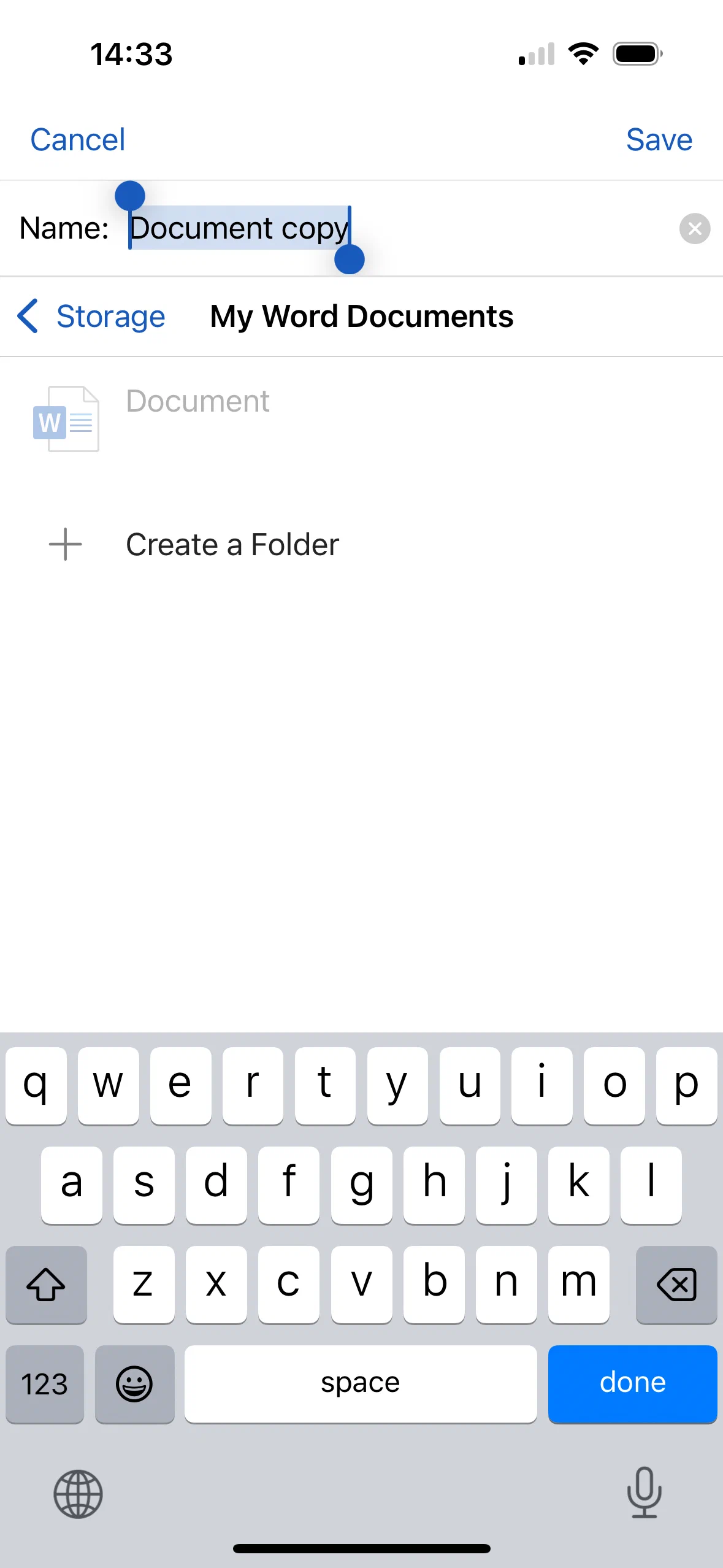
On the mobile apps Microsoft has replaced Save As with Save a Copy, and the apps save as you type. Make the copy before you edit.
In the Files app (iPhone and iPad)
Long-press the document in Files and tap Duplicate. The copy appears in the same folder. On Android, most file managers (such as Files by Google or Samsung My Files) let you long-press the file and choose Copy or Copy to.
How to copy one page or the whole contents into a new document
Word has no “duplicate page” button, because pages are not separate objects. Copy the content instead.
- Click at the start of the page, then Shift-click at the end of it. For the whole document, press Ctrl + A (⌘ + A on Mac).
- Press Ctrl + C (⌘ + C).
- Create a new document with Ctrl + N (⌘ + N), or place the cursor where the duplicate page should go and press Ctrl + Enter for a page break.
- Press Ctrl + V (⌘ + V). If formatting shifts, click the Paste Options icon and choose Keep Source Formatting.
Copy-paste does not always bring headers, footers, margins and page orientation with it. If those matter, copy the whole file with one of the methods above and delete what you don’t need.
How to make a template copy (.dotx)
If you copy the same document every week (an offer letter, an NDA, a report), save it once as a template. Opening a template always creates a new, untitled document, so the master never gets overwritten.
- Open the document and remove anything deal-specific.
- Click File > Save As and set Save as type to Word Template (*.dotx). On a Mac, use File > Save as Template.
- Save it in the suggested Custom Office Templates folder.
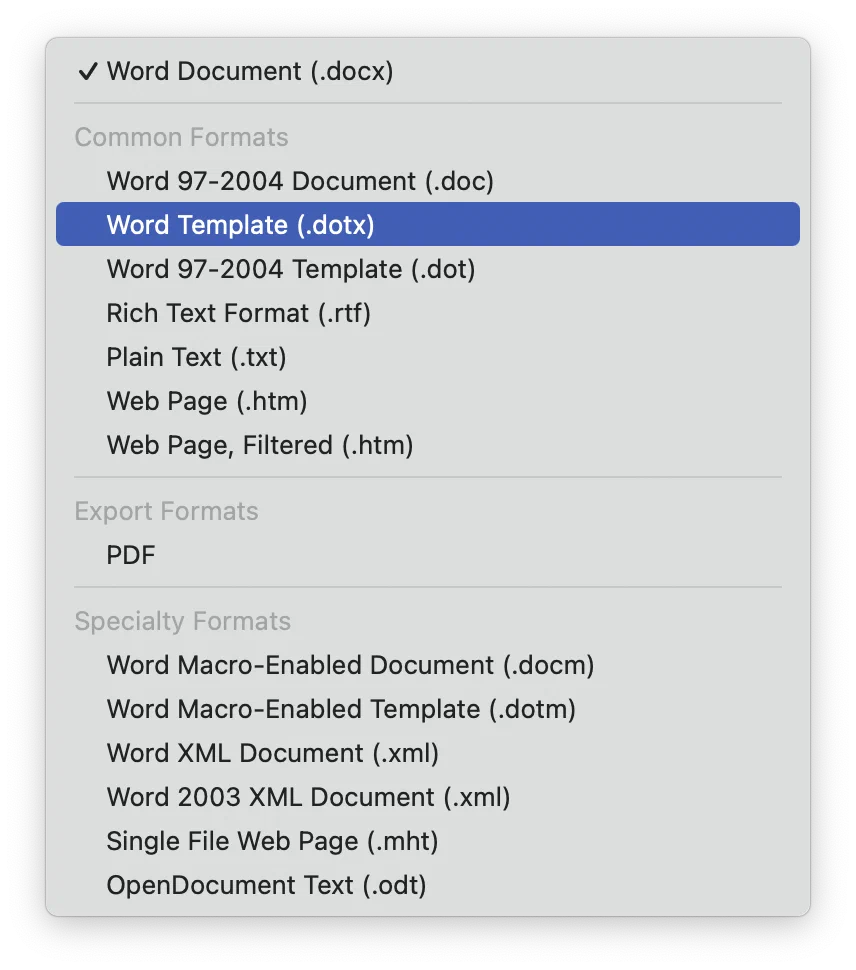
To use it, go to File > New > Personal on Windows or File > New from Template on a Mac, and pick your template. Double-clicking the .dotx file in File Explorer or Finder does the same.
Common problems when copying a Word document
Save As is missing from the File menu. The file is in OneDrive or SharePoint and AutoSave is on. Use File > Save a Copy, or switch AutoSave off with the toggle at the top left of the window and Save As comes back.
AutoSave overwrote the original. Restore an earlier version. On Windows, click the file name at the top of the window, select Version History, open the version you want and click Restore. On a Mac, use File > Browse Version History. This only works for files in OneDrive or SharePoint.
The copy opens read-only. Files from email or the internet open in Protected View: click Enable Editing in the yellow bar. If the bar says the file is read-only, right-click it in File Explorer, choose Properties and clear Read-only, or save it under a new name with Save As.
The copy still contains comments, tracked changes or your name. Copying never removes them. Before you send a copy outside your company, go to File > Info > Check for Issues > Inspect Document, run the inspection and click Remove All for what you want gone. If the file carries tracked changes you still need, settle them first, the same way you would when you redline a Word document.
You can’t find the copy. Look in the original’s folder first (Paste, Duplicate and Open as Copy all put the copy there). Then check File > Open > Recent in Word, or search for part of the name in Windows Search or Spotlight.
Copying contracts in Word creates version chaos
Duplicating a Word file is the standard way to start a new contract from an old one. It is also how teams end up with NDA_final_v3_JS.docx in five inboxes, an outdated clause in a signed deal, and nobody sure which copy is current. Word has no idea which copy is the approved one.
In fynk you build or import a contract as a template once, then create each new contract from it. Document templates carry dynamic fields for names, dates and prices, so nobody copies an old deal and forgets to change a value, and everyone works from the same approved version. When the contract is ready, you can also sign it electronically.
Turn your best contracts into templates.
Use them forever.
Frequently asked questions
Copy the file without opening it. On Windows, select it in File Explorer and press Ctrl + C, then Ctrl + V. On a Mac, select it in Finder and press Command + D. Both create a copy in the same folder in under a second.
When a document is stored in OneDrive or SharePoint and AutoSave is on, Word replaces Save As with Save a Copy. It works the same way: it creates a new file under a new name. Make the copy before you edit, because AutoSave saves your changes to the original as you type.
Open the document and click File > Save As, or File > Save a Copy if the file is in OneDrive or SharePoint with AutoSave on. Pick a folder, type a new name and click Save. Word opens the copy and leaves the original as it was at its last save.
Select the file in Finder and press Command + D, or right-click it and choose Duplicate. macOS puts Document copy.docx in the same folder. If the file is already open in Word, use File > Save As (Command + Shift + S) instead.
Not inside Word itself. Outside it, press Ctrl + C and then Ctrl + V in File Explorer on Windows, or Command + D in Finder on a Mac. Inside Word, F12 opens Save As on Windows and Command + Shift + S does the same on a Mac.
Use Open as Copy on Windows (File > Open > Browse, then the arrow next to Open), duplicate the file in File Explorer or Finder before opening it, or use File > Save a Copy before you make any edits. All three leave the original untouched.
Word has no duplicate page command. Select the content of the page, copy it with Ctrl + C, insert a page break with Ctrl + Enter where the copy should go, and paste with Ctrl + V. Use Keep Source Formatting in the Paste Options if the layout shifts.
Yes, if the file is in OneDrive or SharePoint. Click the file name at the top of the Word window, select Version History, open an earlier version and click Restore. On a Mac, use File > Browse Version History. Files stored only on your computer have no version history in Word.
Yes. A copy is identical to the original, including comments, tracked changes and document properties such as the author name. Use File > Info > Check for Issues > Inspect Document to remove them before you share the copy.
In the Word app for iPhone, iPad or Android, open the document, tap File and choose Save a Copy, then pick a location and name. On iPhone and iPad you can also long-press the file in the Files app and tap Duplicate.
Please keep in mind that none of the content on our blog should be considered legal advice. We understand the complexities and nuances of legal matters, and as much as we strive to ensure our information is accurate and useful, it cannot replace the personalized advice of a qualified legal professional.




Get a regular dose of insightful contract management content


Take control of your agreements. Move your business forward.
Run agreements the way they should run: fast, clear, and on your terms.
No setup headaches
Go live in days, not quarters
No lock-in
Full export anytime
No hidden fees
Signatures included, no envelope fee