
How to redline a Word document

Rezvan Golestaneh
Updated · Published · 10 min read
Word has no button called “redline”. Redlining in Word means Track Changes, comments and Compare. This guide shows each step on Windows, Mac and Word for the web.
- Turn on Track Changes, pick a markup view, and add comments
- Accept or reject edits, and lock tracking with a password
- Create a redline after the fact by comparing two versions
- Print or save the redline as a PDF, and avoid the mistakes that leak hidden edits
To redline a Word document, turn on Track Changes and edit as usual:
- Open the Review tab and click Track Changes, or press Ctrl + Shift + E (Windows) or ⌘ + Shift + E (Mac).
- Set the view to All Markup so every insertion, deletion and comment is visible.
- Edit the text. Word underlines what you add, strikes through what you delete, and marks each change with your name.
- Add comments with Review > New Comment (Ctrl + Alt + M on Windows, ⌘ + Option + A on Mac).
Received two versions and nobody tracked changes? Use Review > Compare to generate the redline automatically.
- Redline
- A redline is a version of a document that shows every proposed change against the previous text: additions underlined, deletions struck through, usually in red. The name comes from the red ink lawyers used on paper drafts. In Word, the redline is produced by Track Changes or by Compare. More background in our guide on what redlining is.
Track Changes, Compare or a contract tool?
| Track Changes | Compare | Red font and strikethrough by hand | Contract tool such as fynk | |
|---|---|---|---|---|
| When to use it | You edit the document yourself | You have two versions and need to see what changed | Never for anything you need to negotiate | Contracts negotiated with a counterparty |
| Records who changed what | Yes, name and time per change | Only the name you set in the Compare dialog | No | Yes, every edit, suggestion and comment |
| Counterparty can accept or reject | Yes | Yes, in the comparison document | No, every change has to be undone by hand | Yes |
| Catches edits made with tracking off | No | Yes | No | Yes, everyone edits one shared version |
| Available in | Word desktop, web and mobile | Word desktop for Windows and Mac | Anywhere | Browser, no Word needed |
How to redline in Word on Windows
Step 1: Turn on Track Changes
- Open the document.
- Click the Review tab.
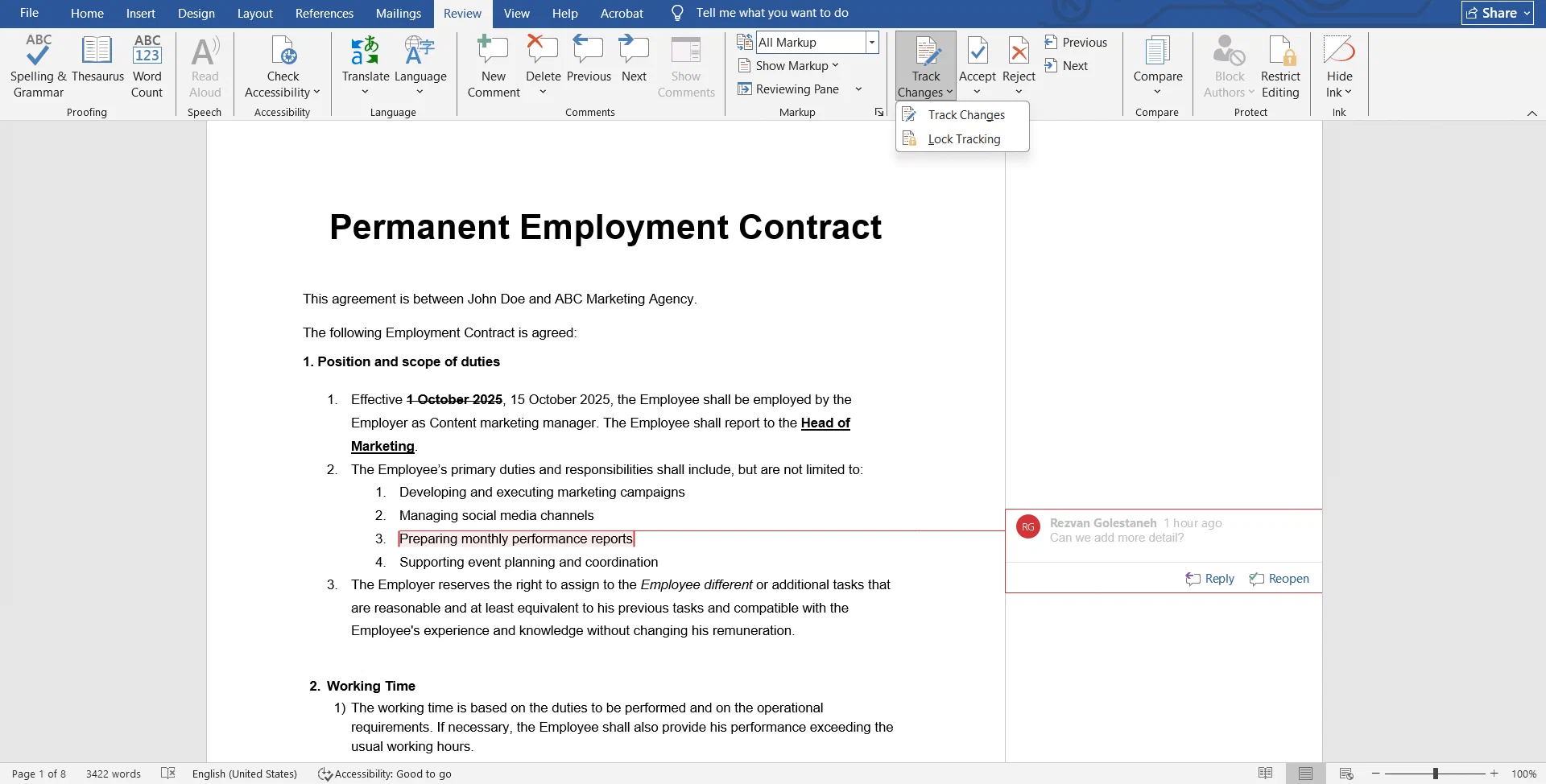
- Click Track Changes. The button stays highlighted while tracking is on. The shortcut is Ctrl + Shift + E.
- In current Microsoft 365 versions, the arrow under the button lets you choose For Everyone or Just Mine. Choose For Everyone for a redline you will send out.


Before you start, check that your edits carry the right name. Go to File > Options > General and set User name and Initials under Personalize your copy of Microsoft Office. Tick Always use these values regardless of sign in to Office if your account shows a different name.
Step 2: Choose a markup view
The view drop-down sits in the Tracking group next to Track Changes. It only changes what you see, not what is in the file.
| View | What it shows | Use it for |
|---|---|---|
| Simple Markup | The edited text with a red bar in the margin wherever something changed | Reading the current wording |
| All Markup | Every insertion, deletion, formatting change and comment, in colour | Reviewing, and before you save, print or send a redline |
| No Markup | The document as if all changes were accepted | Checking how the final version reads |
| Original | The document as if all changes were rejected | Checking what the text said before |
Use Show Markup to filter what appears: comments, insertions and deletions, formatting, or changes from Specific People.
Step 3: Edit and comment
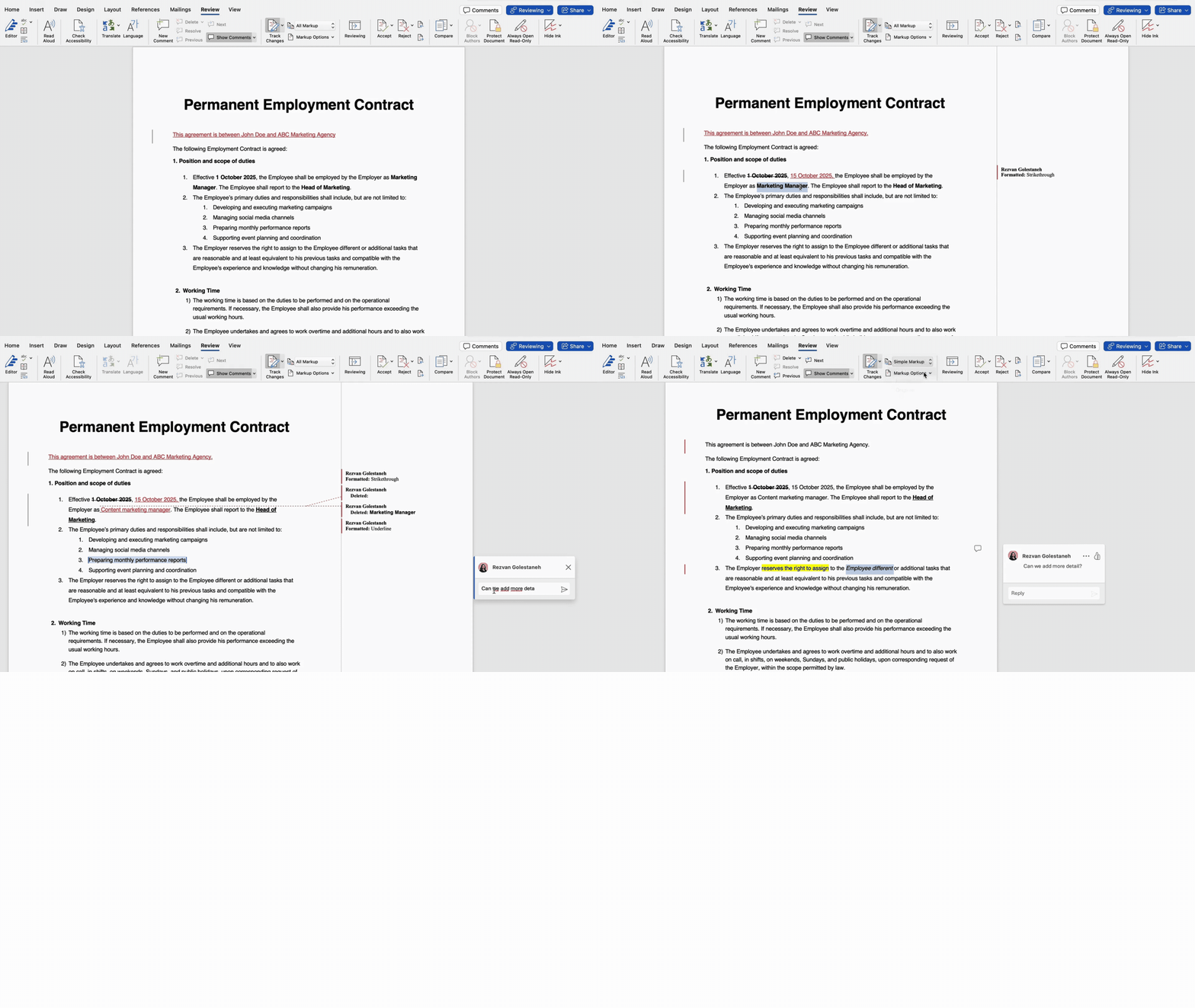
- Insert text: type. Word underlines it in your reviewer colour.
- Delete text: press Delete or Backspace. Word strikes it through instead of removing it.
- Change formatting: bold, font or spacing changes are tracked too and appear in the margin.
- Add a comment: select the text, then Review > New Comment (Ctrl + Alt + M). Use comments to explain why you changed a clause.
To change the colours, open the small arrow at the bottom right of the Tracking group and click Advanced Options.
Step 4: Accept or reject changes
When the redline comes back, work through it from the top:
- Click at the beginning of the document.
- On the Review tab, use Next to jump to the first change.
- Click Accept to keep it or Reject to restore the original text. Word moves to the next change.
- To finish in one go, open the Accept drop-down and choose Accept All Changes, or the Reject drop-down and choose Reject All Changes.
- Resolve or delete the comments (Review > Delete > Delete All Comments in Document).
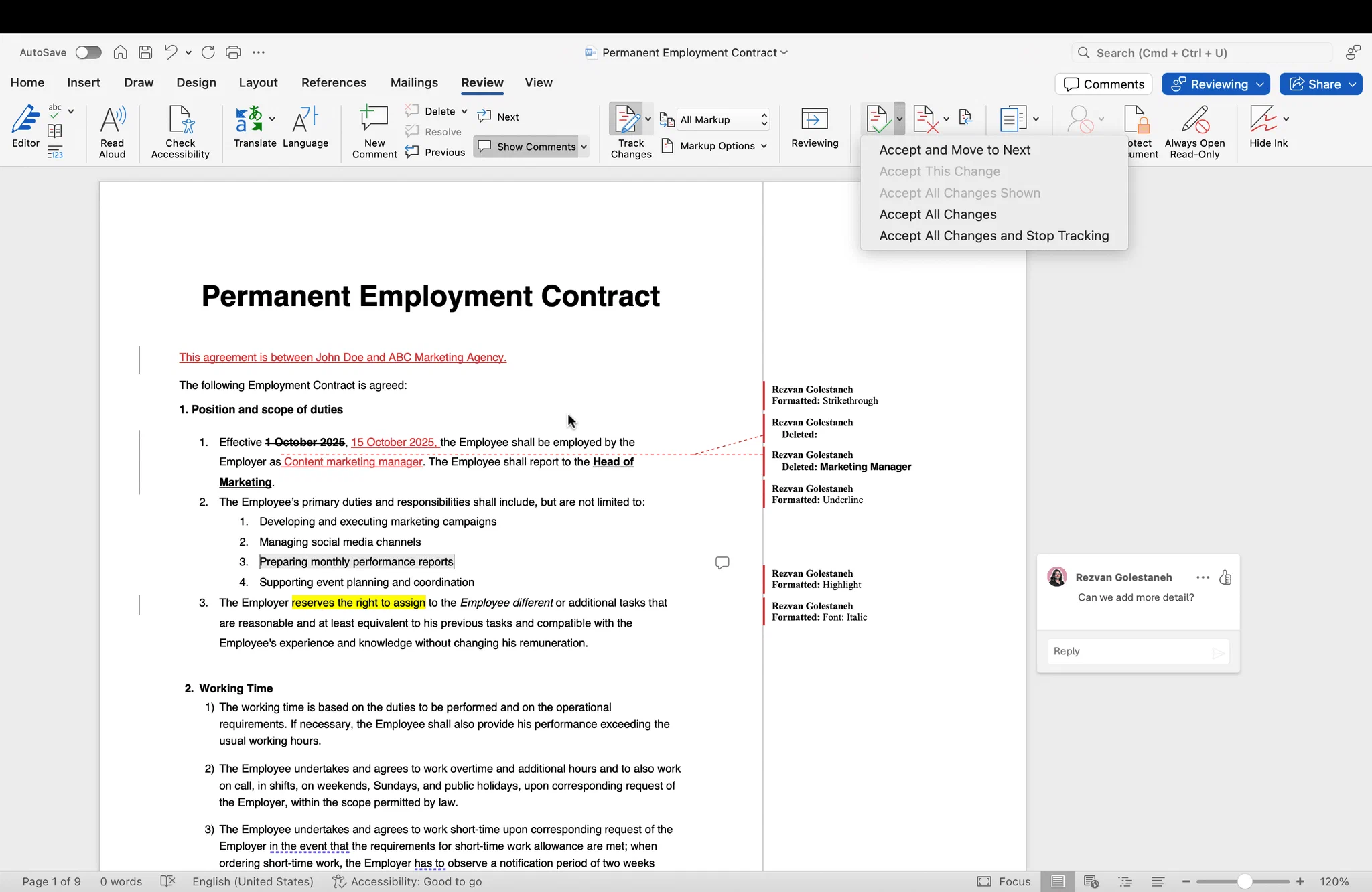
Switching to No Markup does not accept anything. Microsoft notes that the changes reappear the next time someone opens the file. Only Accept and Reject remove them.
Step 5: Lock tracking with a password
Lock tracking so a reviewer can’t switch Track Changes off and edit silently.
- On the Review tab, click the arrow under Track Changes.
- Select Lock Tracking.
- Enter a password twice and click OK.
While tracking is locked, nobody can turn it off or accept and reject changes until it is unlocked with the same password. Word cannot recover a lost password, so store it somewhere safe. For stronger control, Restrict Editing (on the same tab) lets you allow only tracked changes for the whole document.
How to compare two Word documents to create a redline
Compare is the answer when someone sends back a “clean” version, edits with tracking off, or you only have the old and new files. Word reads both and builds a third document that shows every difference as tracked changes.
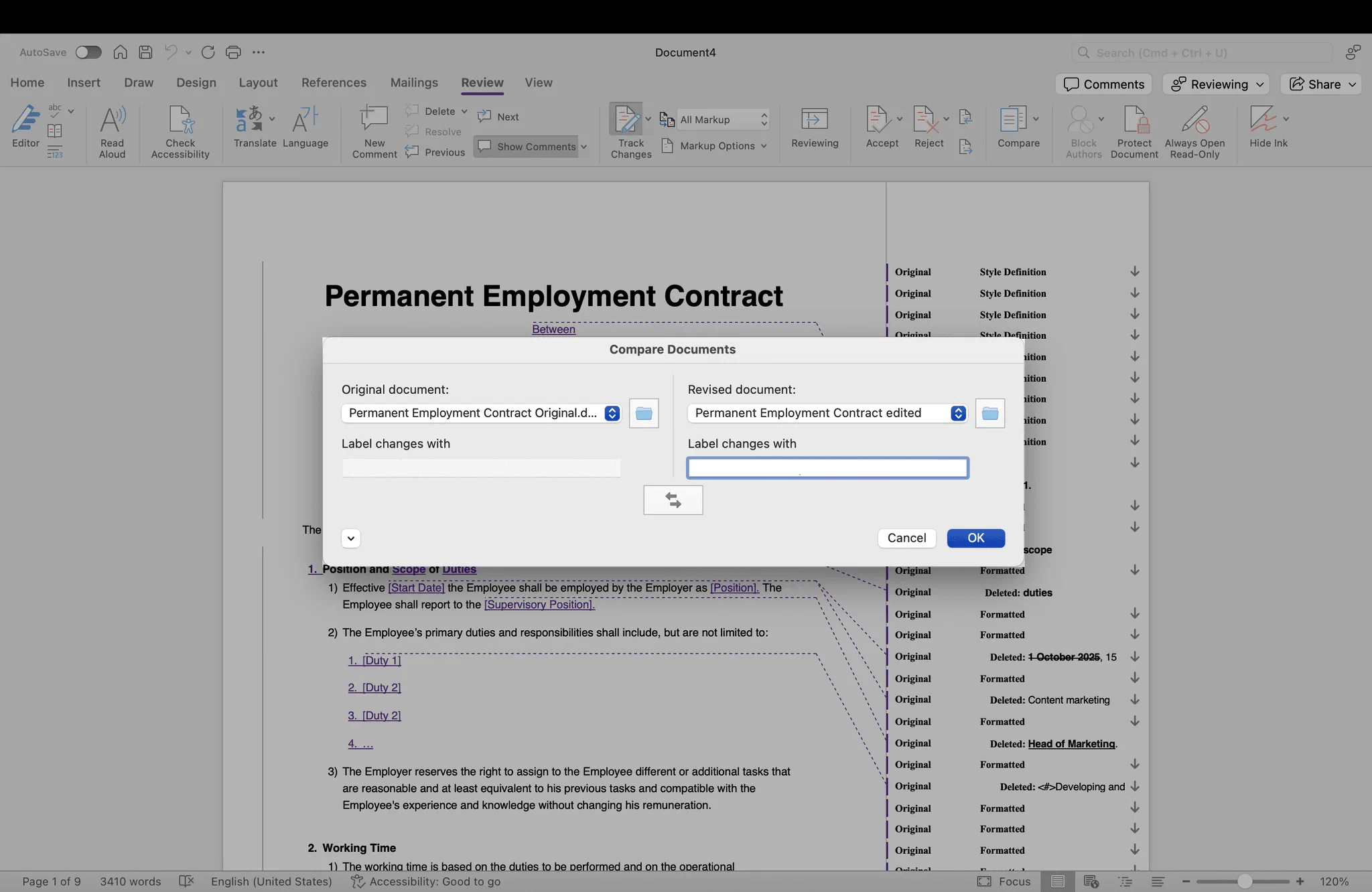
- Open Word and go to Review > Compare > Compare (on a Mac: Review > Compare > Compare Documents).
- Under Original document, select the earlier version.
- Under Revised document, select the newer version.
- In Label changes with, type the name the changes should be attributed to, for example the counterparty.
- Click More to choose what to compare and set Show changes in to New document, then click OK.
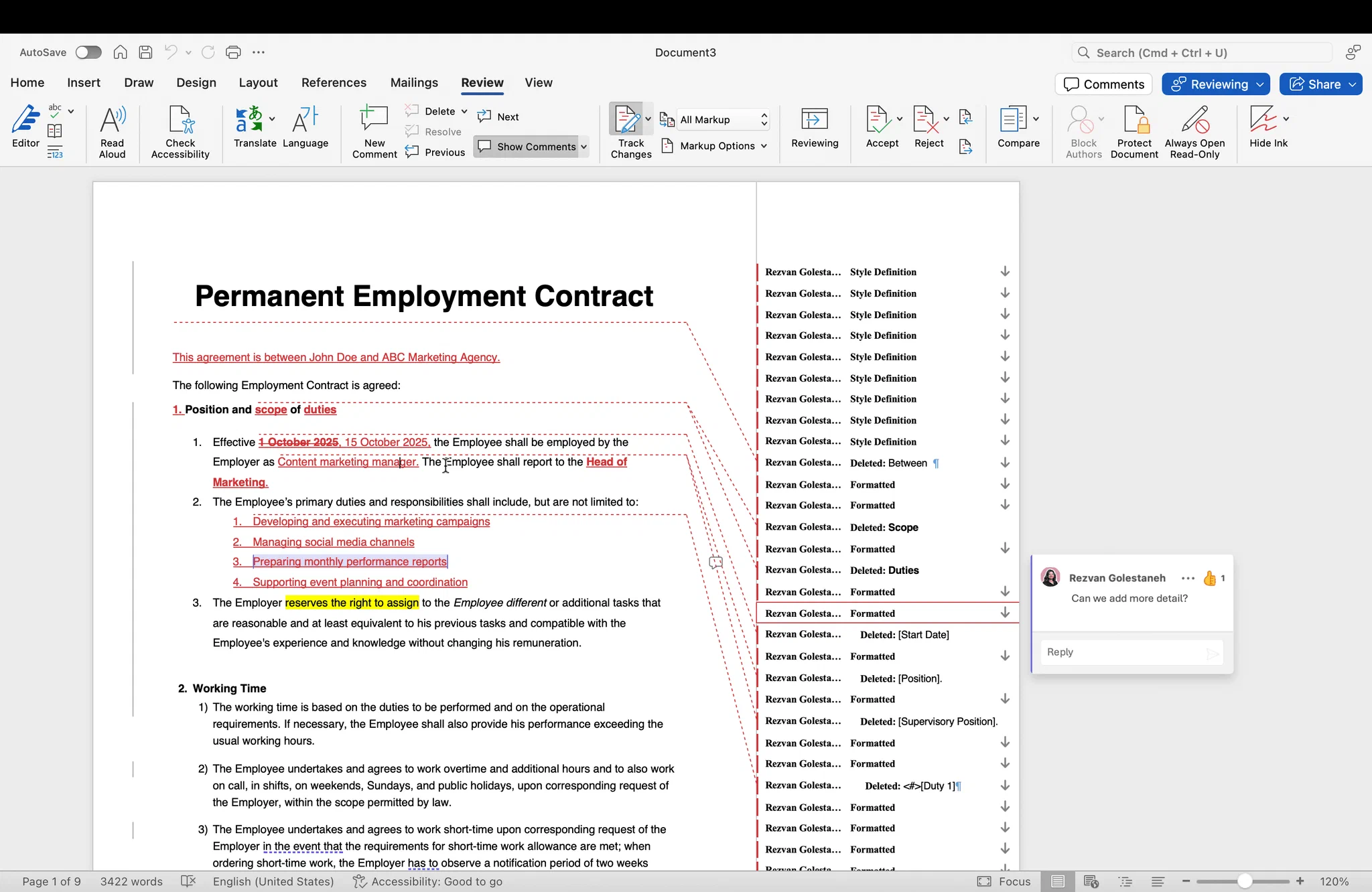
The comparison document opens with the redline in the middle, and Word can show both source files beside it (Compare > Show Source Documents). Accept, reject and comment as with any tracked document.
If either file already contains tracked changes, Word warns you and treats them as accepted for the comparison. Accept or reject them in the source files first if you want a clean result. To merge edits from several reviewers into one file, use Review > Compare > Combine instead.
How to redline in Word for Mac
Word for Mac works the same way with small differences:
- Track Changes: Review > Track Changes, or ⌘ + Shift + E.
- Views and filters: the markup drop-down and Markup Options sit on the Review tab. Reviewer colours and balloon settings are under Markup Options > Preferences.
- Comments: Review > New Comment, or ⌘ + Option + A.
- Lock tracking: go to Review > Protect Document, enter a password, tick Protect document for and choose Tracked changes.
- Your reviewer name: Word > Preferences > User Information.
- Compare: Review > Compare > Compare Documents.
How to redline in Word for the web
Word for the web supports Track Changes, comments and accept or reject, which covers most reviews.
- Open the document from OneDrive, SharePoint or Teams.
- Click Review > Track Changes and choose For Everyone or Just Mine. Alternatively, switch the editing mode at the top right from Editing to Reviewing: everything you type is then tracked.
- Edit and comment as on the desktop.
- Use Accept and Reject in the Review tab to resolve changes.
The web version offers fewer markup views and settings, and it has no Compare or Lock Tracking. Click Open in Desktop App (under the editing mode menu) when you need those. In the Word apps for iPhone, iPad and Android you can turn on Track Changes, comment, and accept or reject changes from the Review menu, but advanced settings are missing.
How to print or save a redline as a PDF
Many counterparties want a read-only redline. Word prints and exports what the current view shows, so set the view first.
- Set the markup view to All Markup and check Show Markup > Specific People > All Reviewers.
- To save as PDF on Windows: File > Save As, set the file type to PDF, click Options and under Publish what select Document showing markup. Then click Save.
- To print on Windows: File > Print, open the first box under Settings and make sure Print Markup is ticked. List of Markup prints only the changes.
- On a Mac: File > Save As and choose PDF, or File > Print > PDF > Save as PDF with All Markup showing.
Open the PDF before you send it. If the comments or strikethroughs are missing, the view was not set to All Markup.
Common redlining mistakes
Sending a document with hidden markup. A file viewed in Simple or No Markup still contains every tracked change and comment, including internal ones like “we can go lower on price”. Before a clean version goes out, accept or reject all changes, delete all comments and run File > Info > Check for Issues > Inspect Document. Word can also warn you: File > Options > Trust Center > Trust Center Settings > Privacy Options > Warn before printing, saving or sending a file that contains tracked changes or comments.
Leaking metadata. Author names, company names, and the time of every change travel with the file. The Document Inspector removes document properties and personal information. It cannot undo what a counterparty already received.
Editing with tracking off. One untracked edit makes the whole redline unreliable. Lock tracking before you send a draft out, and run Compare against your last version when a draft comes back.
Tracking only your own changes. Just Mine records your edits but not those of co-authors in the same file. Use For Everyone for a negotiation draft.
Redlining by hand. Colouring text red and applying strikethrough looks like a redline but isn’t one. The other side can’t accept or reject anything, and nobody can tell who changed what.
Losing track of versions. Each round adds a file: MSA_v4_redline_JS.docx, MSA_v4_clean.docx, and so on. Name versions consistently, keep the redline and the clean copy together, and see our guide on making a copy of a Word document for safe ways to branch a draft.
Redlining contracts without the Word file ping-pong
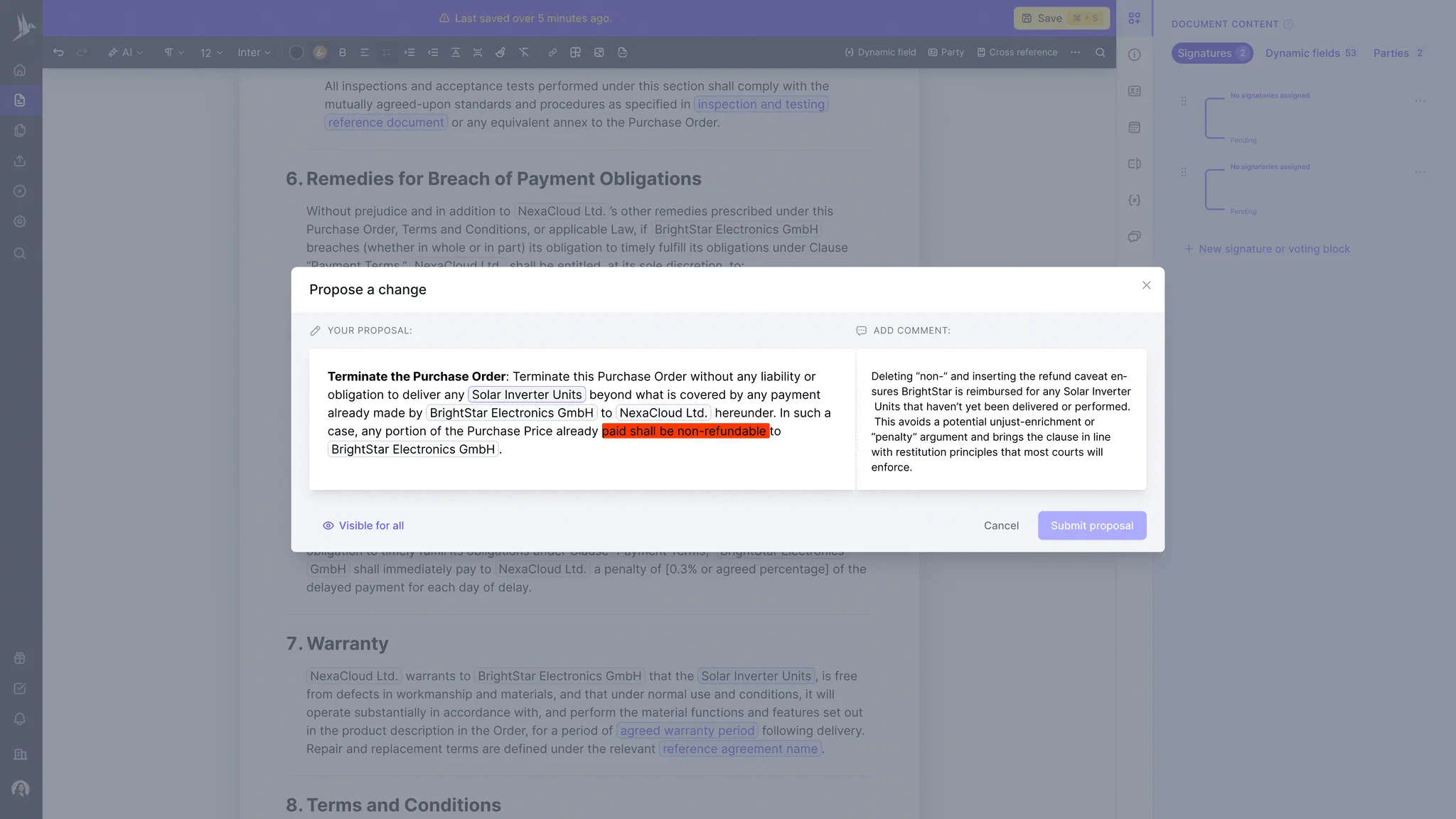
Word redlining works, but for contracts it means emailing files back and forth, re-running Compare after every round, and hoping nobody edited with tracking off. In fynk’s redlining, the negotiation happens in one shared document instead:
- Live suggestions: propose a change in the text and the other side sees it immediately. You accept or reject each one.
- One version: everyone works in the same document, so there is no
v2_final_FINAL.docx. - Full history: every edit, suggestion and comment is logged with a name and timestamp.
- External access by link: counterparties review and comment without creating an account.
- Internal comments stay internal: in privacy mode, your team’s threads are invisible to the other party.
- Word in, Word out: the DOCX importer brings in a counterparty’s Word draft including redlines and comments, and you can export the contract as Word or PDF at any time.
- Version comparison: compare any two versions side by side to see exactly what changed before you sign.
Negotiate in one document.
Not in five.
Frequently asked questions
Open the Review tab and click Track Changes, or press Ctrl + Shift + E on Windows or Command + Shift + E on a Mac. From then on, Word marks every insertion, deletion and formatting change with your name. Set the view to All Markup to see them all.
To redline properly, turn on Track Changes and delete the text: Word strikes it through in colour and the reviewer can accept or reject it. If you only want the look, select the text and apply Strikethrough (Home tab) and a red font colour, but that is formatting, not a tracked change.
Yes. Go to Review > Compare > Compare, select the original and the revised document, and click OK. Word creates a new document that shows every difference as tracked changes. Compare is available in Word for Windows and Mac, not in Word for the web.
On Windows, open the arrow under Track Changes on the Review tab, choose Lock Tracking and set a password. On a Mac, use Review > Protect Document and protect the document for tracked changes. Nobody can turn tracking off or accept changes without the password.
Set the view to All Markup, then use File > Save As, choose PDF, click Options and select Document showing markup. When printing, make sure Print Markup is ticked under Settings. Check the PDF before you send it.
No. No Markup only hides the changes on your screen. They stay in the file and reappear when someone else opens it. To remove them, accept or reject all changes and delete the comments, then check the file with the Document Inspector.
On Windows, go to File > Options > General and change User name and Initials, and tick Always use these values regardless of sign in to Office. On a Mac, go to Word > Preferences > User Information. The new name applies to changes you make from then on.
Please keep in mind that none of the content on our blog should be considered legal advice. We understand the complexities and nuances of legal matters, and as much as we strive to ensure our information is accurate and useful, it cannot replace the personalized advice of a qualified legal professional.




Get a regular dose of insightful contract management content




Take control of your agreements. Move your business forward.
Run agreements the way they should run: fast, clear, and on your terms.
No setup headaches
Go live in days, not quarters
No lock-in
Full export anytime
No hidden fees
Signatures included, no envelope fee